Set Up WordPress Recovery Mode Email Before a Crash Happens
The Recovery Mode link only helps if its email reaches you. Check the admin address, ask your host about server mail and keep a plan B ready.
The short answer
WordPress Recovery Mode emails a special login link when a fatal PHP error happens on a regular page load. The RECOVERY_MODE_EMAIL constant in wp-config.php wins when it is defined; otherwise WordPress uses the Administration Email Address. Check the active destination, make sure WP_DISABLE_FATAL_ERROR_HANDLER is not true, and ask your host whether mail sent without plugins is filtered or blocked.
Reading options
On this page
WordPress Recovery Mode can get you back into a site after a plugin or theme crash, but only if its email reaches you. By default, WordPress sends that message to the Administration Email Address. A site can override the destination with the RECOVERY_MODE_EMAIL constant in wp-config.php, so check both places while the site still works.
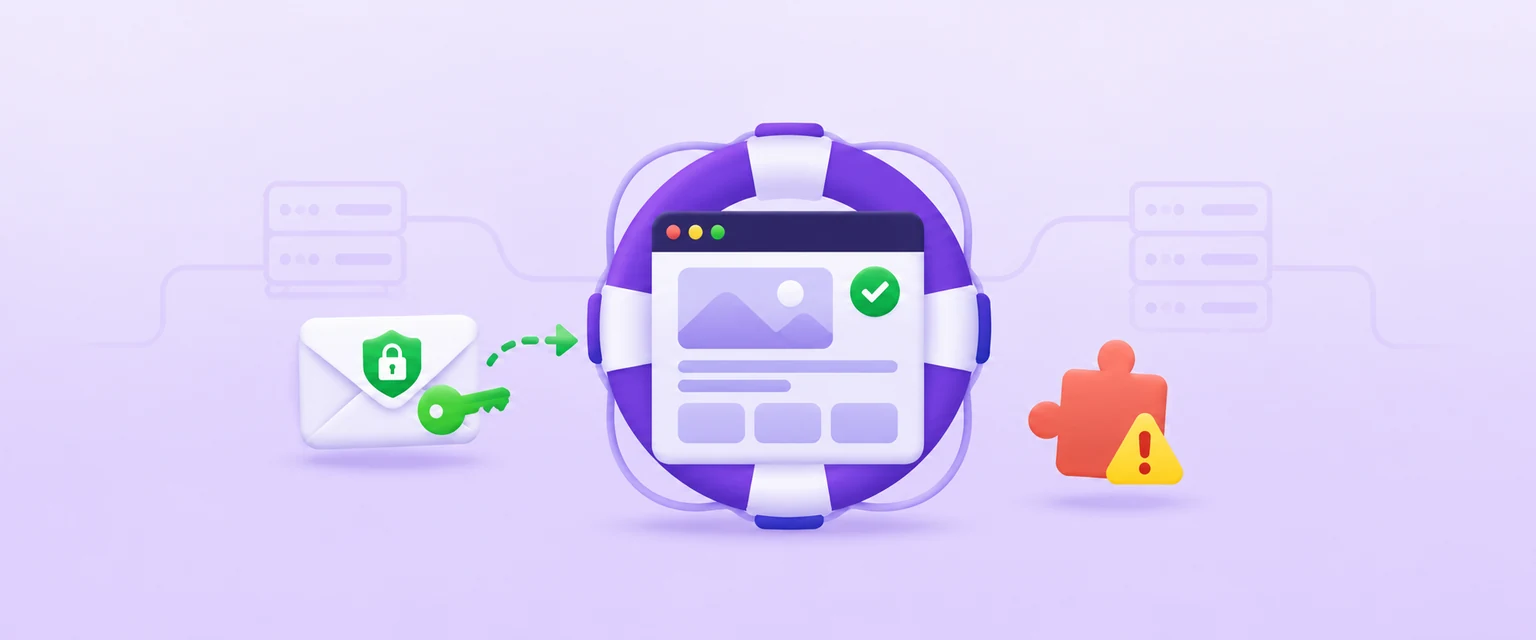
Here is the part that surprises most site owners. The official Recovery Mode page explains that if the crash happens before your email plugin loads, WordPress sends the message straight from the web server, skipping the mail service you set up, and that message can land in spam or be blocked completely.
By the end of this guide, you will know where your recovery email goes, whether it can arrive, and exactly what to do if it never shows up.
What is the Recovery Mode email, really?
Recovery Mode is a built-in WordPress feature, added in version 5.2. It starts when WordPress detects a fatal PHP error, which is an error that stops PHP from finishing the page, during a regular page load.
When that happens, visitors see a short message instead of a blank page. The wp-config documentation shows the wording: "The site is experiencing technical difficulties. Please check your site admin email inbox for instructions."
At the same time, WordPress emails details about the error and a special login link to RECOVERY_MODE_EMAIL when that constant is defined, or to the Administration Email Address otherwise. When you open that link and log in, the broken plugin or theme is paused, but only for your own admin session.
The pause works with a cookie, which is a small note your browser keeps. The WordPress core team explained in 2019 that the cookie lives on the browser that opened the link, so everyone else still sees the broken site until you fix it.
Think of it like a spare house key you leave with a neighbour. It is a great plan, until the neighbour moves away and nobody told you. The Administration Email Address is that neighbour, and most people set it once during installation and never look at it again.
Why this matters: Recovery Mode does not start for errors in CRON jobs or other background tasks. CRON here means the scheduled tasks WordPress runs on its own, such as publishing a planned post. So the email covers crashes that happen when someone loads a page, and it is silent about the rest.
Before you start
You do not need much, and nothing here takes the site offline. Check this list first:
- Admin login: a working WordPress account with the Administrator role. The recovery link still asks you to log in, so this account matters as much as the email.
- File access: a way to open
wp-config.php, through cPanel File Manager or an FTP or SFTP program. FTP and SFTP are ways to move and edit files on your server from your computer. - WP-CLI (optional): the command line tool for WordPress. If your host gives you SSH access, it is the fastest way to check things.
- A backup: you will only change one setting and maybe one line in a file, but have a fresh copy anyway. Our guide on how to back up your site with an offsite copy and test the restore covers this.
- Time: about 20 to 30 minutes, plus waiting for one or two emails.
- Risk level: low. Every check below is read-only, except changing the email address and editing one line in
wp-config.php.
Heads up: do not trigger a fake crash on a live site to "test" Recovery Mode. If you want to see the real flow, do it on a staging copy. A staging copy is a private clone of your site made for testing.
Make sure the recovery email can reach you
Step 1: Check the Administration Email Address
This is the default address WordPress uses for site notifications. The WordPress documentation lists "recovery mode and fatal errors" among the notifications it receives, but RECOVERY_MODE_EMAIL in wp-config.php overrides it for Recovery Mode messages.
- Log in to your WordPress dashboard.
- Go to Settings > General.
- Find the field labelled Administration Email Address.
- Read the address slowly and ask yourself: do I open this inbox every day?
If you use WP-CLI, this command prints the same value without opening the dashboard.
wp option get admin_emailYou should see one email address, for example admin@example.com. Next, check whether wp-config.php defines a separate recovery address:
wp config has RECOVERY_MODE_EMAILIf the command reports that the constant exists, read its value:
wp config get RECOVERY_MODE_EMAILWhen the constant exists, that value receives Recovery Mode messages and takes priority over admin_email. When it is absent, WordPress falls back to the Administration Email Address. If either active address belongs to an old employee, a developer who left, or an inbox you do not recognise, correct it before you rely on Recovery Mode.
Heads up: this field is not your login email. The documentation is clear that the Administration Email Address is separate from the email on your user account, which you manage under Users > Profile.
If your site was first built by an agency or a freelancer, look extra closely. The WordPress documentation specifically warns that this address should point to one your organisation can access, because recovery and critical error notifications go there.
Step 2: Change the address and confirm it
If the address is wrong, change it from the same screen.
- In Settings > General, type the new address into Administration Email Address.
- Scroll down and click Save Changes.
- Look for the notice that the new address is pending confirmation.
- Open the new inbox and click the confirmation link in the email from WordPress.
Here is the catch most people miss. WordPress does not switch to the new address until you click that link, so until then the old address stays active. If the confirmation email never arrives, recovery emails keep going to the old address.
Quick tip: treat this confirmation email as your first delivery test. If it takes a long time or lands in spam, you have just learned something useful about how your site sends mail.
A good choice is a shared mailbox the business controls, such as a support or webmaster address that more than one person can read. A personal inbox works too, as long as someone checks it daily.
If your mailbox uses the same domain as your website, check how the server routes mail for that domain. Our guide on WordPress email on the same domain in cPanel walks through that setting.
Step 3: Make sure Recovery Mode is not switched off
WordPress has a setting that turns the whole feature off. It is called WP_DISABLE_FATAL_ERROR_HANDLER, and it lives in wp-config.php, the main configuration file in the root folder of your WordPress install.
Why this matters: the official wp-config documentation shows a debugging example that sets this value to true next to other debug settings. That example is meant for development, but snippets like it sometimes get pasted onto live sites and forgotten.
Open wp-config.php (see the cPanel and FTP steps further down) and search for WP_DISABLE_FATAL_ERROR_HANDLER. If you find a line that sets it to true, Recovery Mode is off.
The documentation's production example sets it to false, like this line.
define( 'WP_DISABLE_FATAL_ERROR_HANDLER', false ); // 5.2 and laterYou can also simply delete the line that sets it to true. Either way, save the file and load your homepage once to confirm the site still opens normally.
If you use WP-CLI, this command checks whether the constant is defined in wp-config.php at all.
wp config has WP_DISABLE_FATAL_ERROR_HANDLERThis second command prints its value if it is defined.
wp config get WP_DISABLE_FATAL_ERROR_HANDLERIf the second command prints true, Recovery Mode is disabled and you should change it as shown above.
While you have the file open, also look at WP_DEBUG. The WordPress debugging guide says debug tools are not recommended on live sites and are meant for local testing and staging. If you need to dig into an error log after an update, follow our guide on reading the WordPress debug log safely instead of leaving debug mode on.
Step 4: Ask your host about the server mail path
This is the step almost nobody does, and it is the one that matches a real crash. Remember the surprise from the start: if a fatal error happens before your SMTP plugin loads, the email leaves through the web server. SMTP is the standard way mail servers send email, and many sites use a plugin to send through a proper mail service.
So a normal test from your SMTP plugin only proves the good path. You also want to know about the path that runs without plugins.
This check is read only, so nothing is sent. Ask your host one direct question about outbound mail from your account, because the host can see the mail logs and you cannot.
Ask whether mail sent by PHP from this account reaches outside inboxes, or whether it is filtered or blocked.
Ask whether the server IP address your site uses is on any blocklist that mail providers check.
Heads up: a host can answer these questions without sending a test message from your site, so you avoid adding noise to your inbox.
If you do not have WP-CLI, you can still do every check in this step by asking your host. There is a ready message for this at the end of the guide.
If the email never comes: your plan B
Even with all of this in place, mail can fail. The official Recovery Mode page gives a fallback: deactivate the broken plugin by renaming its folder, for example from wp-content/plugins/hello-dolly to wp-content/plugins/hello-dolly-1. WordPress cannot find the renamed folder, so it stops loading that plugin.
Practise finding these places now, while the site works, but do not rename anything today.
Using cPanel File Manager
- Log in to cPanel and open Files > File Manager.
- Click Settings at the top and tick Show Hidden Files (dotfiles), then click Save.
- Open your site folder. For the main domain this is usually
public_html. - You should see
wp-config.phpthere, next to thewp-contentfolder. - Open
wp-content, thenplugins, and look at the folder names.
In a real emergency, you would click the plugin folder, click Rename in the toolbar, and add -1 to the end of the name. To edit wp-config.php, select it and click Edit.
Quick tip: the cPanel documentation says File Manager cannot edit a file larger than 1 MB. wp-config.php is normally far smaller, so this rarely matters, but now you know why the editor might refuse a big file.
Using FTP or SFTP
- Connect to your server with your FTP or SFTP program, using the details from your host.
- Open the WordPress root folder, the one that holds
wp-config.php. - Go into
wp-content/plugins. - Note which folder belongs to each plugin you care about.
The emergency move is the same: rename the suspect folder, reload the site, and see if it opens. Rename it back once the plugin is fixed or replaced.
Using WP-CLI
WP-CLI is often the calmest option in a crisis because it can load WordPress with plugins skipped. This read-only command lists your active plugins and should print a table of names, statuses and versions.
wp plugin list --status=activeIf one plugin broke the site, this command deactivates it. Replace hello with the real plugin slug from the list.
wp plugin deactivate helloYou should see a line like Success: Deactivated 1 of 1 plugins. If the site is so broken that WP-CLI itself fails while loading, add the global option that skips plugins.
wp plugin deactivate hello --skip-pluginsThe --all option deactivates every plugin, and --exclude keeps a comma-separated list of plugins running. This example deactivates everything except one plugin named hello.
wp plugin deactivate --all --exclude=helloFor a broken theme, this read-only command shows which theme is active.
wp theme list --status=activeTo switch to another installed theme, use wp theme activate with that theme's slug. This example uses the slug from the WP-CLI documentation.
wp theme activate twentysixteenNot sure WP-CLI is installed? The official install page says wp --info confirms it works.
How to check it worked
Run these checks now, and again after big changes such as a new developer or a host move.
- Recovery address: run
wp config has RECOVERY_MODE_EMAIL. If it exists, runwp config get RECOVERY_MODE_EMAIL; that value should be an inbox you control. If it is absent, runwp option get admin_emailor open Settings > General and confirm the active Administration Email Address has no pending-confirmation notice. - Off switch: run
wp config get WP_DISABLE_FATAL_ERROR_HANDLER, or searchwp-config.php. Expected result: the constant is missing or set tofalse, nevertrue. - Constant defined: run
wp config has WP_DISABLE_FATAL_ERROR_HANDLER. Expected result: it only tells you whether the constant exists inwp-config.php, so use the previous check to read its value. - Admin logins: run the command below. Expected result: at least one administrator account whose password you know and can use today.
- Plan B: you can name the folder of your most important plugins and you know how to reach them in File Manager or FTP.
This command lists every administrator with their login name and email.
wp user list --role=administrator --fields=user_login,user_emailWhy this matters: the recovery link does not log you in by itself. The 2019 core announcement says the user still has to log in after opening it, so an old forgotten password breaks the chain just as badly as a dead inbox.
Troubleshooting
Visitors see "The site is experiencing technical difficulties" and no email arrived
Likely cause: the email went to an old address, or the server sent it and it was filtered as spam. Fix: check spam in the admin inbox first, then use plan B and rename the plugin folder that changed most recently. When the site is back, fix the address and ask your host the Step 4 questions.
The confirmation email for a new admin address never arrives
Likely cause: your site's mail is not reaching that inbox. Until you click the link, the old address stays active. Fix: check spam, wait a few minutes, then ask your host whether outgoing mail from the site is delivered.
The site shows a blank white page instead of the error message
Likely cause: WP_DISABLE_FATAL_ERROR_HANDLER is set to true in wp-config.php, so Recovery Mode, and with it the email, is off. Fix: set it to false or remove the line, as in Step 3.
Something broke overnight but there was no email
Likely cause: the error happened in a background task such as a CRON job. The official page says Recovery Mode starts on regular page loads, not CRON or background tasks. Fix: check your error log and look at what ran overnight.
You used the link, but your team still sees the broken site
Likely cause: the pause applies only to your session, through the cookie in your browser. Fix: deactivate the failing plugin or theme from Plugins or Appearance > Themes, correct any code you edited, then click Exit Recovery Mode in the admin toolbar and check the site as a normal visitor.
Your host says mail is delivered but nothing arrives
Likely cause: the server accepted the message, but it was filtered or blocked on the way, which the Recovery Mode page warns about when server mail is not fully trusted or its IP address is flagged. Fix: send your host the message at the end of this guide.
Pro tips, security notes, and when to ask for help
Let me walk you through one made-up example to show how this plays out. A small shop owner, let us call her Amina, updates a plugin on a Friday evening, and the shop starts showing the technical difficulties message. The recovery email goes to the developer who built the site three years ago and has since closed that address. Amina only gets in on Monday, when her host renames the plugin folder for her. Ten minutes on Settings > General a month earlier would have turned a lost weekend into a five-minute fix.
Quick tip: add a filter in your mail app so emails from your site's address never go to spam. Do it right after Step 4, while the host's answer is fresh.
Treat the recovery email like a password. The 2019 announcement calls it a secret link, and Recovery Mode is tied to the browser that opens it, not to a specific user. Do not forward it to a group chat, and delete it once the problem is fixed.
Pair this setup with a careful update routine. If you let WordPress update plugins on its own, our guide to safe auto-updates with a backup plan shows how to keep a fresh restore point ready.
Ask your host for help when your host says mail from the server is filtered or blocked, when you have no file access, or when mail from the server lands in spam no matter what you do. Hosts can see mail logs and server reputation that you cannot.
Ask a developer when the error points to custom code, such as a change in your theme's functions.php file, or when the same plugin crashes again after an update. The official page says deactivating a plugin or theme is typically a temporary solution, so someone still has to solve the root cause.
The one message worth forwarding
If you cannot run the checks yourself, copy this message, change the details, and send it to your host or developer.
Hi,

Can you please help me confirm that WordPress Recovery Mode emails will reach us if a plugin or theme crashes on example.com?

1. Please confirm the Administration Email Address (admin_email) is admin@example.com and that this address is confirmed, not pending.
2. Please check that WP_DISABLE_FATAL_ERROR_HANDLER is not set to true in wp-config.php.
3. Please tell me whether mail sent by PHP from this account is filtered or blocked, and whether the server IP is on any blocklist.
4. Please confirm at least one administrator account can log in today.

Please do not trigger a test fatal error on the live site.

Thank you!
A recovery link only saves you if it lands in an inbox you actually read, so check that path today, while everything still works.
Reader questions
Which email address receives the WordPress recovery link?
If RECOVERY_MODE_EMAIL is defined in wp-config.php, that address receives the Recovery Mode message. Otherwise WordPress uses the Administration Email Address under Settings > General. The user-profile email does not control this notification.
Why did I not get a recovery email when my site crashed?
Common reasons are an outdated admin address, a mail filter that marked server mail as spam, or an error in a background task, which does not start Recovery Mode. A disabled fatal error handler in wp-config.php also stops it.
Does Recovery Mode fix the site for my visitors?
No. The broken plugin or theme is paused only for your own admin session, so visitors keep seeing the error until you deactivate or fix the cause.
Can I test Recovery Mode by breaking my live site on purpose?
Avoid that on a live site. Check the settings and ask your host about the mail path instead, and try the full crash flow only on a staging copy.
Is it safe to forward the recovery email to someone else?
Only to the one person who will fix the site. The link starts a recovery session in whichever browser opens it, so treat it like a password and delete it afterwards.
How long does it take for a new admin email address to work?
It becomes active only after someone clicks the confirmation link WordPress sends to the new address. Until then, the old address keeps receiving notifications.
Was this guide helpful?
Help us make the next update better.
Sources & further reading
- WordPress Documentation: Recovery Mode
- Make WordPress Core: Fatal Error Recovery Mode in 5.2
- WordPress Documentation: Settings General Screen
- Advanced Administration Handbook: wp-config.php
- Advanced Administration Handbook: Debugging in WordPress
- WP-CLI: wp plugin deactivate
- WP-CLI: wp option get
- WP-CLI: wp config get
- cPanel Documentation: File Manager
What changed
Clarified RECOVERY_MODE_EMAIL precedence over the Administration Email Address, added WP-CLI checks, and added original article media.
Originally published . About our editorial updates.