After a WordPress update breaks your site: use the debug log safely
Critical error after an update? Collect a private WordPress log, interpret the fatal error carefully, isolate the suspected component and clean up safely.
The short answer
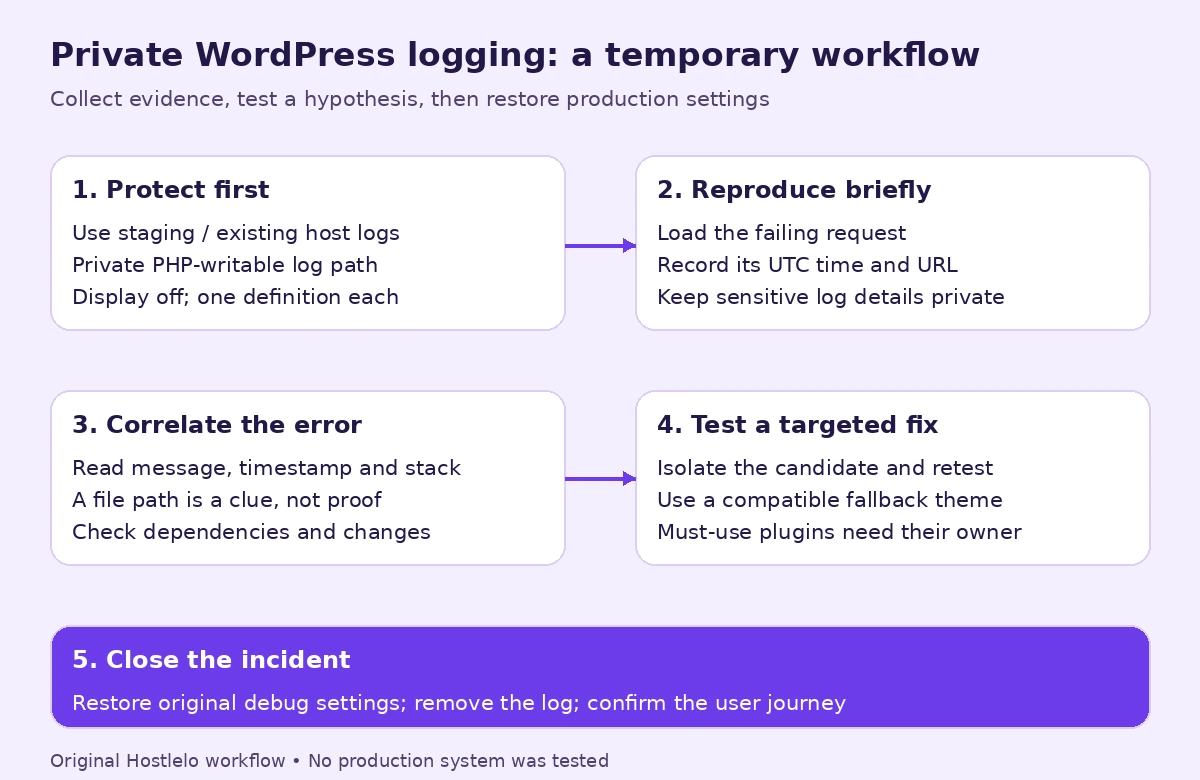
Use staging or existing host logs first. If temporary live logging is necessary, keep WP_DEBUG_DISPLAY false and write WP_DEBUG_LOG to a PHP-writable path outside all public document roots. Match the error timestamp, message and stack trace before isolating a component; then restore debug settings and remove the private log.

Reading options
On this page
- What the WordPress debug log actually is
- Before you start
- Turn on the debug log safely in cPanel File Manager
- Choose the next check from the evidence
- Fix the problem: deactivate the plugin or theme
- Variant: turn debugging on and off with WP-CLI
- Keep debug.log private if it must stay in wp-content
- How to check it worked
- Turn it all off and delete the log
- Troubleshooting
- Pro tips and when to call for help
- The one message worth forwarding
- Reader questions
- Sources & further reading
If an update leaves your WordPress site on a white screen or showing "There has been a critical error on this website", turn on the debug log for a few minutes, with errors hidden from visitors and the log file kept private. Match the newest error to the request you reproduced, inspect its message and stack trace, then test a targeted fix. A named file shows where execution failed; it does not prove that plugin is the sole cause. Disable temporary debugging and remove the private log afterwards.
WordPress 7.1.3 was released on 6 October 2026 with 7 security fixes and 4 bug fixes. Supported automatic background updates begin automatically. If your site came back broken, or a plugin update broke it, you need the real error message without showing it to the whole internet.
By the end of this guide you will be able to switch on logging safely in cPanel or with WP-CLI, identify the failing component, block the log file on Apache, LiteSpeed or Nginx, and put everything back the way it was.
What the WordPress debug log actually is
WordPress has a debug mode controlled by a few PHP constants in wp-config.php. A constant is a named setting that stays fixed for each page load. The main one, WP_DEBUG, is off by default. When you turn it on, PHP starts reporting errors and warnings that are normally hidden.
Two companion settings decide where those messages go:
WP_DEBUG_LOGenables logging for errors PHP reports after the settings are applied. Set it totrueand the file iswp-content/debug.log. Set it to a file path and WordPress writes there instead (supported since WordPress 5.1).WP_DEBUG_DISPLAYprints errors into the page HTML. Its default istrue, which is exactly what you do not want on a live site, so you set it tofalse.
WordPress applies these settings in debug mode; early bootstrap failures may appear only in the host PHP log.
Think of it like the flight recorder on a plane. It records quietly while things go wrong, the passengers never see it, and only the investigators read it afterwards.
The official WordPress handbook says it is not recommended to use WP_DEBUG or the other debug tools on live sites. Use staging first when possible. Check Recovery Mode and existing host logs before briefly enabling private logging for a live incident.
What the critical error screen is telling you
Since WordPress 5.2, a fatal PHP error (one that stops the page from loading) triggers a built-in handler instead of a plain white screen. In the WordPress core code, the message visitors see on many sites includes the sentence "Please check your site admin email inbox for instructions."
That email is the Recovery Mode email. It goes to the site's admin email address, or to the address in the RECOVERY_MODE_EMAIL constant if you set one. Its subject is "Your Site is Experiencing a Technical Issue" and it contains a special link that lets you log in to the dashboard safely and investigate.
Quick tip: check your inbox and spam folder first. By default WordPress sends at most one of these emails per day, so if you already deleted it, the debug log is your next best tool.
Before you start
Work through this checklist first.
- Access: a cPanel login with File Manager, or SSH access with WP-CLI (the WordPress command line tool).
- A backup: a full backup of files and database, or at least a downloaded copy of
wp-config.phpand any.htaccessfile you will edit. The cPanel backup steps in our WordPress migration guide work for this too. - A staging copy if you have one: the handbook recommends debugging on a local or staging site. If you can reproduce the error there, do it there.
- Time: about 15 to 30 minutes for a single broken plugin.
- Risk level: low if you only add and remove the lines in this guide, medium if you edit Nginx server files.
Heads up: a typo in wp-config.php, such as a missing semicolon, can take the whole site down by itself. Keep your backup copy handy so you can put it back in seconds.
Turn on the debug log safely in cPanel File Manager
This is the route most people on shared hosting will use. You create a private folder for the log, then add a few lines to wp-config.php.
Step 1: Create a log folder above the web root
The web root is the folder your site is served from, usually public_html. Static logs inside a public document root can be served unless blocked. Choose a path outside every public document root and web-server alias on the account; being above one site's public_html is not sufficient by itself.
In cPanel, open Files > File Manager. Click Settings, tick Show Hidden Files (dotfiles) and save, so you can see .htaccess later.
Go to your home directory, the folder that contains public_html. Click + Folder, name it wp-private-logs, and click Create New Folder. Confirm wp-private-logs is not web-served and PHP can write there. Do not make it world-writable to work around ownership or open_basedir restrictions.
Note the full path shown in File Manager. It often looks like /home/example/wp-private-logs, where example is your cPanel username. Use your real path below.
Step 2: Back up wp-config.php
Open the folder where WordPress is installed (usually public_html), select wp-config.php and click Download in the toolbar. If anything goes wrong later, you upload this copy back and you are where you started.
Step 3: Add the debug settings
Select wp-config.php and click Edit in the toolbar. Find WPDEBUG, WPDEBUGLOG and WPDEBUG_DISPLAY. Record their original values, then edit each existing definition or add it only if absent. Keep one definition of each; PHP does not redefine constants.
Then paste this block just above the line /* That's all, stop editing! Happy publishing. */ (older installs may say "Happy blogging"). It turns debugging on, sends errors to your private log file and hides them from visitors.
// Temporary debugging. Remove after fixing. Record the actual incident date.
define( 'WP_DEBUG', true );
define( 'WP_DEBUG_LOG', '/home/example/wp-private-logs/wp-errors.log' );
define( 'WP_DEBUG_DISPLAY', false );
@ini_set( 'display_errors', 0 );
Save the file. The @ini_set line comes from the WordPress handbook example and tells PHP itself not to print errors, as a second safety net.
Visitors should not see PHP diagnostics. Reportable errors should reach the private log after WordPress applies these settings, provided PHP can write it; earlier failures may need the host log.
Step 4: Trigger the error once
Load the broken page one or two times. If the problem is only in the dashboard, load /wp-admin/.
Step 5: Read the log
In File Manager, open your wp-private-logs folder, select wp-errors.log and click View. Use View rather than Edit for big logs, because cPanel cannot edit files larger than 1 MB.
Here is a made-up example of the line you are looking for:
[10-Oct-2026 08:14:02 UTC] PHP Fatal error: Uncaught Error: Call to undefined function example_old_helper() in /home/example/public_html/wp-content/plugins/example-gallery/includes/loader.php:42Match the timestamp to your reproduced request. Read the message and stack trace as well as the file/line. A dependency or compatibility issue in another component can make this file fail. Start with the fatal error and retain relevant nearby warnings.
Made-up scenario: Sara runs a small bakery site. Overnight her gallery plugin updated, and in the morning the home page shows the critical error. Her log has 300 lines, but only one says "PHP Fatal error", and its path points into wp-content/plugins/example-gallery. That line gives her a candidate to isolate and retest. Recovery supports the diagnosis; a fixed version still needs testing.
Choose the next check from the evidence
Evidence | Useful next step |
|---|---|
Fatal error in a plugin file | Read message and stack context; isolate the candidate and retest |
Failure in wp-config.php or no private log | Check edited syntax and the host PHP log |
Theme-related failure | Confirm a compatible fallback before switching |
Error in a must-use plugin | Ask its owner; ordinary skip/deactivate steps may not apply |
Fix the problem: deactivate the plugin or theme
Once you know the folder name, pick the option that matches your access.
Option A: Use the Recovery Mode link
If you got the Recovery Mode email, click the link, log in, and go to Plugins. A plugin that caused a fatal error is listed under Paused. Deactivate it from there. The link expires, and WordPress emails a new one if the error happens again after that.
Option B: Rename the plugin folder in File Manager
Go to public_html/wp-content/plugins, click the name of the broken plugin's folder, for example example-gallery, and rename it to example-gallery-off. WordPress can no longer find the plugin, so it stops loading it.
Reload your site. If it comes back, you found the culprit. Before restoring the folder name, confirm the plugin is inactive. Restoring it may let it load again if WordPress did not update its active list. Test a fixed version before reactivating.
If you cannot tell which plugin is to blame, the handbook's white screen advice is to rename the whole plugins folder to plugins_old, which deactivates every plugin at once. Visit the Plugins screen while the folder is unavailable so missing plugins are recorded as inactive. Restore the name, verify inactivity, then reactivate candidates one at a time, preferably on staging.
A theme path suggests investigating the theme and dependencies. Confirm a compatible fallback theme is installed before switching. Prefer Recovery Mode, the dashboard or WP-CLI; renaming without a usable fallback can leave the site broken.
Option C: Use WP-CLI over SSH
From the folder where WordPress is installed, this command lists the active plugins so you can confirm the plugin's slug (its folder name).
wp --skip-plugins --skip-themes plugin list --status=activeThis next command deactivates the plugin by its slug.
wp --skip-plugins --skip-themes plugin deactivate example-galleryYou should see Plugin 'example-gallery' deactivated. followed by Success: Deactivated 1 of 1 plugins.
Heads up: Skip flags avoid ordinary plugins/themes; must-use plugins still load. Inspect any remaining error before using File Manager. On multisite, confirm the affected site/network scope.
What to do next
Check whether the plugin author has released a fixed version, then update and reactivate. If the error mentions PHP version requirements, our guide on checking and switching your PHP version shows where to see yours. If there is no fix yet, leave the plugin off and send the log line to its author.
Do not roll WordPress core back to make a plugin work. Version 7.1.3 contains security fixes, and the release post recommends updating immediately.
Variant: turn debugging on and off with WP-CLI
WP-CLI can edit wp-config.php for you with wp config set. By default it adds a constant if it is missing and places it just above the "That's all, stop editing!" comment.
The --raw flag matters. Without it, WP-CLI writes the value as a quoted string, and in PHP the string 'false' counts as true because it is not empty. So WP_DEBUG_DISPLAY set to the string 'false' would still show errors to visitors. Always use --raw for true and false.
These commands turn debugging on, send the log to a private path and hide errors from the page.
wp config set WP_DEBUG false --raw
wp config set WP_DEBUG_LOG /home/example/wp-private-logs/wp-errors.log
wp config set WP_DEBUG_DISPLAY false --raw
wp config set WP_DEBUG true --raw
Each command should print a line starting with Success:. The log path goes in without --raw, because a path should be a quoted string.
This command prints the last 50 lines of the log.
tail -n 50 /home/example/wp-private-logs/wp-errors.logKeep debug.log private if it must stay in wp-content
Sometimes you cannot create a folder above the web root. With WP_DEBUG_LOG set to true, the file lands in wp-content/debug.log, inside the web root. The WordPress handbook calls placing error logs in publicly accessible locations "a security risk".
In that case, block the file at the web server and tighten its permissions.
Apache: deny it in .htaccess
Apache allows a <Files> section inside .htaccess to apply rules to one filename. For LiteSpeed or another server, confirm the supported access-control configuration with your host and test the actual public delivery path; do not assume every product uses the same directives.
In File Manager, open public_html, download a copy of .htaccess, then click Edit and add this block at the very top, above # BEGIN WordPress. It refuses every web request for a file named debug.log.
<Files "debug.log">
    Require all denied
</Files>
Save the file. In Apache 2.4, Require all denied means access is denied unconditionally. Our guide to forcing HTTPS with .htaccess explains more about how this file works.
The WordPress handbook shows an older form using Order allow,deny and Deny from all. The Apache 2.4 documentation says Require all takes over what Allow from all and Deny from all used to do, so prefer the version above.
Check ownership before changing permissions
For PHP running as the log's owner, 0600 can allow owner-only reading/writing. Confirm the ownership model with your host: it can prevent logging when PHP runs as another user. Filesystem permissions alone do not prove HTTP access is blocked.
For an owner-run PHP account:
chmod 600 wp-content/debug.logNginx: deny it with a location rule
The WordPress handbook notes that Nginx has no directory-level file like .htaccess, so the rule goes in your site's server block. On shared hosting with Nginx, ask your host to add it.
Add this inside the server { } block. The = modifier matches the exact URI. For a /blog install, use /blog/wp-content/debug.log instead and adjust custom content paths. Check front proxies/CDNs and alternate hostnames separately.
location = /wp-content/debug.log {
    deny all;
}
These two commands test the configuration and then reload Nginx gracefully.
sudo nginx -t && sudo nginx -s reloadThe test checks the syntax and tries to open the files the configuration refers to. If it reports an error, do not reload. Fix the line it names first.
DirectAdmin and other panels
DirectAdmin's File Manager handles basic file operations, so you can make the same wp-config.php and .htaccess edits there, or use SFTP on any panel. Menu names vary by version. If Nginx sits in front of Apache, confirm the block with the curl check below.
How to check it worked
Run these checks while debugging is on, and again after you turn it off.
Check 1: Visitors see no PHP errors
Open your site in a private browser window. You should see your normal site or the generic critical error message, never lines starting with "Warning:" or "Fatal error:".
Check 2: The log is being written
In File Manager or over SSH, confirm that wp-errors.log (or debug.log) exists and grows when you load the broken page.
Check 3: A present log cannot be downloaded
Confirm the file exists. Test GET through the public hostname and relevant CDN route, replacing the URI for a subdirectory installation. Discard the response body:
curl --silent --show-error --max-time 15 --output /dev/null \
  --write-out 'HTTP %{http_code}\n' \
  'https://example.com/wp-content/debug.log'
A 200 is a failure. A 403/404 for a known existing file is encouraging, but does not prove every route is protected. A 404 for a missing file tests no access control. Ask the host to use a non-sensitive canary at the same protected filename/path if needed, and check alternate hosts and cached copies. Prefer the private filesystem path.
Check 4: The site works after the fix
Load the home page, a single post and /wp-admin/. The critical error message should be gone.
Turn it all off and delete the log
This is the step most people forget. A running log keeps growing and keeps recording details you do not want lying around. The handbook says to delete the log file afterwards.
In cPanel File Manager
Edit wp-config.php, restore the original recorded settings and remove only definitions added temporarily. For a normal production setup, WP_DEBUG should read:
define( 'WP_DEBUG', false );Save. Then select the log file and click Delete. cPanel moves deleted files to the Trash, so open the Trash and click Empty Trash to remove it for good.
With WP-CLI
Switch debugging off first. Delete companion constants only if added for this incident; otherwise restore their original values.
wp config set WP_DEBUG false --raw
wp config delete WP_DEBUG_LOG
wp config delete WP_DEBUG_DISPLAY
You should see Success: lines again. This command then deletes the log file.
rm /home/example/wp-private-logs/wp-errors.logKeep the .htaccess or Nginx deny rule in place for next time.
Troubleshooting
The log file never appears
Likely causes: WP_DEBUG is defined twice and the earlier false wins, the folder in your path does not exist, or PHP cannot write to it. Fix: keep only your WP_DEBUG line and check that the path matches your real home directory exactly.
Errors are showing on the page to visitors
Symptom: "Warning:" or "Deprecated:" lines at the top of your pages. Likely cause: WP_DEBUG_DISPLAY is missing, or was set as the string 'false' without --raw. Fix: make sure the line reads define( 'WP_DEBUG_DISPLAY', false ); with no quotes around false.
"500 Internal Server Error" after editing .htaccess
Likely cause: the server does not allow that directive in .htaccess. In Apache, Require needs the AuthConfig override to be allowed, and some hosts restrict it. Fix: upload your backup .htaccess, then use a log path above the web root, or ask your host to block the file.
Critical error, but the log is empty
Likely cause: the error happens before wp-config.php finishes loading, for example a syntax error inside wp-config.php itself. Fix: compare it with your backup and look for a missing semicolon or a curly quote pasted from a web page. Your host's own PHP error log may also show it.
The site went blank right after saving wp-config.php
Likely cause: a typo in the new lines. Fix: upload the copy you downloaded in Step 2, then add the block again carefully.
The front end works but the dashboard does not
Likely cause: a plugin that only runs in the admin area, or a must-use plugin in wp-content/mu-plugins. Fix: check the log path. If it points into mu-plugins, contact the host/developer responsible for that must-use plugin. It may provide essential hosting or security functions and cannot be deactivated like an ordinary plugin; do not move it blindly.
Pro tips and when to call for help
- Date your temporary lines with a comment, as in the example, so anyone opening the file later knows they are meant to go.
- Leave other debug settings alone. The handbook warns that
SAVEQUERIEShas a performance impact, so skip it on a live site unless a developer asks. - Confirm core is current. After the fix, check Dashboard > Updates. The security release verified here is 7.1.3 from 6 October 2026; check the current release when following this guide. Our WordPress update checklist has a safe routine you can reuse for each release.
- Ask your host or a developer if
.htaccessedits cause 500 errors, if you run Nginx without server access, or if the error points into custom theme code.
The one message worth forwarding
Copy this, fill in the brackets, and send it to your developer or plugin author:
"Hi, after an update on [date], our site at example.com shows 'There has been a critical error on this website'. I turned on the WordPress debug log with display off. The fatal error is: [paste the single Fatal error line]. I have deactivated [plugin name] and the site works again. Debugging is now off and the log is deleted. Is there a fixed version, or what should I change?"
The takeaway: log errors privately, correlate the fatal error with the failing request, test the suspected component, then turn debugging off and delete the log the same day.
Reader questions
Is it safe to turn on WP_DEBUG on a live WordPress site?
The WordPress handbook recommends against it and suggests a local or staging copy. If you must debug live, set WP_DEBUG_DISPLAY to false, write the log outside the web root, and turn it all off as soon as you have the error.
Where is the WordPress debug log saved?
With WP_DEBUG_LOG set to true it is wp-content/debug.log. Since WordPress 5.1 you can set WP_DEBUG_LOG to a full file path instead, which lets you keep the log above the public web root.
Why use --raw with wp config set?
Without --raw, WP-CLI writes the value as a quoted string. The string 'false' counts as true in PHP, so WP_DEBUG_DISPLAY would still show errors to visitors.
What is the WordPress Recovery Mode email?
When a plugin or theme causes a fatal error, WordPress emails the site admin address (or RECOVERY_MODE_EMAIL if defined) a link to log in safely and deal with it. By default it sends at most one such email per day, and the link expires.
Does renaming a plugin folder delete the plugin?
No. Renaming preserves files but prevents ordinary loading. Restoring the name can permit reactivation if WordPress did not update its active list. Confirm inactivity, then test and update before reactivating.
How do I know debug.log is not public?
Confirm the log exists, then test GET through the public delivery path while discarding the body. A 200 is a failure. A 404 for an absent file proves nothing about protection; alternate hosts and cached copies need checking too. Prefer a path outside all public document roots.
Do I need to delete debug.log when I am done?
Yes. The WordPress handbook says to remember to delete the file afterwards if you turn on error logging. It also calls logs in publicly accessible locations a security risk.
Was this guide helpful?
Help us make the next update better.
Sources & further reading
- WordPress 7.1.3 Maintenance and Security Release
- Debugging in WordPress (Advanced Administration Handbook)
- Editing wp-config.php (Advanced Administration Handbook)
- Common WordPress Errors
- WP-CLI: wp config set
- WP-CLI: wp plugin deactivate
- Apache HTTP Server: mod_authz_core
- nginx: ngx_http_core_module location
- cPanel File Manager documentation
- WordPress core: class-wp-recovery-mode-email-service.php
- Nginx access module: deny directive
- curl command-line manual
What changed
Verified against WordPress, WP-CLI, Apache, Nginx and curl documentation. Corrected private-log setup, diagnosis, deactivation, access checks and cleanup. Added a diagnostic table, original cover and workflow diagram. Examples are illustrative; no production server was tested.
Originally published . About our editorial updates.