Replace WP-Cron With a Real Cron Job: cPanel, Plesk and WP-CLI
Replace WP-Cron with server cron using cPanel, Plesk or WP-CLI. Get correct PHP paths and URLs, schedules, logging, WooCommerce checks and rollback.
The short answer
Create and test one server-side runner, then disable visitor-triggered spawning with DISABLE_WP_CRON. Use compatible local PHP, WP-CLI or the HTTPS wp-cron.php endpoint—not the homepage. Confirm automatic starts, due tasks and their real results. Keep logs, control overlap and check WooCommerce queues separately.

Reading options
On this page
- What changes when you replace WP-Cron?
- Choose the runner before editing anything
- Step 1: Make a private backup of wp-config.php
- Step 2: Capture the current state
- Step 3A: Add the task in cPanel
- Step 3B: Use Plesk
- Step 3C: Add a full Linux crontab entry on a VPS
- Step 4: Disable the visitor trigger
- Step 5: Verify three different things
- Long jobs: prevent overlap deliberately
- WooCommerce: check Action Scheduler separately
- Troubleshooting without guessing
- Roll back in the right order
- What to send your hosting team
- Reader questions
- Sources & further reading
Before you start
Access to Cron Jobs or Scheduled Tasks; safe access to wp-config.php and a private backup; the correct installation path, hosting user and compatible PHP executable or final HTTPS cron URL. Confirm existing runners and allowed intervals. For stores, inspect Action Scheduler before changing queue runners.
A scheduled post sits there at 9:00, still unpublished. You open the website to investigate, and suddenly it appears. That is a familiar sign that WordPress is relying on visits to start its scheduled work.
A server cron job gives that work an independent trigger. The safe sequence is simple: check for an existing runner, create and test the replacement, then disable the visitor trigger. Afterward, verify an actual task, not just an HTTP status code.
This guide covers cPanel, Plesk and WP-CLI, with commands you can adapt to your hosting account. It explains the correct wp-cron.php endpoint, PHP selection, intervals, logging and overlap control, plus how to verify scheduled work and reverse the change.
What changes when you replace WP-Cron?
WordPress keeps a list of scheduled events. WP-Cron checks that list and starts due callbacks; its default trigger depends on a request reaching WordPress. A quiet site may therefore run work late. A fully cached page served without reaching WordPress may not provide that trigger either.
A system scheduler calls the runner at a chosen interval, regardless of visitors. You keep WordPress's events and plugin callbacks. You replace the mechanism that starts them.
The WordPress cron handbook explains this request-driven behavior. It does not promise that every callback will succeed, retry safely or finish before the next tick. Those are separate questions.
For example, a job due at 09:01 with a runner scheduled at 09:00, 09:05 and 09:10 normally gets its next opportunity at 09:05. Server load, a previous run or a failing callback can add delay. A five-minute interval is an opportunity every five minutes, not a five-minute delivery guarantee.
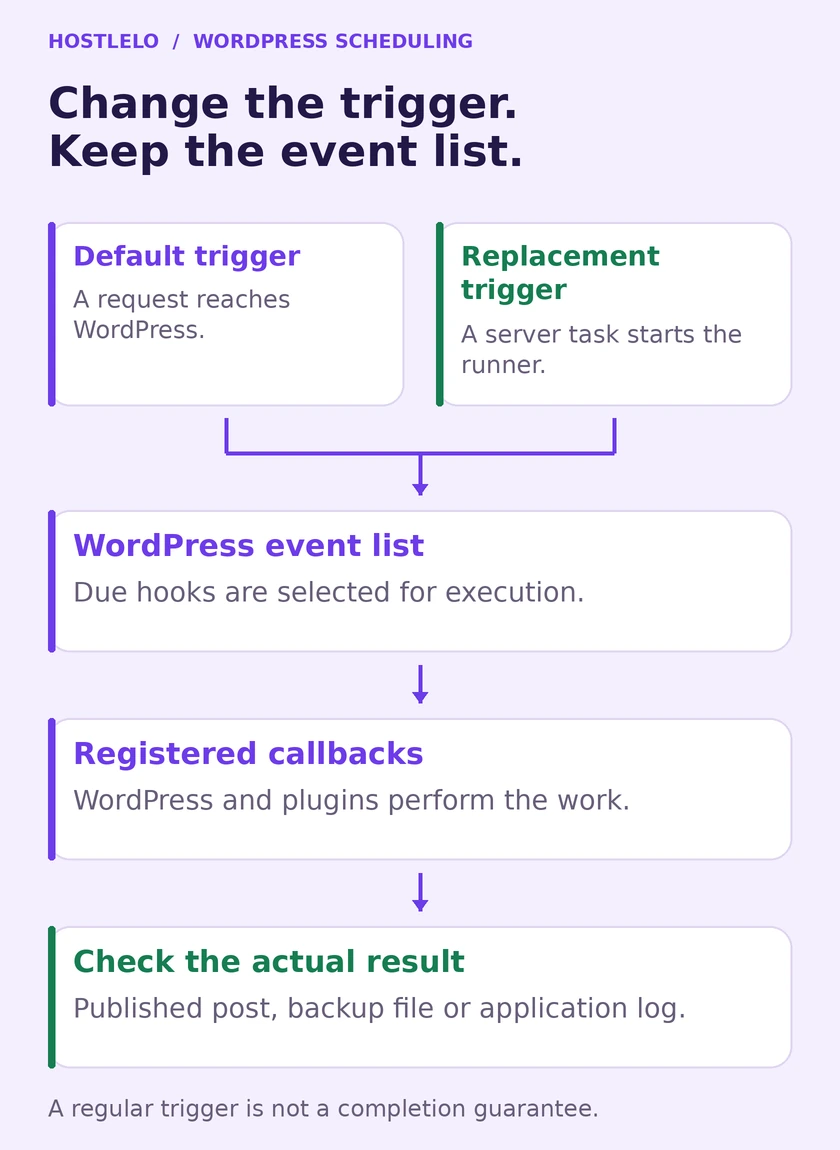
The event list stays in WordPress. The server supplies the trigger; the application still has to do the work.
Choose the runner before editing anything
Ask your host whether a scheduler is already configured. Managed hosting, WP Toolkit and a previous developer may have installed one. Adding a second task can create duplicate attempts or unnecessary load.
Your setup | Start here | What to check |
|---|---|---|
cPanel with suitable PHP CLI | Run the local wp-cron.php file | Correct document root, PHP version, extensions and permissions |
Plesk with WP Toolkit | Inspect its takeover feature | Replacement task exists and runs at the required interval |
SSH with WP-CLI | Run due events locally | Correct site user, PHP, paths and overlap control |
No suitable local runner | HTTPS request to wp-cron.php | Endpoint reaches PHP through DNS, CDN, firewall and access controls |
Host-managed runner | Confirm it with support | Frequency, monitoring and who handles failures |
HTTP uses the website's PHP environment but travels through web security rules. WP-CLI avoids that HTTP path, but its PHP version and environment can differ from the website. Neither route fixes a broken plugin callback by itself.
Pick an interval according to the work. Five minutes is a reasonable starting example when a few minutes of delay is acceptable; fifteen minutes may suit less time-sensitive work. For minute-sensitive jobs, ask whether your plan supports a one-minute runner and measure its cost. Payment, inventory and email workflows may use additional queues: check the relevant plugin's requirements before assuming WP-Cron handles everything.
Interval | Cron expression | When to consider it |
|---|---|---|
Every minute | * * * * * | Minute-sensitive work, if your plan permits and capacity is verified |
Every five minutes | */5 * * * * | Work where several minutes of delay is acceptable |
Every fifteen minutes | */15 * * * * | Less time-sensitive work; not an automatic choice for a busy store |
These expressions describe the server trigger, not the recurrence of every WordPress event. A daily event remains daily; the runner checks whether it is due. The five fields are minute, hour, day of month, month and day of week. For these examples, keep the four fields after Minute set to *.
Step 1: Make a private backup of wp-config.php
The configuration file contains database credentials and security keys. Keep its backup outside every public web directory, or download it to a protected location on your computer. A file called wp-config.php.bak in public_html can be served as plain text on some servers.
In File Manager, copy the file to a private directory above your website's document root. Confirm that the directory is not an alias or document root for another domain. If you cannot establish that, use a local download instead.
For SSH, this example assumes /home/example/private-backups is outside all document roots. Replace the account and site paths first.
mkdir -p /home/example/private-backups
chmod 700 /home/example/private-backups
install -m 600 /home/example/public_html/wp-config.php \
  /home/example/private-backups/wp-config-before-cron.php
This is a configuration rollback copy. It is not a substitute for a tested site and database backup. WordPress's hardening guide covers protecting configuration, permissions and backups.
Step 2: Capture the current state
With WP-CLI, use the real installation path:
wp --path=/home/example/public_html cron event list \
  --fields=hook,next_run_gmt,next_run_relative,recurrence
wp --path=/home/example/public_html cron test
The event list command lets you inspect due times. Compare next_run_gmt with the current UTC time rather than relying only on a friendly relative label. Record any overdue hooks and the plugin that owns them.
The test command checks WordPress's normal HTTP spawning mechanism. Before migration it can help identify loopback failures. Once DISABLE_WP_CRON is true, its disabled-cron error is expected; it does not test your external runner.
No SSH? Use a compatible cron inspection plugin or ask your host for the current event list. Also record one real task you can verify safely later.
Step 3A: Add the task in cPanel
Open Cron Jobs using cPanel's search. The host can hide this interface, so ask support if it is missing.
Under Add New Cron Job, choose the interval. For every five minutes, use */5 for Minute and * for Hour, Day, Month and Weekday. The command field contains only the command below; do not paste the five timing fields into it.
Keep Cron Email enabled during setup, or send output to a private log. cPanel's Cron Jobs documentation explains the timing fields, executable paths and notifications.
Option A: Run wp-cron.php with PHP CLI
A local PHP runner avoids DNS, CDN and HTTP access restrictions. Use it when your host supplies a compatible command-line PHP environment. Set the site's working directory and run its actual cron file:
cd /home/example/public_html && /usr/local/bin/php -f /home/example/public_html/wp-cron.phpReplace both paths with the installation's document root and the PHP executable your host confirms. For an addon domain or subdirectory installation, public_html may be the wrong folder. Run as the site's hosting account, not as root.
On cPanel EasyApache 4, the documented PHP wrappers differ: /usr/local/bin/php invokes CLI PHP, while /usr/bin/php invokes CGI PHP. Do not assume the commonly copied /usr/bin/php -q example is the correct CLI command on every server.
Where Terminal or SSH is available, inspect the chosen runtime before scheduling it:
/usr/local/bin/php -v
/usr/local/bin/php -r 'echo PHP_SAPI, PHP_EOL;'
For a CLI runner, the second command should identify cli. Also verify the extensions and configuration required by the site. CloudLinux, containers and other hosting stacks may use different executable paths. Ask support to test the exact command if you have only File Manager access.
Option B: Call the public cron endpoint
Use the final HTTPS hostname and the correct WordPress directory. A subdirectory installation may need /wordpress/wp-cron.php.
Call wp-cron.php, not the homepage. Once DISABLE_WP_CRON is true, a request to https://example.com/ no longer starts the normal visitor-triggered cron path. A cached homepage request may not reach WordPress at all. The endpoint in WordPress's system-scheduler guide is the cron file itself.
/usr/bin/curl --fail --silent --show-error \
  --connect-timeout 10 --max-time 60 \
  --output /dev/null https://example.com/wp-cron.php
Replace /usr/bin/curl with the path your host provides. This command discards the response body while reporting connection problems and HTTP error responses. It does not follow redirects, and --fail does not turn every 3xx redirect into an error. Inspect the response during setup and use the final endpoint.
The curl manual documents these options. Its 60-second limit caps the client request, not necessarily the lifetime of PHP work on the server. A timeout can mean “the outcome is unknown”; do not immediately run a long job again without checking its state.
Do not put dashboard passwords into the cron command. If a staging site's access protection blocks the URL, use an approved local runner or a host-supported exception scoped to this endpoint. Avoid turning off the whole firewall.
Option C: Run due events with WP-CLI
Find the installed paths and inspect PHP:
command -v wp
wp cli info
Then test the command under the site's normal system user:
/usr/local/bin/wp --path=/home/example/public_html \
  cron event run --due-now
The path is an example, not a promise about your host. The WP-CLI command runs events that are due. Avoid --all for a recurring runner: it can execute future events early. Avoid --allow-root as a routine workaround; use the site's account and correct permissions.
Cron often has a smaller PATH than an interactive shell. Ask the host to configure the PHP binary used by WP-CLI, then test that same environment. A web PHP selector does not automatically change command-line PHP. Our PHP version check and migration guide covers that distinction in more detail.
Step 3B: Use Plesk
WP Toolkit takeover
Open WordPress, find the installation card and enable Take over wp-cron.php. Current WP Toolkit documentation says a replacement scheduled task is normally created every 30 minutes.
Check that Create a replacement task when takeover is initiated is enabled, or confirm that another runner already exists. The switch can disable the default trigger without providing a replacement if that option is off.
Use the icon beside the switch to inspect the generated task and change its schedule if needed. Check for a pre-existing manual task before keeping both.
A manual scheduled task
For manual Plesk setup, use Websites & Domains > Scheduled Tasks > Add Task:
- Choose Fetch a URL and enter
https://example.com/wp-cron.php—include the installation subdirectory if needed. - Set Run to Cron style, where offered, and enter
*/5 * * * *for every five minutes. Use the interval your application and hosting plan require. - Keep error notifications enabled. Use Run Now to check the command, then confirm that it also starts automatically.
Alternatively, use Run a PHP script with the local wp-cron.php file and a compatible PHP version, or Run a command for a supported local runner. A URL task takes the URL only; do not paste a curl command into that field.
Plesk's task documentation notes that command tasks on Linux are chrooted by default. A path that works over administrator SSH may not exist inside that environment. Use the subscription's permitted paths or ask the host; do not loosen the jail just to make an example command work.
Plesk's task time zone and WordPress's Settings > General time zone are separate. Verify both when troubleshooting a post that seems an hour early or late.
Step 3C: Add a full Linux crontab entry on a VPS
Log in as the site's system account and use crontab -e. If you are the administrator, select that account's crontab through your normal administration process. Do not solve permissions errors with --allow-root. A user crontab has five timing fields followed by the command; /etc/crontab also has a user field and is a different format.
For a single-server WP-CLI runner, prepare a private directory for its lock and log. This example assumes /home/example/private-cron is outside every public document root:
mkdir -p /home/example/private-cron
chmod 700 /home/example/private-cron
After verifying the executable paths and PHP environment, this complete entry runs every five minutes and records output. Paste it as one line in the site user's crontab:
*/5 * * * * /usr/bin/flock --nonblock --verbose /home/example/private-cron/site.lock /usr/local/bin/wp --path=/home/example/public_html cron event run --due-now >> /home/example/private-cron/runner.log 2>&1Use one runner for this installation. The lock prevents overlapping invocations that use the same local lock file; it does not coordinate another machine or an unrelated runner. Rotate the private log and alert on repeated lock skips or failures. In cPanel's Command field, omit the five timing fields and set the interval using the panel.
Check saved entries with crontab -l. If the manual command works but the scheduled job does not, inspect the cron service or panel execution record, the restricted cron environment, file permissions and the actual PHP binary. Do not assume an interactive shell's PATH applies to cron.
Step 4: Disable the visitor trigger
After the replacement command works and the scheduled task has actually run, edit wp-config.php. Search for DISABLE_WP_CRON first; update an existing definition rather than adding a duplicate.
define( 'DISABLE_WP_CRON', true );Place it in the custom settings area, above the familiar “stop editing” comment and, crucially, before WordPress loads wp-settings.php. The comment is a guide for humans; the PHP loading order is what matters. See the configuration handbook.
Load the site and admin area after saving. Restore the private copy if you introduced a syntax error. If WP Toolkit handled takeover, check its generated configuration rather than adding another definition.
The official system scheduler guide uses this constant to stop automatic page-load spawning. It does not block direct access to wp-cron.php. An HTTP runner still needs that endpoint; protecting it is a separate web-server or firewall decision.
Step 5: Verify three different things
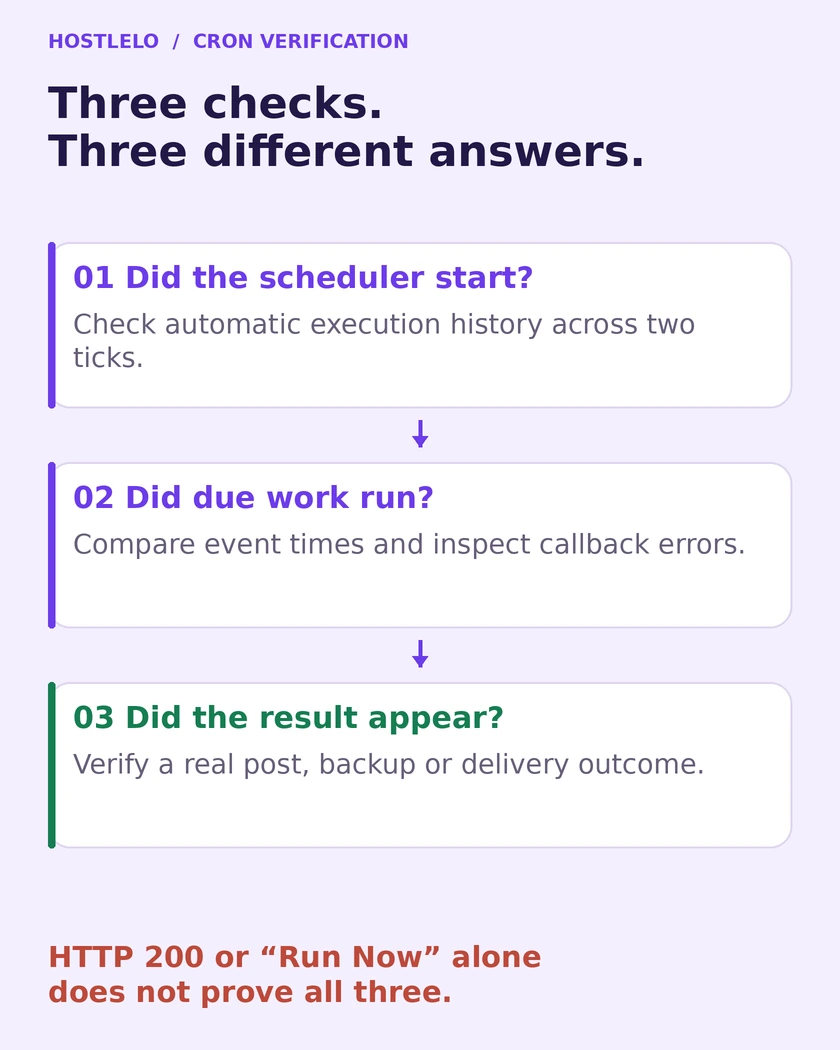
A healthy request is only the first check. Verify the event and its result too.
- The scheduler started the command. Check its execution history, cron email or a timestamped private log across at least two automatic ticks. “Run Now” proves a manual run, not that the schedule fires.
- WordPress processed due work. Compare the event list before and after a tick. Recurring events should advance; investigate old due times that persist. Read PHP errors and plugin logs.
- The intended result exists. On staging, schedule a harmless test post and confirm its published status without first visiting the front end. For a backup or email plugin, check the produced backup or delivery log instead.
Do not create an arbitrary cron_test hook and assume that its disappearance proves useful execution. An event needs a registered callback. Likewise, a HEAD request or HTTP 200 can indicate a reachable endpoint without proving a particular callback finished.
A scheduled production test post is public content. Use staging, an already-approved post or an application log when publishing a dummy item would be inappropriate.
Long jobs: prevent overlap deliberately
WordPress's wp-cron.php source uses a time-based cron lock. The current WP-CLI command reference also documents doing_cron coordination for --due-now; older installed versions may differ. Check the installed command's help and version rather than assuming either no locking or unlimited protection.
A time-limited application lock does not guarantee that a long callback finishes before another runner becomes eligible. The local flock example above holds its lock for the wrapped process lifetime, but only participating processes share that protection.
For a local Linux WP-CLI runner, a host-supported flock wrapper can prevent concurrent invocations that use the same lock file. First create a private writable directory outside the web roots. This example assumes the paths and PHP environment have already been checked:
/usr/bin/flock --nonblock /home/example/private-cron/site.lock \
  /usr/local/bin/wp --path=/home/example/public_html \
  cron event run --due-now
Use this as the command instead of a second unlocked WP-CLI task. A competing run skips when the lock is held. Monitor repeated skips: preventing overlap does not make a stalled job healthy.
The util-linux manual notes filesystem limitations, including some NFS/CIFS setups. A lock on one server does not automatically coordinate several servers. Ask a developer about shared locks and idempotent callbacks for a multi-node site.
Do not use a larger WP_CRON_LOCK_TIMEOUT as a universal fix. Measure the slow callback, check the plugin's own queue and locking, and fix the bottleneck.
WooCommerce: check Action Scheduler separately
For a store, open WooCommerce > Status > Scheduled Actions, or Tools > Scheduled Actions where available. Review pending, failed and in-progress actions, their age and their individual logs. Action Scheduler's administration guide documents these checks.
A working WordPress trigger does not prove the queue is keeping up or that a payment, webhook or email succeeded. Confirm the expected result in the relevant plugin and external service. Do not bulk-retry failed payment or fulfillment actions without checking what already happened.
For large queues or long jobs, Action Scheduler provides its own WP-CLI runner. Treat that as a separate, measured configuration: test it before replacing the default queue runner, and keep general WordPress cron running for core and other plugins. Do not disable the queue's existing runner unless its replacement is in place.
Troubleshooting without guessing
What you see | Check first | Useful next action |
|---|---|---|
HTTP 403, 401 or challenge page | WAF, access protection and endpoint URL | Scope an approved exception or use WP-CLI |
HTTP 301 or 302 | Wrong scheme, hostname or directory | Use the final URL; confirm a GET reaches PHP |
wp or php not found | Cron environment and executable paths | Use verified paths and compatible CLI PHP |
HTTP 200 but work stays overdue | PHP errors, locks and callback failures | Check event times and application logs |
Repeated overlapping runs | Duplicate tasks and job duration | Keep one runner and add suitable locking |
One multisite subsite stays late | Selected site URL | Run and verify each subsite separately |
For multisite, use --url=https://subsite.example.com to select the intended site. One main-site invocation is not a complete network plan. Check wp help cron event run before assuming a --network option is available in your installed stable version. Use verified per-site tasks or a maintained network runner with controlled concurrency and failure reporting.
Keep errors visible after setup. If you redirect output, use a private log with rotation or a monitoring service that alerts on missed successful runs. Silencing all output can hide the day a PHP change breaks the runner.
If a callback sends email, takes payment or changes inventory, retries need application-level safeguards. A scheduler cannot decide whether repeating a partially completed action is safe.
Stagger jobs when you manage several sites
Avoid starting every account's heavy jobs on the same minute. For example, use 0-59/5 for one site's Minute field, 1-59/5 for another and 2-59/5 for a third, with the other four fields set to *. Each retains a five-minute cadence with a different offset.
Give each installation its own path, lock file and log. Staggering reduces simultaneous starts; it does not fix slow callbacks or justify exceeding the host's resource limits. Recheck the runner after a PHP change, account move, domain change or staging clone.
Roll back in the right order
Restore normal visitor-triggered spawning by removing the true DISABLE_WP_CRON definition or setting it to false. Then remove the external task. For WP Toolkit, use its takeover controls and inspect the resulting scheduled task and configuration.
Finally, verify a real scheduled action again. Restoring the old trigger does not cure the low-traffic limitation; it restores the previous behavior while you diagnose the replacement.
What to send your hosting team
Ask them to confirm the site path, system user, compatible CLI PHP or final HTTP URL, interval, overlap policy and failure alerts. Request evidence from two automatic runs and one real callback result before disabling the visitor trigger.
That small handover is more useful than “cron added.” It tells the next person how the work starts, how to prove it finished and where to look when it stops.
Related practical guide: cPanel cron runner setup and real task verification
Moving hosts? Include the scheduler in your WordPress migration checklist: account-level cron entries may need to be recreated, and the old host must stop running production jobs after cutover.
Reader questions
Can I call my homepage URL after disabling WP-Cron?
No. DISABLE_WP_CRON stops normal visitor-triggered spawning. An HTTP replacement should request the installation's wp-cron.php endpoint, such as https://example.com/wp-cron.php, rather than only the homepage.
Should I disable WP-Cron before setting up server cron?
Prepare and test the replacement first, then disable the visitor trigger without leaving a scheduling gap. With WP Toolkit, inspect the generated replacement task and its schedule as part of enabling takeover.
Which PHP path should I use in cPanel?
Ask the host to confirm the compatible executable and installation path. cPanel EasyApache 4 documents /usr/local/bin/php as its CLI wrapper and /usr/bin/php as its CGI wrapper. CloudLinux and other stacks may differ. Verify the runtime and extensions instead of assuming one path works everywhere.
Does DISABLE_WP_CRON block direct requests to wp-cron.php?
No. It disables WordPress's automatic visitor-triggered spawning. A server request can still call wp-cron.php. Restricting that endpoint is a separate web-server or firewall decision and must not block an HTTP runner you rely on.
How often should the replacement task run?
Choose according to acceptable delay, job duration and the host's limits. Five or fifteen minutes are useful starting examples, but minute-sensitive work may need a faster supported interval. No interval guarantees that a failing or stalled callback completes on time.
Why does wp cron test fail after migration?
That command checks the built-in spawning path. It reports DISABLE_WP_CRON when the visitor trigger is disabled, which is expected. Verify the external scheduler through its automatic execution history and an actual callback result.
Is an HTTP 200 response enough to prove cron works?
No. It establishes an HTTP response, which can be empty, challenged or unrelated to successful callbacks. Check due-event times, PHP/plugin logs and a real result such as an approved scheduled post or generated backup.
Can a long WP-CLI cron run overlap the next one?
Current WP-CLI documentation describes doing_cron lock coordination for --due-now, but installed versions and time-limited locks matter. A local flock wrapper can add protection for participating invocations sharing its lock file. Multi-server setups require a coordinated locking plan; investigate repeated skips and slow jobs.
How do I reverse the change?
Restore normal spawning by removing the true DISABLE_WP_CRON definition or changing it to false, then remove the external task. For WP Toolkit, use its takeover controls and inspect both configuration and tasks. Verify a scheduled action afterward.
Does replacing WP-Cron fix a WooCommerce scheduled-action backlog?
It can remove dependence on visits, but it does not repair failing callbacks or guarantee queue throughput. Check WooCommerce > Status > Scheduled Actions and the relevant plugin logs. Large queues may need a separately configured Action Scheduler runner.
Was this guide helpful?
Help us make the next update better.
Sources & further reading
- WordPress cron handbook
- hardening guide
- event list command
- test command
- Cron Jobs documentation
- curl manual
- WP-CLI command
- WP Toolkit documentation
- task documentation
- configuration handbook
- official system scheduler guide
- wp-cron.php source
- util-linux manual
- cPanel: replace WP-Cron without WP Toolkit
- cPanel: EasyApache 4 CLI and CGI PHP wrappers
- Action Scheduler: administration and action logs
- Action Scheduler: dedicated WP-CLI queue runner
What changed
Reverified the setup against WordPress, cPanel, Plesk and WP-CLI documentation. Added local PHP and complete crontab examples, the correct HTTP endpoint, interval selection, current WP-CLI lock behavior, WooCommerce queue checks and staggered schedules; retained verification, private backups and rollback.
Originally published . About our editorial updates.