WordPress Auto-Updates: A Backup, Checkout Test and Rollback Plan
Choose an update policy per plugin, verify WP-Cron, keep backups outside the public website, and test the business functions that automatic rollback cannot check.
The short answer
WordPress plugin and theme auto-updates reduce missed updates, but safe operation also needs a working scheduler, restorable files and database backups, and checks of forms or checkout. Plugin rollback introduced in WordPress 6.6 targets certain fatal-error failures; it is not a full business-function or database recovery test.

Reading options
On this page
- What the automatic rollback actually covers
- Choose an update policy per plugin
- Build a recovery set, not just a backup file
- Confirm the scheduler works
- Enable the selected updates
- Test the functions your business relies on
- Prepare the rollback decision before you need it
- Protect orders before a database restore
- When the safety checks fail
- Reader questions
- Sources & further reading
Before you start
An administrator login, hosting or SSH access for recovery, current backups of files and database, and a staging environment for critical functionality. Assign someone to receive update alerts and act on failures.
An update can finish successfully while your enquiry form stops delivering leads. A cached homepage can still look normal while checkout fails.
WordPress auto-updates are useful because unattended software does not stay secure by itself. The practical question is which updates can run automatically, what you will check afterward, and how you will recover without losing newer business data.
This guide covers plugin and theme auto-updates. Core and PHP updates have separate compatibility and recovery considerations. Official references were checked on 12 October 2026.
What the automatic rollback actually covers
WordPress introduced per-plugin and per-theme auto-update controls in version 5.5. Version 6.6 added automatic rollback protection for plugin auto-updates, as documented in its release announcement.
The rollback design describes detecting PHP fatal errors through a loopback request and restoring the previous plugin version. The current fatal-error check reference documents conditions involved in that check.
That is narrower than testing your business. A payment integration might fail only during a transaction. A form can render but never deliver its message. A booking calendar might use the wrong timezone.
Treat the feature as additional protection for the failures it detects. It is not a promise that every failed update will be caught, a general database rollback, or a recovery guarantee for theme and core updates.
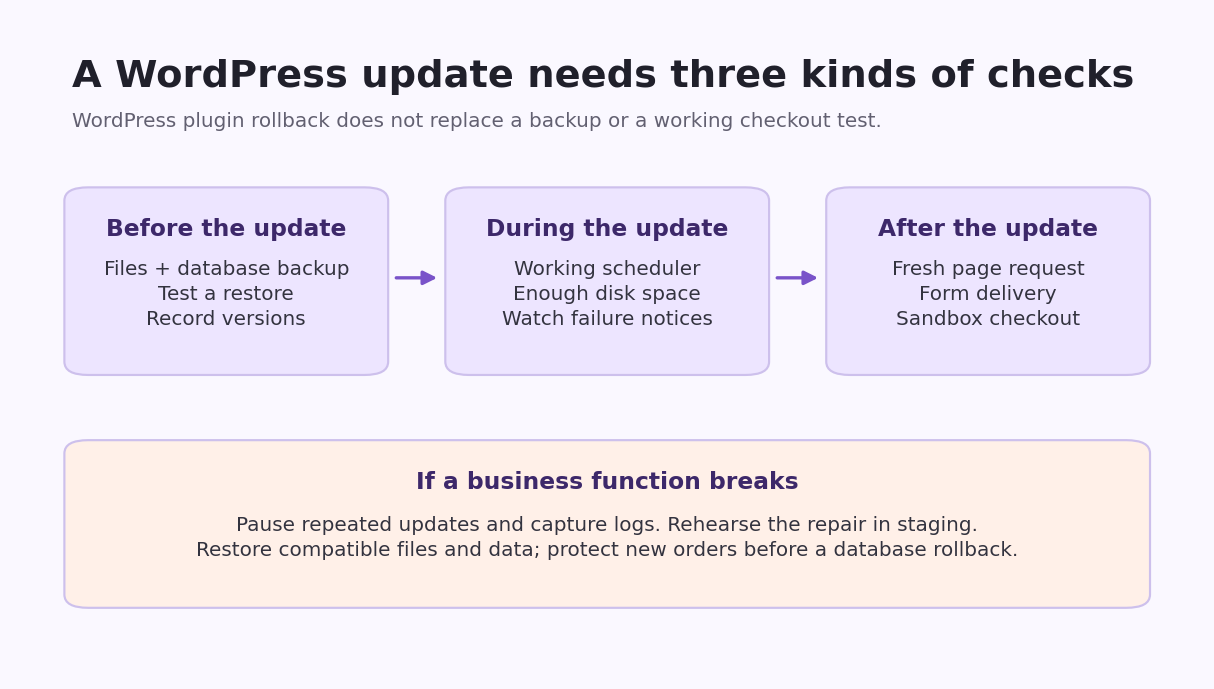
*Original Hostlelo checklist: prepare recovery before the change and test what visitors actually do afterward.*
Choose an update policy per plugin
Start with an inventory of the plugins and themes you use. For each one, record its purpose, installed version, update source and recovery owner.
An editorial policy you can adapt:
- Low business impact: consider auto-updates when the plugin is maintained, compatible and easy to recover.
- Payments, bookings, memberships or custom integrations: use staging and a controlled update process, with business checks and a responsible owner.
- Custom code or edited vendor files: resolve how changes survive replacement before allowing unattended updates.
- Unused software: remove it through a controlled cleanup instead of keeping an expanding update queue.
A manual policy is a commitment to manage updates promptly. It should not become indefinite deferral, especially when a security fix affects your installation.
Host-managed updates and WordPress's own switches can interact. Ask who owns the update policy before changing both.
Build a recovery set, not just a backup file
A database export does not contain your plugin code, themes or uploads. A files archive does not contain all posts, users, orders and settings.
Keep the required files, database and configuration for the same recovery point. Store a copy away from the live account, record the date and installed versions, and restrict access to sensitive exports.
Test a restore in isolated staging. Confirm that it opens, the expected data is present, and recovery credentials are available. Disable live payments, outbound messages and production integrations in that environment.
Our cPanel backup and test-restore guide covers this preparation in detail.
If you use cPanel Backup Wizard
Use Files > Backup Wizard > Back Up to generate the appropriate full or partial backups. Download and protect the result.
The cPanel documentation distinguishes full-account backups from partial backups. Automatic restoration of a full-account backup requires the host or WHM administrator. A Home Directory restore is broad: it can affect more than the plugin you intended to repair.
Before an incident, ask the host how quickly a restore can be arranged, which files and databases it covers, and whether recent orders can be preserved. A backup that requires unavailable access is not a usable recovery plan.
If you use WP-CLI
Run commands as the site's normal operating user, from the correct WordPress installation. First choose a private directory outside every public document root. In a typical hosting account that might be a directory under the account home, but confirm your own layout.
For example:
install -d -m 700 "$HOME/private-wp-backups"
umask 077
wp db export "$HOME/private-wp-backups/before-update-$(date -u +%Y%m%dT%H%M%SZ).sql"
The WP-CLI export command creates a database dump. Check success and file size, transfer it through a secure route to your protected backup location, and include it in a restore test.
Do not export backup.sql into public_html or another public website directory. A publicly downloadable dump can expose customer and account data. Also do not mistake a successful export for proof that all required files were backed up.
Confirm the scheduler works
The default plugin/theme auto-update schedule checks twice daily, but actual execution depends on WordPress scheduling and configuration.
Open Tools > Site Health and investigate scheduled-event or loopback failures. WordPress's auto-update documentation points to these checks when updates do not run.
WP-Cron is normally triggered by requests to the site, rather than being an independent always-running service. Quiet sites can miss intended timing. A host-managed scheduler or real cron job can provide a more dependable trigger, but it must target the correct installation and run successfully.
See our real cron setup guide before disabling the built-in trigger. Disabling WP-Cron without a working replacement can stop scheduled tasks.
Site Health is an important signal; corroborate it with scheduler records or actual completed events where available.
Enable the selected updates
For plugins, open Plugins > Installed Plugins and enable auto-updates for the plugins chosen in your policy. A link offering to disable auto-updates indicates that the setting is enabled.
For a theme, open Appearance > Themes, open its details, and enable auto-updates where the control is available. See the official plugin management and Themes screen guides.
Missing controls can reflect a host policy, plugin, permissions or configuration. Ask the responsible administrator rather than adding random snippets to force the interface.
With WP-CLI, the documented command for one plugin is:
wp plugin auto-updates enable your-plugin-slugReplace the placeholder with an installed plugin's slug. The command reference also documents bulk operation, but do not use bulk enablement to skip the policy decisions.
No available update means there may be nothing to install. You should not expect an update email simply because a day has passed.
Test the functions your business relies on
Keep a short checklist that someone can actually complete after an update. Record the result and the updated component's version.
For a lead-generation site:
- Open key pages in a fresh browser session.
- Submit a clearly labeled test enquiry.
- Confirm receipt in the real destination, including spam or quarantine.
- Check any confirmation page and expected notification.
For a shop or booking site:
- Use an isolated staging site or the provider's supported sandbox.
- Exercise product or booking selection, cart and validation.
- Verify the resulting record and expected notification.
- Check totals, currency, timezone and integrations relevant to your setup.
Keep staging tests separate from genuine payments and customer messages. A sandbox success is evidence about that environment; it does not prove every production integration is identical.
Include mobile navigation and the admin functions your staff use. Checking only the homepage leaves important paths untested.
Use HTTP status as one signal
A quick request can help identify a crash:
curl -sS -L -o /dev/null -w '%{http_code}\n' https://example.com/A final 200 means the request received a successful HTTP response. It does not establish that the content is correct, bypass a CDN cache, or test an interactive transaction.
When investigating, compare the rendered page, application logs and meaningful function checks. Purge or inspect relevant caches through the site's documented process rather than repeatedly testing an old cached page.
Prepare the rollback decision before you need it
If a function breaks after an update:
- Stop repeated automatic attempts for the affected component.
- Record the update time, old/new versions and failing action.
- Preserve useful logs and a copy of the current state.
- Reproduce and test the proposed repair in staging where practical.
- Decide whether files alone can be restored or compatible database recovery is also required.
A plugin update can change database structure or stored data. Reinstalling old code may not reverse those changes. Follow the vendor's compatibility guidance and test the old version against the data before assuming it is a safe rollback.
For a WordPress.org plugin with an available previous version, WP-CLI supports:
wp plugin install your-plugin-slug --version=PREVIOUS_VERSION --forceBoth placeholders must be replaced. The install reference explains that --force overwrites the installed plugin. Use a trusted vendor package for a premium plugin rather than an arbitrary download.
An older version may also reintroduce a vulnerability. Treat rollback as a scoped recovery step while obtaining a compatible secure fix, not a permanent reason to remain on outdated software.
Protect orders before a database restore
Do not restore an old database over a trading site merely because it is the easiest button to find.
Orders, bookings, users and other changes since the backup can disappear. Capture the current state, decide how new transactions will be preserved or reconciled, and have the responsible developer plan compatible recovery.
Similarly, restoring the entire home directory can overwrite newer media, configuration and unrelated files. A targeted restore may be more appropriate, but it needs a known scope and a tested procedure.
Our WordPress debug-log guide explains how to collect useful errors without exposing them publicly.
When the safety checks fail
The update is enabled but does not run: check available versions, scheduler execution, disk space, permissions and the host's policy.
An automatic rollback or failure notice arrives: inspect the site and exact error, pause repeat attempts, and investigate compatibility. Do not assume that every resource or data change was recovered.
The site has a critical error despite rollback support: plugin rollback can fail or its checks may not cover the path involved. The cause can still be a plugin; inspect evidence rather than automatically blaming the theme or PHP.
The homepage works but checkout fails: treat it as a real failure. Preserve transaction data and use the recovery plan for that business path.
Keep an owner, alert destination, backup location and tested restore procedure in a short operations note. Those details make the auto-update switch useful long after the initial setup.
Reader questions
Should I enable auto-updates for every WordPress plugin?
Choose a policy per plugin. Low-impact plugins with a tested recovery path may suit automatic updates. Payment, booking and other critical plugins need staging, monitoring and a prompt managed update process; manual should not mean forgotten.
Does WordPress automatically roll back every broken update?
No. Plugin auto-update rollback introduced in WordPress 6.6 checks for certain fatal errors. It does not prove that forms, checkout, layout or database-dependent features work, and it is not a complete site restore.
How often do WordPress auto-updates run?
The default schedule checks twice daily, but execution depends on the site's scheduler and configuration. An enabled switch does not establish that tasks ran or that an update was available.
Is a database export enough to back up WordPress?
No. Database and files have different contents. Keep the required files, database and configuration together, record their time, and test recovery in an isolated environment.
Can I restore a full cPanel backup from the Backup Wizard?
cPanel does not provide automatic full-account restoration there; ask the host or WHM administrator. Partial restores have a different scope and can overwrite newer files or data.
Does HTTP 200 prove the update worked?
It proves that request returned a successful HTTP response. A cached page or an error rendered with status 200 can still hide a broken form, checkout or other business function.
Was this guide helpful?
Help us make the next update better.
Sources & further reading
- WordPress: plugin and theme auto-updates
- WordPress 6.6 release announcement
- WordPress Core: rollback auto-update design
- WordPress code reference: automatic updater fatal-error check
- WordPress: manage plugins
- WordPress: Themes screen
- WordPress Developer: WP-Cron
- cPanel: Backup Wizard
- WP-CLI: database export
- WP-CLI: enable plugin auto-updates
- WP-CLI: install a plugin version
What changed
Rewritten to distinguish plugin fatal-error rollback from business checks, protect database exports outside the document root, avoid promising updates or alerts on a fixed day, and preserve new transactions during recovery.
Originally published . About our editorial updates.