cPanel Website Backups: Offsite Copies and a Safe Test Restore
Make and verify cPanel backups, protect offsite copies, and rehearse a WordPress restore with a separate database and controlled staging integrations.
The short answer
Create the right file and database copies, protect an offsite version, validate the entire archive and test recovery in an isolated environment. cPanel does not automatically restore a full account archive; a provider can use WHM, and site components can be recovered manually. Staging must use a separate database and prevent production emails, payments, jobs and other side effects before code runs.

Reading options
On this page
- Decide what you need to recover
- Full account and partial backups are different
- Before creating the copy
- Create and download the cPanel backups
- Keep a protected offsite copy
- Validate the complete archive
- Prepare staging before executing restored code
- Restore into the isolated target
- Prove the restore at application level
- Plan a real restore separately
- Retention, automation and cleanup
- Reader questions
- Sources & further reading
Before you start
Have authorized cPanel and database access, enough free space, protected offsite storage and a restricted test environment. Prepare a dedicated test database and controls for outbound email, payments, webhooks and background jobs before running a restored clone.
A download named “backup” is only the beginning. A recoverable website needs the right files and data, a protected copy outside the hosting server, and a restore test that cannot write into the live database or trigger real customer activity.
This guide uses cPanel and WordPress, with the same principle throughout: prove recovery in an isolated test environment before you need it during an outage. A homepage loading from a cache is not enough evidence.
Decide what you need to recover
For a typical WordPress site, you need its files and database together. Your recovery may also depend on DNS, redirects, PHP compatibility, cron jobs, private configuration, external media storage and integrations.
List those dependencies. A backup of a cPanel account does not automatically recover an external object-storage bucket, a third-party email service or a payment provider’s configuration.
Two useful planning terms are:
- Recovery point: how much recent data you could afford to lose. A daily copy may be unsuitable for a shop receiving orders throughout the day.
- Recovery time: how long you can tolerate the site being unavailable. This includes downloading, importing, fixing configuration and checking the application.
Choose a backup schedule and retention from those needs. “Every Friday” is an example, not a safe default for every business.
Full account and partial backups are different
cPanel’s Backup documentation distinguishes full account archives from partial copies.
Backup type | Typical use | Restore consideration |
|---|---|---|
Full account archive | Host-assisted account recovery or migration | cPanel does not automatically restore the full archive; the provider can use WHM, or site components can be recovered manually |
Home Directory backup | Account-owned/readable files, including site files and email within the account | Restoring through cPanel writes into the account; it is not an isolated rehearsal |
Database backup | A selected database dump | Import only into the explicitly intended database |
Email Forwarders and Filters | Forwarding and account-level filter configuration | Not a substitute for verifying mailbox-message coverage |
A full archive is useful, but its name does not prove every dependency is included. Check exclusions, inaccessible files, external services and the contents of the particular archive.
For a live recovery, the panel’s partial Restore operation may be appropriate after a reviewed plan. For a test, do not restore a whole home directory over the production account just because the button is available.
Before creating the copy
Have your hosting login, sufficient quota, private storage and a list of the site’s databases. In WordPress, the existing DB_NAME in wp-config.php helps identify the database; that file contains secrets, so inspect it privately.
Check with your host:
- What is backed up, including exclusions and external dependencies?
- How often are copies made and how long are older versions retained?
- Are backups held outside the production server and under separate access controls?
- Who can restore a full account, and what is the request process?
- How are failed jobs and storage-capacity problems reported?
cPanel warns that a backup can fail near or above quota because required temporary files cannot be written. Do not free space by deleting the only recovery copy. Account for extraction space during a restore as well as the compressed download size.
For a busy site, decide how to coordinate files and database state. Separate downloads taken while orders, uploads or configuration changes continue are not necessarily one consistent point in time. A host-managed snapshot or an agreed pause in writes may be needed.
Create and download the cPanel backups
1. Generate a full account backup
Open cPanel > Files > Backup Wizard > Back Up > Full Backup. The equivalent Backup interface may present the options on one screen.
Choose Home Directory if you will download the completed file yourself. That initially stores it on the hosting account; it is not yet an offsite copy. Enter an email notification address if desired and select Generate Backup.
Remote destinations can be available. Prefer a supported encrypted transfer such as SCP over plain FTP; ask the administrator to configure and verify remote storage if you are unfamiliar with it.
Wait for completion and inspect any error information. Then download the completed archive from the available-backups list. A notification or a filename alone does not prove that every expected database and file was captured.
If an option includes integration credentials, understand what it contains before choosing it. In any case, protect the whole archive as sensitive account data.
2. Download the relevant database and file copies
In Backup Wizard > Back Up, download the selected MySQL Database and Home Directory copies. Record the exact database name and the times each copy was captured.
Do not assume a particular extension or extract layout: the interface, compression and archive type can differ. Inspect the actual downloaded files.
Optional: a private WP-CLI database export
On a host that supports SSH and WP-CLI, export straight to a private path outside every public document root and alias. Replace the paths and CPUSER before running:
umask 077
mkdir -p /home/CPUSER/backup-private
wp --path=/home/CPUSER/public_html db export /home/CPUSER/backup-private/site-db.sql --single-transaction --quick
WP-CLI documents that export uses the configured database and passes supported options to mysqldump. Verify that your PHP/SSH user can write the chosen private path and that another web alias cannot expose it.
--single-transaction can support a consistent transactional-table dump when applicable. It does not make nontransactional tables consistent, tolerate arbitrary schema changes, or coordinate your database with files being modified at the same time. Check table engines and ask the host about consistency for a busy or mixed-engine site.
A default export into public_html can expose customer data and secrets before you move it. Avoid creating it there in the first place. Do not paste a database password into a shell command.
Keep a protected offsite copy
Download into private storage on a trusted computer, then keep an additional protected copy outside the hosting server. Use encryption appropriate to your storage system, restricted access and a recovery method for the encryption key.
Compression does not encrypt a backup. A .tar.gz or database dump may contain configuration passwords, personal data, email and private keys.
A cloud sync folder is not automatically independent protection: deletions or malicious changes can synchronize too. Understand version retention, recovery permissions and whether a protected older copy survives a mistake on the primary device. Where your storage supports it, consider a separately controlled versioned or immutable copy.
Before deleting a temporary server archive, confirm that offsite copies are complete and usable. Delete only the intended temporary file, and retain the planned historical versions. Also remove publicly exposed exports if any were created; investigate access logs when sensitive files may have been downloadable.
Validate the complete archive
Listing the first twenty files does not prove that the download is intact. A pipeline ending in head can stop early, before corruption near the end is read.
On a Unix-like machine with gzip and tar, these commands read the compressed file and list the full archive into a local file:
umask 077
gzip -t backup-account.tar.gz
tar -tzf backup-account.tar.gz > backup-file-list.txt
Replace the filename with the one you downloaded. Check both exit statuses; run the commands separately so a failure is visible. A successful listing checks readability and structure, not application recovery.
Review the complete list in a private editor. cPanel describes common full-account sections such as homedir and mysql. A database dump might not live in the same place in a partial archive, so inspect that archive’s own layout.
Check the intended site’s configuration, plugins/themes, uploads and expected database dumps. Record file sizes and a checksum after download so you can detect later changes. A checksum generated only after downloading cannot establish that the original transfer was correct; compare with an authoritative source checksum if one is provided.
Extract only a trusted archive, in a private working directory or isolated machine. Do not extract a complete home backup into a public staging directory. It can contain unrelated mail, keys or account files, and a compromised site backup may include malicious code.
Prepare staging before executing restored code
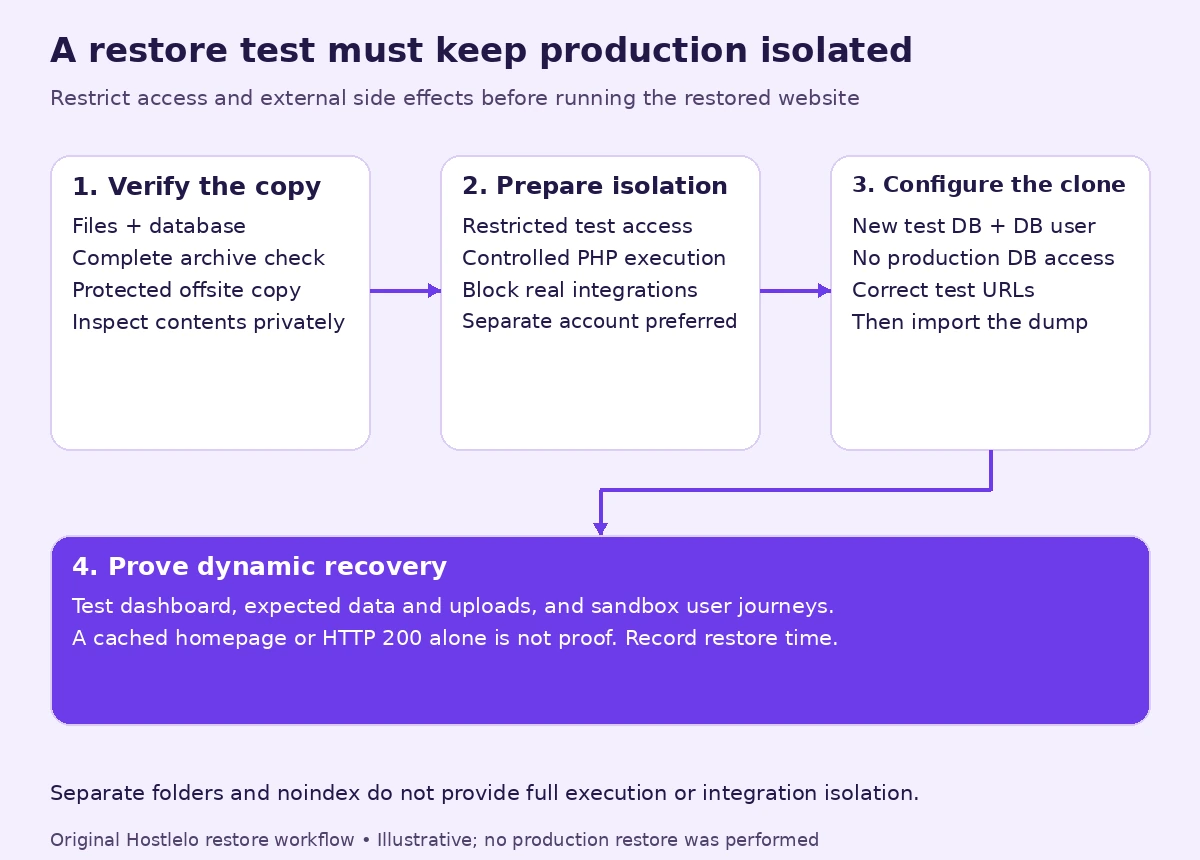
A safe restore target needs more than a different URL. A separate hosting account, controlled test server or isolated local environment gives a stronger boundary than another folder under the production account.
If you use a subdomain in the same cPanel account:
- Deselect Share document root and confirm its exact separate folder.
- Follow the host’s permitted paths. The current documented Domains workflow places a new document root inside
public_html; it does not promise a path outside it. - Check inherited parent
.htaccessredirects and access rules. - Have the host confirm restricted HTTP access and that the staging PHP process cannot reach production data where stronger isolation is required.
A separate folder is not a security boundary against code running with the same account permissions. If you cannot provide the required isolation, use a separate test environment rather than claiming the rehearsal cannot affect production.
Before the first browser request or WordPress bootstrap:
- Protect access with authentication or a network restriction. An indexing setting is not access control.
- Prevent staging from sending real email, triggering webhooks, charging payments or calling production integrations. Use sandbox credentials and appropriate network/service controls.
- Pause or isolate scheduled jobs, workers and queues associated with the clone.
- Remove or replace copied production secrets that staging must not use.
WP_ENVIRONMENT_TYPE and DISABLE_WP_CRON can help label a copy and disable WordPress’s request-triggered cron, but they do not automatically neutralize plugins, system cron, queues or outbound API calls. Have the responsible developer confirm those paths.
Restore into the isolated target
1. Create the test database and a dedicated user
Use cPanel > Databases > Database Wizard or the available database-management interface. Create a new empty database and a new dedicated user.
Record the exact prefixed names shown by the panel. Grant the privileges required for the test database only; do not grant server-wide access or reuse a production database user. Keep the password private.
2. Recover only the intended website files
Extract the backup privately, identify the correct site folder, and copy only that site into the protected test document root. The site might be in a subdirectory or another domain’s root, so do not automatically copy the first public_html folder you find.
If the hosting panel requires a temporary upload, use a private non-web-served working directory and copy the selected files from there. Do not make a whole account archive available at a guessed restore-tmp URL.
Check the restored .htaccess, database drop-ins, custom paths and integration configuration. Keep HTTP access and code execution controlled until the following configuration checks are complete.
3. Change configuration before loading the clone
Edit the staging copy of wp-config.php to use the new database name, user, password and the host’s correct test DB_HOST. Verify the table prefix against the imported data you expect.
For a standard single-site WordPress install at the subdomain root, these definitions can establish the test URL:
define( 'WP_HOME', 'https://staging.example.com' );
define( 'WP_SITEURL', 'https://staging.example.com' );
define( 'WP_ENVIRONMENT_TYPE', 'staging' );
define( 'DISABLE_WP_CRON', true );
Modify existing definitions rather than duplicating them, and place them before WordPress bootstrap. Installations in subdirectories and multisite need their own URL/domain plan.
These values do not rewrite stored links, stop all integrations or replace the isolation controls above. The crucial check is that the clone cannot connect to the live database, including through custom configuration and database-routing drop-ins.
4. Import into the verified test database
In phpMyAdmin, select the new test database explicitly, open Import, and choose the appropriate SQL dump. Recheck the destination name before confirming.
Alternatively, with the correctly configured test copy:
wp --path=/home/CPUSER/public_html/staging db import /home/CPUSER/backup-private/site-db.sqlReplace both paths. wp db import uses the database configured for that WordPress path. Validate that configuration first; the command is a real write operation and can replace data depending on the dump.
If an import fails, inspect the error. File-size limits, compression, permissions, database-engine differences and SQL compatibility can all matter. Do not drop tables until you have confirmed the isolated target and understood the cause.
5. Review stored URLs without editing serialized data blindly
A copied database may still refer to production URLs. Once configuration and isolation are verified, a WP-CLI search-replace dry run can show prospective changes:
wp --path=/home/CPUSER/public_html/staging search-replace 'https://example.com' 'https://staging.example.com' --all-tables-with-prefix --skip-columns=guid --dry-runThis is an illustrative single-site command. Review HTTP/HTTPS variants, multisite domains, custom tables and references that should intentionally remain external. Keep a fresh copy of the test database before applying an approved replacement. Do not run a blanket SQL text replacement over serialized values.
Prove the restore at application level
Test while access and external side effects remain controlled. Confirm the staging address throughout; a redirect or a form action can send you back to production even when the homepage appears correct.
Check | Evidence of a useful test |
|---|---|
Files and database correspond | Expected content and uploaded media from the chosen recovery point |
Login and dynamic requests | Test dashboard and uncached application paths actually query the test database |
Forms, checkout and integrations | Sandbox/test actions work without emailing customers or charging real payments |
Isolation | No production database writes, queued jobs or unintended outbound calls |
Recovery objective | Measured restore time and understood amount of recent data missing |
A private browser window does not bypass a CDN cache. A 200 status can be an error page, and a cached homepage can hide a failed database. Exercise dynamic routes and inspect the application rather than relying on status alone.
Record the backup date, archive identifier, target environment, configuration changes, observed failures and elapsed restore time. This turns “we have backups” into a repeatable recovery procedure.
Plan a real restore separately
During an outage, preserve a private copy of the current state if possible, choose a known suitable recovery point and understand which recent orders, uploads or messages could be lost.
Decide whether you need a full account recovery, selected files, the database or coordinated components. Restoring an old database to fix a plugin-file problem can erase new business data unnecessarily. After a suspected compromise, identify a clean recovery point and address the cause before returning the site to service.
The host should handle automated full-account recovery through its supported tools. Site components can also be manually recovered when appropriate; “cPanel cannot automatically restore the full archive” does not mean its contents are unusable without WHM.
After recovery, verify dynamic requests, login, forms, redirects, database connectivity and certificate renewal. Check DNS/CDN behavior separately.
Retention, automation and cleanup
Use backups before significant updates, plus a schedule suitable for your acceptable data loss. Keep enough historical versions to recover from a problem discovered late. Automation needs alerts for job failure, unreadable copies and storage limits, together with periodic isolated restore tests.
When the rehearsal is complete, remove the test site, its dedicated database/user, temporary archives and any scheduled jobs or test credentials that are no longer needed. Confirm the live site’s application behavior remains normal. Keep the protected backup and the restore record according to your retention plan.
A practical request to your host is: “Please confirm our backup scope, schedule, retention, offsite protection and full-restore process, and help us run a restricted restore test with a separate database and disabled production integrations.”
The successful outcome is a recoverable site and a repeatable procedure—not just a large archive sitting on the same server.
Reader questions
Can I restore a full cPanel backup myself?
cPanel does not automatically restore a full account archive; your provider can use WHM for supported account recovery. You can manually recover appropriate site files and database dumps from the archive. Confirm the intended scope and destination before any restore.
What is the difference between full and partial cPanel backups?
A full archive supports account-level recovery. Partial backups cover selected components such as home-directory files, a database or forwarding/filter settings. Check actual contents, exclusions and external dependencies; a backup name does not prove everything is covered.
How often should I back up a WordPress website?
Choose a frequency from how much recent content or business data you can afford to lose. A busy shop can need more frequent recovery points than a static site. Keep historical versions, back up before major changes and rehearse restoration periodically.
Does a cloud sync folder count as an independent offsite backup?
It can hold an offsite copy, but synchronized deletion or compromise may affect it too. Verify encryption, access controls, version retention and recovery behavior, and maintain a protected copy under appropriately separate control.
Is a staging subdomain in the same account completely isolated?
No. A separate folder and database help, but code with the same account permissions can still access production files or credentials. Prefer a separate controlled account or test environment when stronger isolation is needed. Restrict access and production integrations before executing the clone.
Does noindex or WP_ENVIRONMENT_TYPE stop customers finding staging or receiving emails?
No. An indexing preference is not authentication, and a staging label does not automatically disable outbound mail, payments, webhooks or background jobs. Use access restrictions, sandbox credentials and suitable service/network controls.
How do I know a backup really works?
Validate the entire compressed archive, confirm expected files and data, then perform an isolated restore. Test dynamic routes, dashboard access, sandbox workflows and the recovery point, and record restore time. A 200 response or cached homepage alone is not proof.
Was this guide helpful?
Help us make the next update better.
Sources & further reading
- cPanel: Backup Wizard
- cPanel: Backup, partial restores and account archive limitations
- cPanel: Backup Tarball Contents
- cPanel: Create a New Domain and document-root limits
- cPanel: Manage My Databases
- WordPress: Backups
- WordPress: configuration constants and cron
- WordPress: Moving WordPress
- WP-CLI: database export
- WP-CLI: database import
- WP-CLI: serialized-safe search and replacement
What changed
Clarified full versus component recovery; added complete archive checks, protected offsite copies and a restore rehearsal that isolates databases, access and production integrations.
Originally published . About our editorial updates.