Fix "Error establishing a database connection" in WordPress
WordPress database connection error? Diagnose credentials, host/socket access, privileges and table health before changing passwords or running repairs.
The short answer
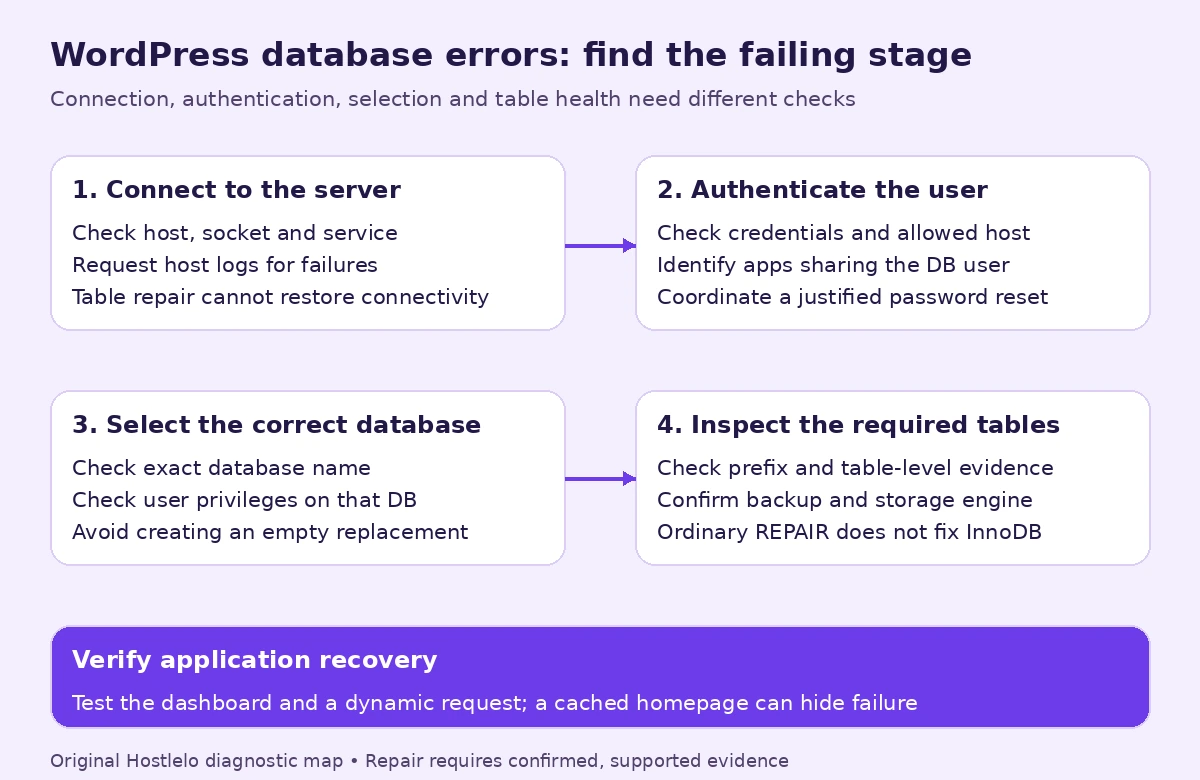
First distinguish connection, authentication, database-selection and table failures. Compare DB_NAME, DB_USER and DB_HOST with the hosting panel, and check service/log evidence. Reset passwords only when justified and coordinate applications sharing the user. Repair only confirmed corruption with a usable backup and supported engine; InnoDB requires an appropriate host-led recovery procedure.

Reading options
On this page
- What the error actually means
- Before you start
- Choose a path before changing anything
- Step 1: Read the longer error in wp-admin
- Step 2: Compare the four settings in wp-config.php with cPanel
- Step 3: Reset the password only when justified
- Step 4: Make sure the user is linked to the database
- Step 5: Check disk space and quota
- Step 6: Check table health before considering repair
- Step 7: Ask whether the database server is down
- Variants: DirectAdmin, Plesk and WP-CLI
- How to check it worked
- Troubleshooting
- Pro tips and when to ask for help
- The one message worth forwarding
- Reader questions
- Sources & further reading
"Error establishing a database connection" means WordPress tried to log in to its MySQL database and the login failed, or the database server did not answer. The most common causes are a wrong value in wp-config.php, a database user that lost its password or permissions, a full account, or a database server that is down. You can check account settings in cPanel; service availability, server storage and engine recovery may need the host. Avoid reinstalling WordPress or creating an empty database as a first response.
Here is a detail most people never notice: WordPress shows visitors only the short one-line message, but if you open /wp-admin/ it often prints a longer version that names the exact problem. That longer message is your first clue, and it can save you an hour of guessing.
By the end, you will know how to read that clue, fix the usual causes in cPanel, and what to ask your host if none of them apply.
What the error actually means
WordPress keeps your posts, users and settings in a database: a separate program (MySQL or MariaDB) that stores data in tables. Dynamic requests normally need a database connection; a page cache can serve some pages even while the database is unavailable.
Think of it like an office worker with a key card for the records room. The card has four things on it: which room (the database name), whose card it is (the database user), the PIN (the password) and which building (the host). If any of them is wrong, or the building is closed, the worker comes back empty-handed.
Those four values live in wp-config.php, the main settings file in your WordPress folder. In WordPress core, the full connection error text says: "This either means that the username and password information in your wp-config.php file is incorrect or that contact with the database server at [your DB_HOST value] could not be established. This could mean your host's database server is down."
A database connection error by itself establishes neither data loss nor data integrity. Check configuration, service health, table evidence and usable backups before changing passwords, repairing tables or starting recovery.
Before you start
Give yourself 20 to 40 minutes. Most steps are read-only checks; the risky ones come later and tell you to back up first.
- Your cPanel login (or DirectAdmin or Plesk login, see the variants section).
- Access to cPanel > Files > File Manager, or SFTP if you prefer it.
- A fresh copy of
wp-config.phpdownloaded to your computer before you edit it. - A database backup if the panel can still make one: cPanel > Files > Backup, then under the partial backups section click the database name. cPanel downloads it as a compressed
.gzfile. - Or, in phpMyAdmin, an Export in SQL format, which the phpMyAdmin docs say "can be used to restore your database".
- Optional: SSH access with WP-CLI if your host offers it.
Heads up: if the database server is down, the backup tools may fail too. Copy wp-config.php anyway and move on; password and privilege changes also affect access. Record settings and check other applications using the same database user before changing them. Our guide to backups, restores and outages explains how to check that a host backup is actually restorable.
Choose a path before changing anything
Evidence | Next check | Avoid |
|---|---|---|
Authentication rejected | User/password and host-based access | Resetting a shared user without updating other applications |
Cannot connect to host/socket | Hostname, socket, service and host logs | Table repair before a connection exists |
Cannot select database | Exact name and scoped user privileges | Creating an empty database over the real data |
Missing/corrupt table | Prefix, engine, backup and table results | Assuming all engines support REPAIR TABLE |
Step 1: Read the longer error in wp-admin
On the public site, the core function dead_db() deliberately stays short. In the admin area, it prints the detailed message instead.
Open your admin URL
Go to your admin address, with your own domain in place of the example.
https://example.com/wp-admin/Now compare what you see with these three messages, all taken from WordPress core source code:
- "Error establishing a database connection" followed by "Are you sure you have the correct username and password?", "Are you sure you have typed the correct hostname?" and "Are you sure the database server is running?". WordPress could not log in at all. Go to Step 2 and Step 3.
- "Cannot select database" followed by "The database server could be connected to (which means your username and password is okay) but the ... database could not be selected." The login worked, but the database name is wrong or the user has no permission on it. Go to Step 2 and Step 4.
- "One or more database tables are unavailable. The database may need to be repaired." The connection works but some tables are damaged or missing. Go to Step 6.
If wp-admin shows only the short line, start with Step 2. Quick tip: copy the exact text somewhere; your host can help much faster with it.
Step 2: Compare the four settings in wp-config.php with cPanel
Open wp-config.php safely
Go to cPanel > Files > File Manager and open the folder where WordPress lives (often public_html). Select wp-config.php, click Copy, type a different folder as the destination (your home folder works) and click Copy File(s). Then select the original and click Edit.
The database block in a standard wp-config.php looks like this sample from WordPress itself, with your own values in place of the placeholders.
/** The name of the database for WordPress */
define( 'DB_NAME', 'database_name_here' );

/** Database username */
define( 'DB_USER', 'username_here' );

/** Database password */
define( 'DB_PASSWORD', 'password_here' );

/** Database hostname */
define( 'DB_HOST', 'localhost' );
Note down DB_NAME, DB_USER and DB_HOST. Never paste DB_PASSWORD into a support chat.
Check the names in Manage My Databases
Go to cPanel > Databases > Manage My Databases. At the time of writing (10 October 2026), cPanel's documentation says this interface was renamed in cPanel & WHM version 120; older versions call it MySQL Databases.
In the Current Databases table, which lists each database with a Privileged Users column, check:
- Does a database with exactly the name in
DB_NAMEexist? Spelling and case matter. - Is the user in
DB_USERlisted under Privileged Users for that same database? - Do both names carry the account prefix? On most shared hosting, names start with your cPanel username and an underscore, for example
exampleuser_wp123for the database andexampleuser_wpuserfor the user.
For DB_HOST, WordPress's database setup guide says the hostname "will usually be localhost". If your host gave you a different hostname when the database was created, use exactly what they gave you.
Fix a mismatch
If a name is wrong, correct it inside the single quotes in wp-config.php, save the file, and reload the site.
After a migration or restore, the database often gets a new name while wp-config.php still points at the old one. If you recently moved hosts, our WordPress migration guide covers the move itself.
Step 3: Reset the password only when justified
cPanel never shows a database user's existing password; if you forget it, you must change it. Reset only when credential checks point there or the password is genuinely unknown. Identify every site/application sharing that user, then coordinate their private configuration updates together.
Made-up example: Sara, a bakery owner, changed her database user's password "for safety" while tidying cPanel. Her site went down at once, because wp-config.php still held the old password. Nothing else was broken.
Set a new password in cPanel
Go to cPanel > Databases > Manage My Databases and scroll to the Current Users table. Find the user named in DB_USER and click Change Password. Enter and confirm a new password, then click Change Password.
Use the panel password generator or another strong random password. wp-config.php wraps it in single quotes, and in PHP a literal single quote there must be escaped with a backslash, and a backslash doubled.
Put the new password in wp-config.php
Open wp-config.php again with Edit, replace only the text between the single quotes on the DB_PASSWORD line, and save.
define( 'DB_PASSWORD', 'PasteYourNewPasswordHere123' );Reload https://example.com/. If the site loads, jump to the checks further down.
Heads up: your cPanel login password and the database user password are different things. Changing the first does not fix this error.
Step 4: Make sure the user is linked to the database
In cPanel, a user only works on a database after you add it there with privileges. A missing link usually shows as "Cannot select database".
Add the user with ALL PRIVILEGES
Go to cPanel > Databases > Manage My Databases and find Add User To Database. Select your DB_USER from the user menu and your DB_NAME from the database menu, then click Add.
The MySQL Account Maintenance screen opens. For this dedicated WordPress user and this database only, tick the ALL PRIVILEGES checkbox, click Make Changes, then Go Back.
The user should now appear under Privileged Users for that database. Reload the site. Full privileges matter because WordPress creates and changes tables during updates and plugin installs.
Step 5: Check disk space and quota
WordPress lists a database that hit its quota and was shut down as a host-side cause. Hosts handle quota differently, so here is what cPanel documents.
Open cPanel > Files > Disk Usage. cPanel's documentation says database size is included in an account's disk usage calculation. It also says the system does not enforce the disk quota when a database's own size pushes the account over its limit.
A full account still causes trouble: cPanel says a "Write failed: disk quota exceeded" warning means you cannot save any files. If you are near the limit, download and then delete old backups and large logs, and ask your host whether the database was suspended for quota.
Step 6: Check table health before considering repair
Inspect table health when wp-admin reports unavailable tables or other table-level evidence exists. Repair only confirmed corruption with a known supported engine and a usable backup. Unresolved connection failures call for host evidence, not speculative repair. Back up first: the MySQL manual warns that a repair "might cause data loss" under some circumstances.
Use Check Database and Repair Database in cPanel
Go to cPanel > Databases > Manage My Databases. In the Check Database menu, select your database and click Check Database.
- Read individual table results as well as the completion message. A successful panel check does not prove WordPress is using the same credentials, hostname or database.
- If cPanel finds a problem, it shows the name of the corrupt table.
If corruption is confirmed and the engine supports repair, back up and ask the host whether panel repair is appropriate. For a supported repair, go to the Repair Database menu, select the same database and click Repair Database. Inspect every table result; completion alone does not establish that each table was repairable or fixed. Click Go Back and reload your site.
Use WordPress's built-in repair page
WordPress has its own repair script, accessible without login when enabled. Prefer authenticated panel/host maintenance. If the host/developer chooses this route, restrict public access first, keep a current backup and open the maintenance page only briefly. Add this line to wp-config.php above the line that reads "That's all, stop editing!".
define( 'WP_ALLOW_REPAIR', true );Then open the repair page in your browser.
https://example.com/wp-admin/maint/repair.phpYou will see two buttons: Repair Database and Repair and Optimize Database. Start with Repair Database. The script runs a check on every table and only tries a repair where the check does not come back OK.
When it finishes, WordPress says "Repairs complete. Please remove the following line from wp-config.php to prevent this page from being used by unauthorized users." Do that straight away.
Heads up: WordPress documents that while WP_ALLOW_REPAIR is on, "a user does not need to be logged in to access the functionality", so the line must not stay.
A note on InnoDB tables
In MySQL 8.4, InnoDB is the default storage engine, and most modern WordPress tables use it. The MySQL manual says REPAIR TABLE works for MyISAM, ARCHIVE and CSV tables, and InnoDB is not on that list. CHECK TABLE, on the other hand, does work for InnoDB.
So if a check keeps naming the same InnoDB table as corrupt, stop pressing repair buttons and ask your host about restoring from a backup.
Step 7: Ask whether the database server is down
If settings and table checks do not explain the failure, request host-side evidence rather than assuming a cause, and WordPress's troubleshooting page says to contact your host to confirm. A strong sign: several sites on the account fail at the same moment with no settings changed. Use the ready-made message at the end.
Variants: DirectAdmin, Plesk and WP-CLI
DirectAdmin
WordPress's database setup guide notes that when you create a database in DirectAdmin, the next screen "will summarize the database, username, password and hostname". Compare those values with wp-config.php exactly as in Step 2. We could not confirm DirectAdmin's current menu names in its official documentation today, so find the MySQL management page in your panel, or ask your host for their own guide, before you change a password.
Plesk
In Plesk Obsidian, go to Websites & Domains > Databases and click Check and Repair in the database tools pane. If problems are found, click See Details and Resolve to see the list of tables. For MySQL or MariaDB you can choose the tables to repair and click Repair Selected. Plesk documents that it uses the mysqlcheck utility for this, so the InnoDB note above still applies.
WP-CLI
With SSH and WP-CLI, run these from your WordPress folder; they print the database values WordPress is using.
wp config get DB_NAME
wp config get DB_USER
wp config get DB_HOST
This next command runs MySQL's mysqlcheck tool with the credentials from wp-config.php, so it tests the login and checks the tables in one go.
wp db checkWhen everything is fine, it ends with Success: Database checked. If the credentials are wrong, it reports an error instead; compare any MySQL error text with the troubleshooting list below.
Do not put a real database password in a copied shell command: history, process listings or terminal recordings can expose it. Update DB_PASSWORD using a private panel editor or an approved secret-handling workflow.
WP-CLI also offers wp db repair. It is not a general connection-error fix: confirm table evidence, backup and engine support first. Ordinary REPAIR TABLE does not repair InnoDB.
How to check it worked
- Open
https://example.com/in a private window while also testing an authenticated or otherwise dynamic route. Private browsing does not bypass a CDN/server page cache. You should see your normal home page. - Open
https://example.com/wp-admin/and log in. The dashboard should load with no database message. - Open one older post and one page. If they show their content, WordPress is reading the database again.
- Check the HTTP status from a terminal with the command below.
- If you used
WP_ALLOW_REPAIR, openwp-config.phpand confirm the line is gone.
This command fetches only the response headers of your home page, which is a quick way to see the status code.
curl -I https://example.com/Record the actual status and redirect destination. Custom handlers, caches and proxies can alter the visible result; HTTP 200 or a redirect alone does not prove database health. Confirm the dashboard and a dynamic database-backed request work.
Troubleshooting
The MySQL error lines below appear when debug display is on, or in WP-CLI output.
"Access denied for user ... (using password: YES)"
This is MySQL error 1045, shown with your own user and host, for example 'exampleuser_wpuser'@'localhost'. Authentication was rejected. Check user, password and host-based account/access rules; password mismatch is one possible cause. Reset only if justified, then update all applications using that user.
"Access denied for user ... to database ..." or "Cannot select database"
MySQL error 1044 or WordPress's "Cannot select database" means the login works but the user is not allowed on that database, or the name is wrong. Check the prefix in DB_NAME, then add the user to the database with ALL PRIVILEGES as in Step 4.
"Unknown database ..."
MySQL error 1049. The database name in DB_NAME does not exist on that server. Look at Current Databases for the real name. If it is truly gone, restore it from a backup rather than creating an empty one, because an empty database holds none of your content.
"Unknown MySQL server host" or "Can't connect to local MySQL server through socket"
MySQL client errors 2005 and 2002. The first means the hostname in DB_HOST cannot be found; the second can mean a stopped service, an incorrect socket path or a permissions/configuration problem. Fix a typo in DB_HOST if there is one, and if DB_HOST is correct, contact your host (Step 7).
"One or more database tables are unavailable. The database may need to be repaired."
Some tables are damaged or missing. Check table names, prefix, engine and individual results. Repair confirmed corruption only with a supported procedure and current backup. Missing tables may require restoring the correct database or prefix, not a repair button. If the same InnoDB table stays broken, ask your host about restoring from backup.
The site works, then breaks again a few hours later
Intermittent failures can involve multiple application nodes with different settings, restarts or resource limits; so ask your host whether the database server is restarting or your account is hitting a resource limit, and recheck Disk Usage.
Nothing in the panel looks wrong at all
WordPress's own troubleshooting page says that if wp-config.php and the host both check out, the site may have been compromised, and suggests scanning it with Sucuri SiteCheck. A clean external scan does not rule out compromise. If evidence is suspicious, preserve it and ask the host to review files/logs; coordinate affected credential rotation and turn on two-factor login using our 2FA guide for cPanel, Plesk, DirectAdmin and WordPress.
Pro tips and when to ask for help
- Keep a private note of your database name, user and host from the day you install WordPress. If you used Softaculous, our install walkthrough shows where those fields are set.
- Never change a database user's password without editing
wp-config.phpin the same sitting. - WordPress supports a custom error page: if a file named
db-error.phpexists inwp-content, WordPress loads it instead of its own database message. Core's comments say such a page should also send a 500 status so search engines do not cache it. - Ask your host, not a random plugin, when the server is down, the database is suspended, or an InnoDB table stays corrupted. They can see server logs you cannot.
- Ask a developer when the error started right after custom code changes.
The one message worth forwarding
If you have done the checks and still see the error, copy this to your host's support team and fill in the brackets.
"Hello, my WordPress site at example.com shows 'Error establishing a database connection' since [date and time, with time zone]. In wp-admin the detailed message says: [paste the exact text]. I have confirmed that DB_NAME, DB_USER and DB_HOST in wp-config.php match the database and user shown in cPanel, reset the database user password and updated wp-config.php, confirmed the user has ALL PRIVILEGES on the database, and checked disk usage. Check Database reports: [result]. Could you please confirm whether the MySQL server for my account is running, whether my database or account has been suspended or hit a limit, and whether you see errors for my database in the server logs? Thank you."
The takeaway: separate connection, authentication, database-selection and table failures. Check configuration and host evidence, coordinate access changes, and repair only confirmed corruption using a supported procedure.
Reader questions
Will I lose my posts because of this error?
A connection error alone does not prove data loss. Wrong settings, rejected authentication or service unavailability can leave data intact; missing/corrupt tables are a separate possibility. Confirm backups and table evidence before repair or recovery.
Where do I find my WordPress database name and user?
Open wp-config.php and read the DB_NAME and DB_USER lines. Then confirm them in cPanel under Databases > Manage My Databases, where the Current Databases table lists each database with its privileged users.
Can I see my current database password in cPanel?
cPanel does not show the database user's existing password. Check which applications share that user before resetting it, and update their private configuration together. Do not put the real password in a copied shell command or public ticket.
Why does wp-admin show a different message from the public site?
It may show a detailed stored error such as failed database selection or unavailable tables. Hosts, custom handlers and configuration can alter that output. Record the exact message and correlate it with configuration and host logs.
Is it safe to leave WP_ALLOW_REPAIR turned on?
No. While it is on, anyone can open the repair page without logging in, and WordPress itself tells you to remove the line once repairs are complete.
Does the repair button fix InnoDB tables?
MySQL documents that REPAIR TABLE works for MyISAM, ARCHIVE and CSV tables, and InnoDB is not on that list. If a check keeps reporting the same InnoDB table as corrupt, ask your host about restoring from a backup.
Could a hacked site cause this error?
Yes, WordPress lists a compromised site as a possible cause once wp-config.php and the host check out. Its documentation suggests scanning the site with Sucuri SiteCheck.
Was this guide helpful?
Help us make the next update better.
Sources & further reading
- WordPress Advanced Administration: Common WordPress errors
- WordPress Advanced Administration: Creating a database
- WordPress Advanced Administration: Editing wp-config.php (WP_ALLOW_REPAIR)
- WordPress core source: class-wpdb.php (connection error messages)
- WordPress core source: maint/repair.php
- cPanel Docs: Manage My Databases (MySQL Databases)
- cPanel Docs: Disk Usage
- MySQL 8.4 Reference Manual: REPAIR TABLE
- Plesk Obsidian: Checking and Repairing Databases
- WP-CLI: wp db check
- MySQL 8.4: connection and authentication problems
What changed
Verified against WordPress, cPanel, MySQL, WP-CLI and Plesk documentation. Corrected credential-change scope, diagnostic order, engine-specific repair limits and recovery checks. Added a diagnostic table, original cover and workflow diagram. Examples are illustrative; no production database was tested.
Originally published . About our editorial updates.