Turn on 2FA for cPanel, Plesk, DirectAdmin and WordPress
Enable authenticator-app login for your hosting panel and WordPress, test recovery and close the overlooked gaps around email, SSO and API access.
The short answer
Protect the hosting panel you use and WordPress separately. Enroll a compatible TOTP app, save recovery material independently of the phone, then test the challenge in a fresh private window. DirectAdmin offers scratch codes and the WordPress Two-Factor plugin offers backup codes; arrange provider-assisted recovery for cPanel and Plesk. Browser 2FA does not automatically protect API credentials, SSH or every SSO route, and manually entered codes can still be phished.
Reading options
On this page
- What an authenticator code does
- Prepare the recovery route first
- Know the differences before choosing a recovery plan
- cPanel: enable Two-Factor Authentication
- Plesk: enable MFA in your profile
- DirectAdmin: enable Two-Step Authentication
- WordPress: enable the Two-Factor plugin
- Test the challenge and the fallback
- Lost phone: use the narrowest recovery route
- When a correct-looking code fails
- Check the accounts around the website
- A practical handover
- Reader questions
- Sources & further reading
Before you start
Working account passwords; official HTTPS login addresses; a compatible authenticator app; automatic phone time; an independent secure place for recovery codes; a verified hosting support route. For WordPress, back up the site and check the current Two-Factor plugin's WordPress/PHP compatibility.
You turn on two-factor authentication, scan the QR code and feel better about the website. Then your phone breaks. The backup codes are on that same phone, and the hosting account is the place you need to enter to recover WordPress.
That is why a good 2FA setup has two parts: a stronger login and a recovery route you have checked before you need it.
Start with the hosting panel you actually use—cPanel, Plesk or DirectAdmin—then protect WordPress separately. Enabling a second factor in the panel does not automatically enable it in WordPress. Your registrar and recovery email deserve attention too.
This guide uses authenticator-app codes and covers each panel's documented setup, recovery differences and a practical test. For WordPress, it uses the Two-Factor plugin from the official directory.
What an authenticator code does
A TOTP app derives a short-lived code from a shared secret and the current time. The password is one factor; possession of the enrolled authenticator is the other. RFC 6238 describes the time-based algorithm and recommends a 30-second time step.
After enrollment, the app can generate codes without receiving an SMS. The server independently computes the expected value. That is why the phone and server clocks need to agree reasonably closely.
The QR code contains the enrollment secret. Someone who obtains that secret can generate the same codes. Treat QR screenshots, manual setup keys and exported authenticator data as credentials, not ordinary documentation.
What it cannot promise
An authenticator code makes a stolen password alone less useful. It does not stop every attack. A fake login page can relay a code in real time, malware can steal an authenticated session, and an API credential may use a different authentication path.
NIST's authenticator guidance explains why manually entered one-time codes are not phishing-resistant. Where a service supports an appropriate passkey or hardware-key login, that may provide stronger protection against phishing. Check the actual service and implementation rather than assuming every “2FA” option has the same properties.
Updates, least-privilege accounts and recoverable backups still matter. WordPress's hardening handbook treats security as risk reduction across several layers. Our website hardening guide connects those account controls with broader site maintenance.
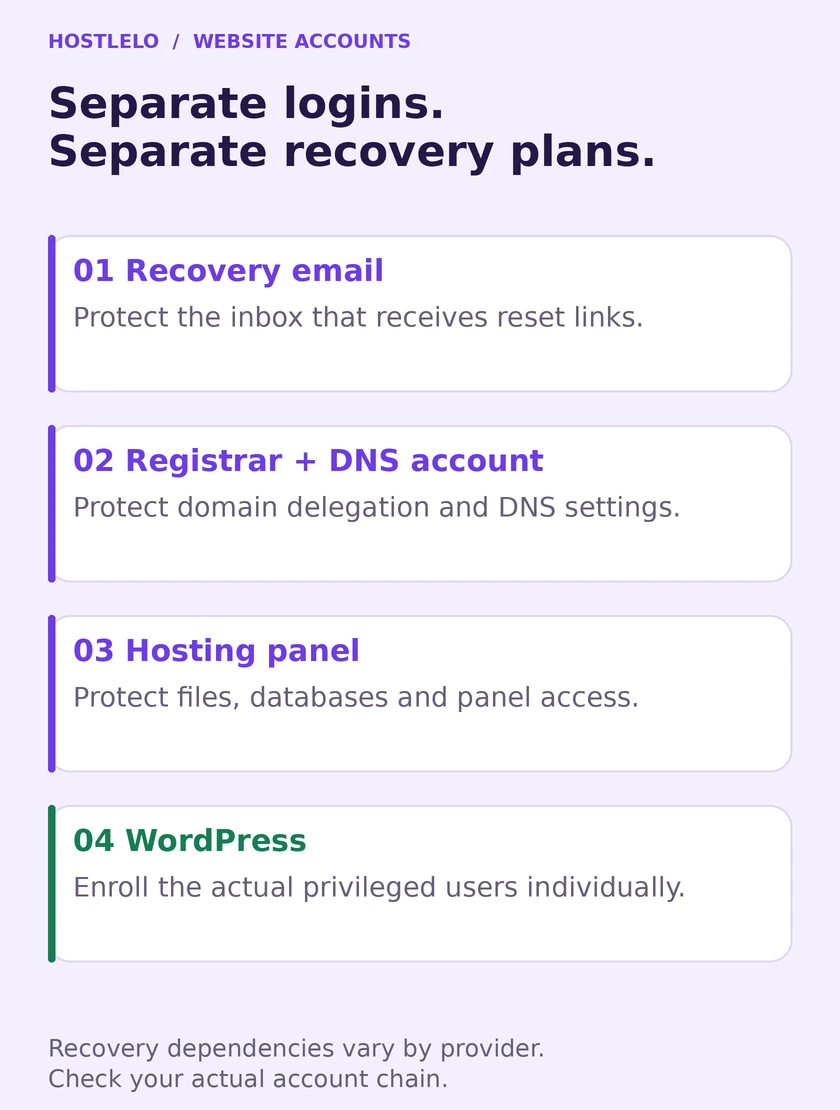
Protect each account separately. Check whether losing one account would also block recovery of another.
Prepare the recovery route first
Before enrolling, confirm your current password and the official login address. Use a private, updated device and an HTTPS connection. Save the site's support route somewhere you can access without logging into the account you are protecting.
Choose a trusted TOTP app compatible with the service. Understand its export or encrypted backup process. If it synchronizes through a cloud account, secure that account too; recovery now depends partly on it.
Set the phone to automatic date and time. On shared hosting, ask the provider to investigate a server-clock problem. On a VPS using systemd, timedatectl status can show synchronization state; the appropriate time service depends on the operating system. Do not assume one Linux command fixes every server.
Store recovery codes in a protected password manager or a secure physical location accessible if the phone is gone. A second copy on the same phone is not an independent recovery route. Avoid emailing the QR code to yourself or putting it in a team chat.
Keeping an existing browser session can be useful during testing, but it is not a guarantee: security settings may invalidate other sessions. cPanel specifically documents this behavior. Your real fallback is the recovery plan, not an open tab.
Know the differences before choosing a recovery plan
Account | Where setup starts | Recovery to arrange |
|---|---|---|
cPanel | Security > Two-Factor Authentication | Hosting provider reset; documented setup offers no recovery-code flow |
Plesk | My Profile > Multi-Factor Authentication | Provider or server administrator assistance |
DirectAdmin | Change your Password > Two-Step Authentication | Generate and securely save scratch codes |
WordPress with Two-Factor | Users > Profile > Two-Factor Options | Save backup codes; identify an authorized reset route |
Menu wording can vary with theme, privileges and installed version. If a feature is missing, establish why rather than installing an unrelated plugin with a similar name.
cPanel: enable Two-Factor Authentication
- Open Security > Two-Factor Authentication and select Set Up Two-Factor Authentication.
- Scan the QR code, or enter its Account and Key manually in your app.
- Enter the current code in Security Code.
- Select Configure Two-Factor Authentication, then test a fresh login.
Your provider must enable the feature in WHM, and can control whether its interface is visible. If it is absent, ask the host. The current cPanel guide also explains Reconfigure, which overwrites the old secret, and Remove Two-Factor Authentication.
Reconfiguration makes old app codes invalid and can log out other cPanel windows. Label the app entry with the correct account and hostname so two similar servers are not confused later.
WHM and API access need separate attention
Server owners and eligible resellers can enroll their own WHM account in Security Center > Two-Factor Authentication > Manage My Account. Manage Users provides the documented way to disable a user's 2FA for recovery. See the WHM guide.
cPanel warns that password-authenticated API requests can bypass the login challenge unless API security policies are enabled. API tokens are separate credentials. Ask the host to review API policy, permissions and unused tokens; do not assume the QR-code setup protected every integration.
Plesk: enable MFA in your profile
Open My Profile, find Multi-Factor Authentication (MFA) and follow its setup link. Enable the feature, scan the QR code, enter a current verification code and save with OK.
The Plesk MFA guide says the MFA extension is included in its recommended setup; an administrator can install it if missing.
Remember Device lets a browser skip the code challenge for the configured period. Use it only on a personal device you control. Keep it off during the first verification test and on shared machines.
Administrators: enforce only after a recovery drill
Plesk can enforce enrollment for all accounts, including the administrator. Its documented strict configuration in panel.ini is:
[ext-mfa]
enforce = true
allowSkipEnforce = false
This applies across accounts; it is not a role-specific rollout. Before enforcing it, enroll administrators, warn users, confirm they can access suitable authenticators and prove the server recovery route works. A successful test for one user is not proof that the whole team is ready.
DirectAdmin: enable Two-Step Authentication
Open Dashboard > Change your Password > Two-Step Authentication; some skins use the Password icon. Create a secret, scan it into the app, use Test Code, then enable the feature after a successful test.
Generate Scratch Codes on the same page and save them privately. DirectAdmin's security documentation says each code works once and can be entered in the normal login Code field when the phone is unavailable.
Review trusted browsers too. A remembered browser can suppress the prompt, and trust can be removed from the Two-Step Authentication page. Verify using a fresh private window so an existing cookie does not hide the challenge.
Repeated invalid codes count toward DirectAdmin's failed-login controls. Stop guessing if several fresh codes fail; clock drift, a wrong account entry or a changed secret needs investigation.
WordPress: enable the Two-Factor plugin
WordPress core does not provide this login feature by default; its authentication handbook points to additional solutions.
Use the exact Two-Factor plugin from WordPress.org. Check its current WordPress/PHP requirements against your installation, back up the site and test alongside existing login or security plugins. Version numbers and compatibility requirements change, so a static blog example should not replace the current plugin page.
- Install and activate it through Plugins > Add New.
- Open Users > Profile and find Two-Factor Options.
- Configure Authenticator App (TOTP), scan the QR code and verify with a fresh code.
- Enable Backup Codes, generate them and save them before leaving the page.
- Select the authenticator as the primary method, save the profile and test a new login.
Enrollment is per user. Installing the plugin does not mean every administrator has completed setup. Audit the privileged accounts and confirm their actual configuration. If your team needs compulsory enrollment, role-based policies or grace periods, verify that the chosen plugin or identity system provides those controls in its installed version.
The plugin also supports email-based codes. Evaluate the mailbox as part of the recovery design: a compromised inbox can weaken an email-based second factor and may also receive password-reset links.
Command-line inspection and recovery
Current plugin documentation includes a wp two-factor command namespace. Check it on your installation before relying on it:
wp --path=/home/example/public_html help two-factor
wp --path=/home/example/public_html two-factor status USER_LOGIN
If an authorized administrator must reset that user's lost factors:
wp --path=/home/example/public_html two-factor disable USER_LOGIN --yesReplace the path and user identifier after verifying the intended account. Without a provider argument, this performs a full reset of that user's 2FA configuration. Re-enroll immediately and generate fresh backup codes. It is a recovery operation, not a command to run during normal setup. The project's maintained documentation describes the commands.
If the namespace is unavailable, ask a trusted site administrator or host to use the recovery procedure supported by that version. Removing or renaming the entire plugin can weaken protection for every user and does not necessarily erase stored secrets. Re-enabling it without a tested reset plan can bring the old challenge back.
Test the challenge and the fallback
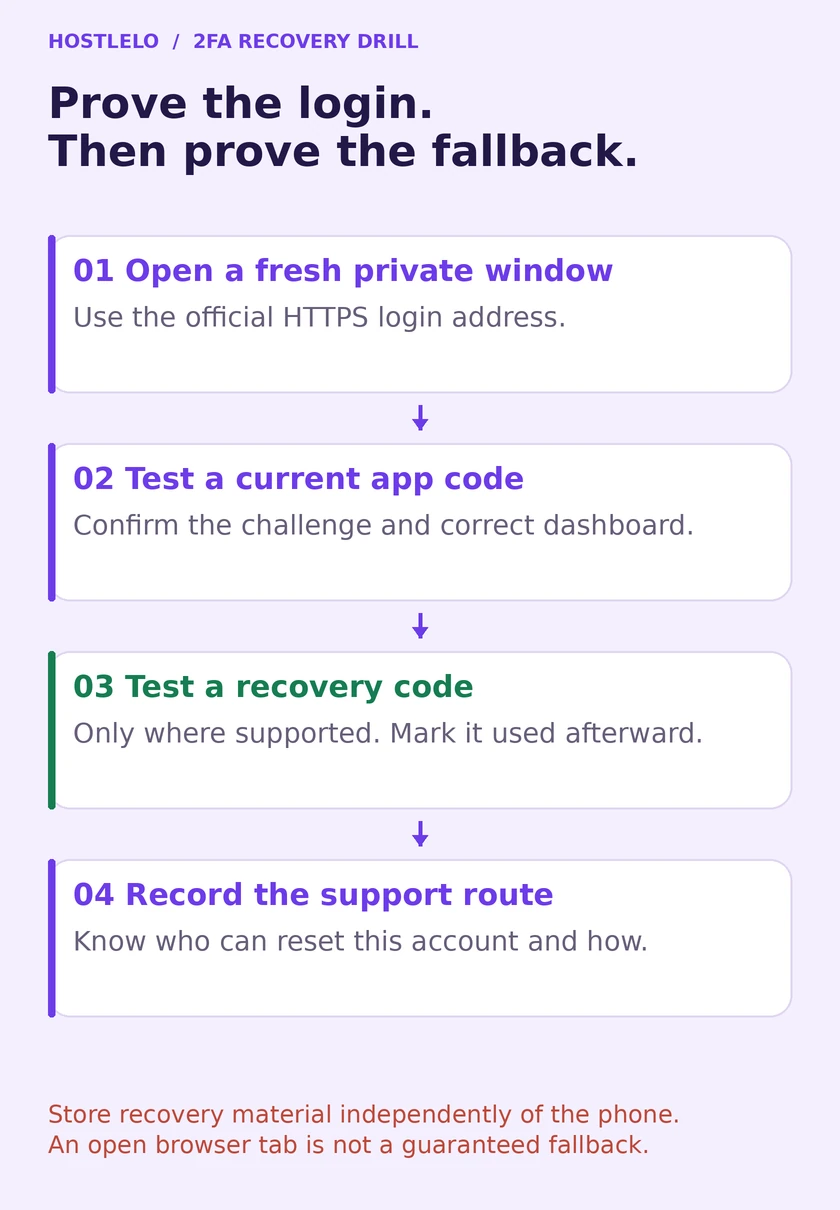
A saved recovery code is useful. A tested recovery process is better.
For each account:
- Open a private window at the bookmarked official login address.
- Enter the normal username and password. Confirm that the second-factor challenge appears.
- Enter a fresh app code and confirm the correct dashboard opens.
- Where scratch or backup codes are supported, sign out and test one recovery code. Mark it used, or regenerate the set if that is the service's procedure.
- Record the support route and who can approve a reset. Do not store live codes or QR secrets in an ordinary ticket.
If the dashboard opens without a challenge, check remembered devices, an existing session, SSO and the specific account's enrollment. A hosting panel's one-click WordPress login may use another authentication route. Test direct wp-login.php access too and ask the provider how its SSO path is protected.
Lost phone: use the narrowest recovery route
cPanel: the documented route is to contact the hosting provider to disable that account's 2FA, then set it up again. Arrange the provider's identity-verification process beforehand.
DirectAdmin: use a saved scratch code. Enroll the replacement authenticator and replace the recovery material as appropriate. Without a usable code, contact the administrator instead of trying repeated guesses.
WordPress: use a saved backup code or an authorized account-specific reset, such as the verified WP-CLI operation above. If the phone may have been stolen unlocked, review active sessions and other exposed credentials too.
Plesk: ask the host or server administrator. Plesk's emergency recovery article documents this privileged command for the MFA extension:
plesk bin extension --disable mfaIt disables the extension across the server. It is not a reset limited to one customer. Use it only as part of an administrator-controlled recovery window with a verified re-enrollment plan.
Plesk documents restoring an extension with:
plesk bin extension --enable mfaSee its extension management instructions. Re-enabling does not promise to erase the old enrollment: confirm the affected user's recovery and verify challenges afterward. A customer on shared hosting should contact the provider rather than attempt server-wide commands.
When a correct-looking code fails
Symptom | What to inspect |
|---|---|
Every fresh code is rejected | Correct account entry, phone time, server time and current secret |
Old phone works; new phone does not | Transfer or re-enrollment was incomplete |
Failure starts after reconfiguration | The old QR secret was replaced; use the newly enrolled entry |
Login suddenly stops after many guesses | Rate limiting or IP blocking; contact the provider |
Code works in one path only | Remembered sessions, SSO or a different login integration |
Clock drift is a documented cause, not the explanation for every failure. Fix the clock rather than casually widening the accepted time window. Wait for a fresh code, check the account label and avoid repeatedly entering the same expired value.
When changing phones, transfer or re-enroll while the old device still works. Test the new device independently before wiping the old one. If you reconfigured the account, remove stale app entries only after proving the replacement works.
Check the accounts around the website
The panel and WordPress are only part of the chain. Protect the domain registrar, DNS dashboard, recovery mailbox and hosting billing account according to each service's supported methods. A password-reset email is only as trustworthy as the mailbox receiving it.
Review automation separately. WordPress Application Passwords authenticate API requests and are not normal browser login passwords. Inventory integrations, revoke unused credentials and use the lowest-privilege account the integration needs. Browser 2FA is not a blanket policy for SSH, SFTP, API tokens or deployment keys.
Give each teammate an individual login and only the permissions their work requires. Sharing one administrator account often turns a useful second factor into a stream of “send me the code” messages. Individual accounts also make removal and incident review much clearer.
A practical handover
For each privileged account, record the owner, official login URL, enrollment status, recovery method, recovery storage location and last test date. Record locations and responsible people—not the live secrets—in a shared operations note.
Set a reminder in your normal maintenance process to revisit it when a phone changes, a teammate leaves or the host changes its login system. The setup is complete when the normal login works and losing the phone has a documented, tested answer.
Reader questions
Does enabling hosting-panel 2FA protect WordPress too?
No. They are separate accounts and login systems. Configure WordPress independently and check provider SSO or one-click login paths as well as direct wp-login.php access.
Where should I keep backup or scratch codes?
Use protected storage you can reach if your phone is lost, such as an appropriate password manager or secure physical location. A copy only on the enrolled phone is not an independent fallback. Mark tested one-time codes as used.
What if cPanel's 2FA option is missing?
Ask the hosting provider whether the feature and interface are enabled. cPanel's documented lost-authenticator recovery also requires provider assistance, so establish that support route before relying on it.
Are authenticator codes phishing-resistant?
No. A fake login page can relay a manually entered code. Check the official login address, protect devices and sessions, and evaluate supported passkeys or hardware-key methods where the service provides them.
Can I use Plesk's extension-disable command for one user only?
No. Disabling the MFA extension affects the server's users. It requires a privileged administrator and a controlled recovery plan that restores protection and verifies re-enrollment. Shared-hosting customers should contact their provider.
Why do new codes keep failing?
Check the correct account entry, current enrollment secret, phone and server time, and any rate limiting. Clock drift is one cause, not every cause. Stop repeated guesses and fix the underlying problem instead of casually widening the accepted time window.
Was this guide helpful?
Help us make the next update better.
Sources & further reading
What changed
Reworked enrollment around independent recovery and fresh-login tests. Removed unsupported best/most claims and casual advice to widen code windows or disable the whole WordPress plugin. Added TOTP-secret handling, phishing limits, account-specific WordPress recovery, Plesk's server-wide recovery impact, SSO/API checks, and registrar/email protection. Added a new cover and two original diagrams.
Originally published . About our editorial updates.