WordPress Emails Miss Your Own Domain? Check cPanel Routing
When WordPress mail reaches outside addresses but misses your business inbox, trace the sender, cPanel routing and delivery evidence before changing DNS.
The short answer
If website-generated mail uses the cPanel host but your domain's mailboxes live at an external provider, incorrect local routing can cause same-domain failures. Verify the actual sending path, recipient, public MX and server-side view before selecting Remote Mail Exchanger. Direct external SMTP/API delivery needs its own provider trace.

Reading options
On this page
- The symptom is useful, but it is not a diagnosis
- 1. Identify the actual mail path
- 2. Establish where this domain's mailboxes belong
- 3. Understand cPanel's Automatic setting before relying on it
- 4. Choose Local or Remote only after confirming the arrangement
- 5. Retest three paths with identifiers you can trace
- 6. Match the logs to the path, then investigate the next failure
- A concise support request
- Reader questions
- Sources & further reading
Before you start
Authorized access to the relevant WordPress mailer configuration, cPanel domain and mail-provider diagnostics, plus read access to public DNS. Use only owned or approved test recipients and synthetic content. Record the current routing/MX configuration before any authorized change. Split delivery, gateways and hybrid mail require an administrator's design.
Direct answer: If WordPress email reaches outside addresses but misses an address on your own domain, first identify the sending server. When the website hands mail to its cPanel host but the domain's mailboxes live elsewhere, incorrect local routing can be the cause. Confirm the mail destination and logs before selecting Remote Mail Exchanger. This is not the fix for every SMTP or inbox problem.
This guide was researched on 15 October 2026. It covers an established configuration problem, not a newly discovered WordPress bug. The cPanel Email Routing reference reviewed here is marked valid for version 130 through the latest version and was last modified on 8 July 2026. Provider interfaces and older versions may differ.
The symptom is useful, but it is not a diagnosis
Imagine this hypothetical case, not a customer incident we tested:
- Your website runs on cPanel hosting.
- Your business inboxes are at Google Workspace or Microsoft 365.
- A contact-form notification arrives at an outside test address.
- The same form does not reach
support@example.com, the business's hypothetical own-domain address.
That pattern makes recipient-specific routing worth investigating. It does not prove that cPanel is responsible. A nonexistent recipient, an alias rule, a rejection, quarantine or a different application path can produce similar symptoms.
The WordPress wp_mail() reference explicitly warns that a true return value does not establish successful receipt. A green form confirmation or a successful mailer test is a starting observation, not proof of inbox delivery.
Keep the distinction narrow: the question is why this website's message misses this recipient, not whether all mail for the company is broken.
1. Identify the actual mail path
Inspect the active mailer configuration and the event generated by the failing form. Record the configured host or API provider and any fallback route. Do not copy passwords or tokens into a support ticket.
There are two useful starting branches:
Mail handed to the hosting server. PHP's local mail path, or SMTP pointed at that same hosting server, can involve the host's mail-routing configuration. Installing an SMTP plugin does not by itself prove that mail leaves through an external provider.
Mail handed directly to an external SMTP/API provider. Begin with that provider's transaction, rejection and delivery events. A cPanel setting may not participate in this particular path. Custom relays and fallback senders need their own path check.
Our business-email phone setup guide covers IMAP and SMTP client configuration. Here we are tracing a website-generated message, which may use a different sender from the phone.
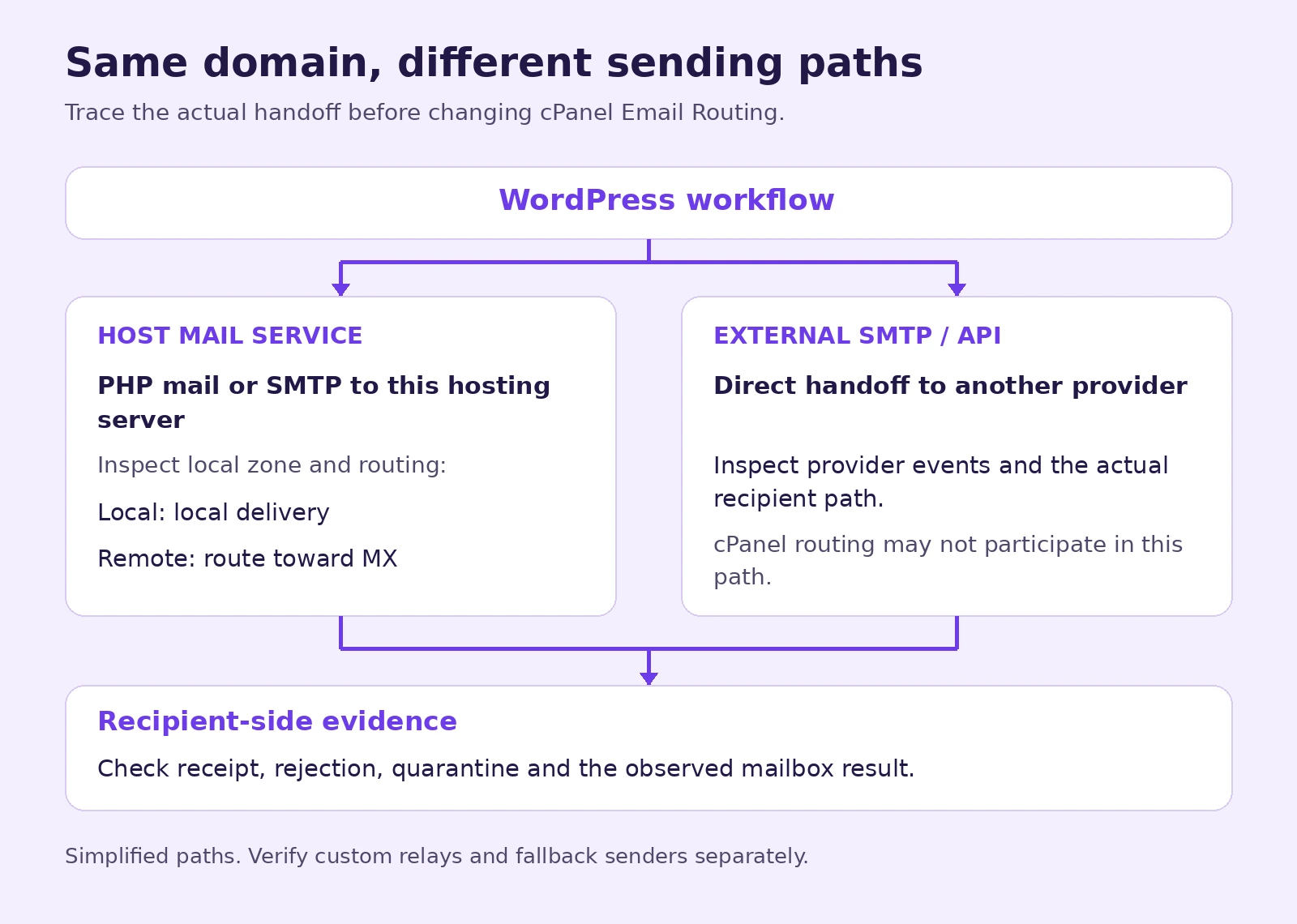
*Simplified diagnostic paths. Custom relays and fallback senders require their own trace; no mail-delivery experiment is represented.*
2. Establish where this domain's mailboxes belong
Ask the mail administrator which service should receive the domain's mail. Verify that the exact test recipient exists there, including whether it is a mailbox, alias or group.
Check public MX records for the recipient's email domain, not merely the hostname in your website's URL. Compare them with the provider's current account-specific instructions. Do not copy an old Google or Microsoft MX example from an unrelated tutorial.
These are unexecuted, read-only DNS examples. Replace the documentation domain and nameserver with your actual approved values:
dig MX example.com
dig NS example.com
dig @ns1.example.net MX example.com
The first query uses your configured resolver. The last queries the authoritative server you have identified for that zone. Read the response status and answer, not just whether some text appears. An empty answer, SERVFAIL or an unexpected delegation needs investigation; it is not a reason to invent an MX record.
If the authoritative provider is Cloudflare or another external DNS service, editing a non-authoritative cPanel zone does not automatically alter public DNS. Our domain-to-hosting guide explains that separate responsibility.
Correct public MX records show the intended external incoming route. They do not by themselves establish how a message already on the hosting server is being routed.
3. Understand cPanel's Automatic setting before relying on it
The official Email Routing reference says automatic detection uses the local zone-file entry, not an actual DNS lookup. It also says the system does not automatically change the routing setting after an update.
This is why a domain can have correct public MX records while a local hosting-side decision still needs review. cPanel's automatic-detection support article also notes that detection does not occur when configured MX records do not resolve.
If the public zone and server-side view disagree, ask the host to inspect the local zone, resolver behavior and actual routing result. Selecting a different radio button is not a substitute for identifying stale or unresolved server-side records.
4. Choose Local or Remote only after confirming the arrangement
For an ordinary setup where the domain's mailboxes are entirely at an external provider, cPanel's remote-mail hosting procedure calls for appropriate MX records and Remote Exchanger routing.
With the arrangement confirmed and the change authorized:
- Record the previous routing choice and relevant MX evidence privately.
- Open cPanel → Email → Email Routing and select the exact domain.
- Choose Remote Mail Exchanger for the confirmed all-remote arrangement and click Change.
- Repeat the controlled tests below and compare the actual routing events.
If the intended mailboxes are on this cPanel server, do not select Remote merely because the website is missing a message. Local Mail Exchanger is the local-delivery choice. Remote tells the server not to accept mail locally for the domain and to send it toward the lowest-numbered MX.
Split delivery, filtering gateways, smarthosts and hybrid deployments require the administrator's design. The WHM routing reference describes Backup Mail Exchanger as a hold-and-forward role, not a convenient way to divide users between cPanel and Microsoft 365. Stop and involve the mail administrator if some users intentionally remain local.
Do not delete old local mailboxes while diagnosing. They may contain messages that never reached the external service. Preserve their contents and any relevant queue evidence before cleanup or migration.
5. Retest three paths with identifiers you can trace
Use only addresses you own or are authorized to test. Send minimal synthetic content, one message at a time, with a fresh identifier such as routing-check-20261015-A. These tests are proposed, not executed for this article.
Test A: the failing website workflow to the same-domain recipient. Submit the actual form or notification path, not just an unrelated plugin's test button. Record the time with timezone, application result and available message/provider identifier.
Test B: the same website workflow to an outside controlled recipient. Keep the sender configuration and content comparable; change the recipient and test identifier. An outside success is a useful comparison, not proof that the same-domain inbox should behave identically.
Test C: an independent outside sender to the same-domain recipient. This checks ordinary incoming delivery separately from the website's sending route. If this also fails, investigate the recipient, public mail route and provider policies rather than treating the problem as a WordPress-only failure.
Record each result as observed, not assumed. A useful evidence row includes test ID, time, sender path, recipient, application result, host event, provider event and mailbox observation. Leave unknown fields unknown.
6. Match the logs to the path, then investigate the next failure
For hosting-side mail, use Email → Track Delivery, where enabled, or ask the host for the relevant delivery trace. The Track Delivery documentation explains that the report depends on stored eximstats data and may be unavailable or unreliable with some third-party mail arrangements. An empty table is not conclusive proof that WordPress never attempted a message.
Inspect the specific recipient, router/transport details where available and final result. Local delivery to an unintended hosting mailbox is different evidence from a remote server rejecting the recipient. A queued or deferred message is different again.
For Google Workspace, an authorized administrator can use Email Log Search troubleshooting and the available message identifiers. Google's current page distinguishes receipt from post-delivery mailbox status and notes cases that do not appear in the search. Absence from a search alone is not a universal proof of the route.
For Microsoft 365, message trace can show received, rejected, deferred, quarantined and delivered states. Check the correct time window, recipient and event detail. Do not equate a provider accepting a request with a person reading the message.
If the provider received the message, investigate its actual filtering, alias/group handling and mailbox rules. Review authentication for the service that really sent it using our SPF, DKIM and DMARC guide. Do not start by adding a second SPF record, disabling DMARC or weakening SMTP certificate checks.
A concise support request
Send the host a redacted summary: the recipient domain, confirmed mailbox provider, actual application mail path, public MX evidence, current routing selection, test IDs and timestamps, and the exact rejection or delivery result available.
Ask: “Please compare the server's local zone and routing decision with the intended remote mailbox service, and trace this test message before we change more settings.”
Do not send credentials, complete customer messages or other tenants' logs. Do not replay historical forms in bulk after a change: a message may already exist in a local mailbox, queue, CRM or remote provider. Check state before producing duplicates.
We did not access a customer mail server, send test messages, change MX records or reproduce a delivery failure. This is a source-checked diagnostic workflow. Its finish line is an observed message path and verified receipt, not a green settings screen.
Reader questions
Why do WordPress emails reach outside addresses but not my own domain?
One possible cause is hosting-side local delivery when your mailboxes are actually elsewhere. First identify the website's sending path, then compare cPanel routing, MX evidence and delivery logs. Recipient rules, rejection or quarantine can produce similar symptoms.
Can public MX records be correct while cPanel routing is wrong?
Yes. Automatic detection uses cPanel's local zone-file view rather than a live DNS lookup, so a correct public zone does not prove the hosting-side configuration is suitable. Ask the host to compare both views and the actual delivery route.
When should I select Remote Mail Exchanger?
For a confirmed ordinary setup with the domain's mailboxes entirely at an external provider, follow the provider and host's routing instructions. Do not apply it blindly to locally hosted, split-delivery, gateway or hybrid arrangements.
Does using an SMTP plugin rule out cPanel routing?
No. SMTP to your hosting server can still use its mail service. Inspect the actual destination and fallback path. Direct submission to an external SMTP or API provider needs that provider's events and recipient-side evidence.
Does a successful wp_mail() result prove receipt?
No. WordPress documents that a true result does not establish successful receipt. Check the relevant transport and provider events, then verify the intended recipient's mailbox result.
Should I delete local mailboxes or resend every old form after a routing change?
No. Preserve local mail and queue evidence first. Historical messages may already exist in another mailbox, queue, CRM or provider. Confirm their state before cleanup or replay to avoid loss and duplicates.
Was this guide helpful?
Help us make the next update better.
Sources & further reading
- WordPress wp_mail() return-value semantics
- cPanel Email Routing, version 130+ reference
- cPanel automatic-detection criteria
- cPanel procedure for externally hosted mail
- WHM routing roles and local-zone behavior
- cPanel Track Delivery and data limitations
- Google Workspace Email Log Search troubleshooting
- Microsoft 365 message trace
Originally published . About our editorial updates.