cPanel Business Email on Your Phone: IMAP Setup and Send/Receive Checks
Create the mailbox, copy secure settings from Connect Devices, add it to iPhone or Android, and separate password, SMTP, certificate and MX routing failures.
The short answer
Create a cPanel mailbox only if cPanel is the intended email service, then use its Connect Devices settings with your full email address and mailbox password. IMAP commonly uses TLS on port 993 and SMTP submission TLS on 465; use 587 with STARTTLS only when the provider supports it. Test external incoming mail and outgoing replies separately.

Reading options
On this page
- First check where your email belongs
- Choose IMAP for a shared mailbox view
- Create the mailbox in cPanel
- Copy the settings instead of guessing the hostname
- Add the account to an iPhone or iPad
- Add the account to Android's Gmail app
- Run three tests before handing out the address
- Troubleshoot by the failed stage
- An optional certificate check for technical users
- Deliverability is the next job
- Give support evidence, not your password
- Reader questions
- Sources & further reading
Before you start
cPanel access, a real domain with an agreed mail-routing plan, the mailbox password, a second external email account for testing, and the secure server settings from Connect Devices. Back up any messages stored only on an existing POP account before removing it.
Creating hello@yourdomain.com and adding it to a phone are two different jobs. There is also a third: proving that mail arrives from outside your hosting account and that replies leave it.
The dependable setup is to create the mailbox in cPanel, copy the secure settings from Connect Devices, use IMAP for the shared inbox, and test receiving and sending separately.
Official documentation was checked on 12 October 2026. Menu labels vary between phone and app versions, so use the corresponding account settings if your screen differs.
First check where your email belongs
A domain can have its website on cPanel while its email is hosted by Microsoft 365, Google Workspace or another provider.
If that is your arrangement, add the existing provider's account to your phone. Creating a mailbox in cPanel does not automatically move incoming mail there.
Ask your administrator where mail should be delivered. Public MX records identify the inbound mail-routing destination. If the existing service is working, do not replace those records merely to follow this tutorial.
The cPanel Email Routing documentation distinguishes local and remote delivery. An incorrect local routing choice can also affect messages sent from the hosting account.
For a new domain intended to use cPanel email, confirm its public MX records and mail-server address with the host. Website DNS and email routing are related configuration tasks, but they are not the same thing.
Choose IMAP for a shared mailbox view
IMAP lets the app work with mail and folders kept on the server. It is usually the practical option when you use a phone, computer and webmail.
POP3 is oriented toward downloading messages. It does not inherently delete every downloaded message immediately. Deletion depends on the client's commands/settings and the server's policy. RFC 1939 distinguishes retrieving a message from marking it for deletion.
cPanel warns about the common POP setup that removes server copies and recommends IMAP. That warning is useful, but it should not be mistaken for the only possible POP behavior.
If you are replacing an old POP account, inspect it first. Messages saved only on that phone or computer might not exist in webmail. Export or safely copy them before removing the account.
Also remember that IMAP synchronization is not a backup. A deletion can propagate to other devices. Arrange separate retention or backup for important business mail.
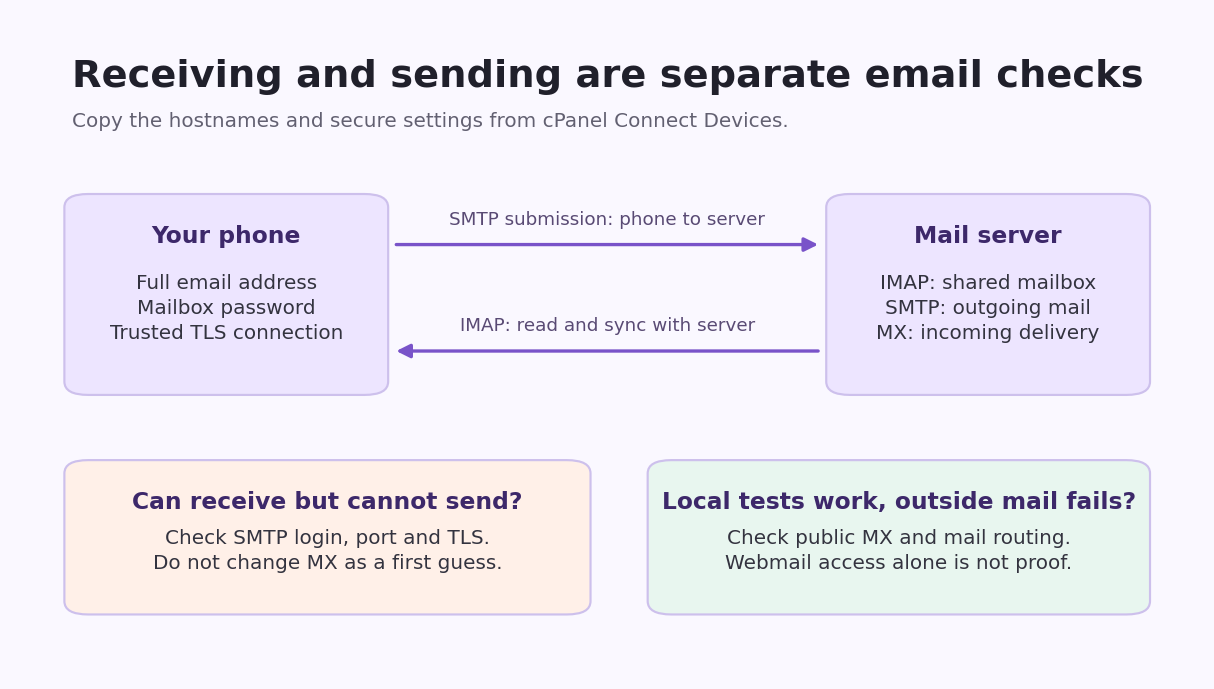
*Original Hostlelo checklist: receiving, sending and outside delivery need separate evidence.*
Create the mailbox in cPanel
Open Email > Email Accounts > Create.
Choose the intended domain and enter the mailbox name, such as hello. Set a strong, unique mailbox password and keep it in a password manager. Choose an appropriate mailbox quota, then create the account.
The Create an Email Account guide describes the available options. Some hosts provide a password-setup link or different quota controls.
A mailbox labeled unlimited is still constrained by the hosting account and provider's resources. Monitor usage instead of assuming mail can accumulate forever.
Use Check Email to open webmail for the new account. This establishes whether you can reach the mailbox locally; it does not yet establish public incoming delivery.
cPanel's temporary test domains do not provide the normal email services used here. Use your actual configured domain.
Copy the settings instead of guessing the hostname
Next to the mailbox in Email Accounts, choose Connect Devices. Use the Secure SSL/TLS details shown for that account.
Record:
- Username: the full address, such as
hello@example.com. - Password: the mailbox password, not the cPanel account password.
- Incoming hostname: the exact value provided.
- Incoming protocol and port: normally IMAP with TLS on 993.
- Outgoing hostname: the supported SMTP submission host.
- Outgoing port and TLS mode: copy both, not just the port.
The cPanel mail-client reference uses IMAP 993 and SMTP 465 in its secure example. The hostname supplied can depend on certificate configuration.
Do not assume mail.example.com is the correct name just because your domain is example.com. The connection's certificate must be valid for the hostname your app uses.
SSL/TLS and STARTTLS are different connection modes
Port 465 commonly uses implicit TLS: encryption starts as the connection is established. Port 587 can provide encrypted submission using STARTTLS when the provider and client support it.
Use 587 only with the provider's documented STARTTLS configuration. A port number by itself does not prove encryption. RFC 8314 explains these mail-access and submission security arrangements.
Do not select None, accept an unexplained certificate warning or turn off certificate validation to make setup finish. Ask the host to correct the hostname, certificate or supported settings.
TLS protects the connection to the mail server. It is not a claim that a message is encrypted end to end or that every onward delivery path has the same protection.
Add the account to an iPhone or iPad
Apple's current manual setup instructions begin at Settings > Apps > Mail > Mail Accounts > Add Account.
Enter the address, choose the option for another account where offered, and enter your name, mailbox password and description. If Mail cannot determine the settings, choose IMAP and enter the incoming and outgoing details from Connect Devices.
Use the full address for both server logins where required. An outgoing section described as optional in a phone interface does not mean that your host permits unauthenticated sending.
Save the account when validation succeeds. If your iOS version uses different labels, cPanel also provides a device setup walkthrough, but its illustrated device version may differ from yours.
cPanel can offer a configuration profile for supported Apple devices. Download it only from your own trusted hosting account, review its scope, and use the mailbox credential when requested. Manual setup is a useful alternative.
Add the account to Android's Gmail app
The Gmail app can access a non-Gmail IMAP mailbox; the mailbox remains with your email provider.
Open Gmail, tap the profile icon, then Add another account > Other. Enter the full address, select Personal (IMAP), and supply the mailbox password and incoming settings.
Continue to outgoing settings. Confirm the SMTP host, authenticated username, password, port and TLS mode. Follow the app's remaining prompts.
Google documents the flow in Gmail's account setup help. Other Android mail apps have different menus.
If Gmail reports that security cannot be guaranteed, investigate the configuration. Continuing with an unencrypted setting is not a suitable business-email fix.
Run three tests before handing out the address
Use a second account hosted outside your cPanel account. Include a timestamp or unique test identifier so you can distinguish a new message from an old cached one.
Test 1: external incoming delivery
Send a message from the external account to the new business address.
Confirm it arrives in webmail and on the phone. A message sent only between two local mailboxes does not prove that outside senders use the correct public MX destination.
If webmail receives it but the phone does not, focus on IMAP settings, account restrictions and app synchronization.
Test 2: authenticated outgoing delivery
Reply from the business mailbox on the phone.
Check the external recipient's inbox and spam folder. Confirm the visible sender address, and inspect the delivery result or bounce if it fails.
A reply stuck in Outbox points toward SMTP setup or sending restrictions, even when incoming IMAP works.
Test 3: folder synchronization
Look for the sent copy in webmail. Move a harmless test message into a test folder and confirm the change appears on the other device after synchronization.
Some apps map Sent or other special folders differently. Correct the mapping rather than assuming a missing sent copy means the outgoing message was never delivered.
These tests prove different parts of the path. Keep the results before changing settings again.
Troubleshoot by the failed stage
Cannot log in: check the full email address, mailbox password and whether login is suspended. A recently changed password must be updated on each device.
Receives but cannot send: recheck outgoing authentication and the exact TLS mode/port pair. Ask the host about sending restrictions, rate limits or a held queue.
Certificate warning: compare the configured hostname with Connect Devices. The cause might be a hostname mismatch, expiry, a missing certificate chain or an untrusted issuer; it is not always just a typo.
Webmail and phone work locally, but outside mail fails: inspect public MX and mail routing, including any existing external provider. Escalate with the bounce or server rejection details.
Quota reached: review usage and the host's limits. Archive or remove messages through your retention policy, or increase permitted storage. Confirm how your server counts folders; do not assume Trash is free storage everywhere.
Only one network fails: compare Wi-Fi with mobile data and give the host the connection error. A firewall or blocked port can produce a different failure from a bad password.
Old messages are missing after switching from POP: check the old device's local storage and backup before making further changes. Adding IMAP cannot retrieve messages that no longer exist on the server.
An optional certificate check for technical users
Replace the hostname below with the provider's exact IMAP name:
openssl s_client -connect mail.example.com:993 -servername mail.example.com -verify_hostname mail.example.com -verify_return_error -brief </dev/nullThe OpenSSL reference documents these verification options. Successful verification concerns that TLS connection, hostname and available trust store. It does not authenticate your mailbox, test MX routing or establish successful message delivery.
A verification error should be investigated; do not remove the verification flags simply to produce a success-looking result.
Deliverability is the next job
A working phone configuration does not guarantee inbox placement.
Review the actual sending service's SPF, DKIM and DMARC configuration. cPanel's Email Deliverability interface can help with relevant records, but if another provider is authoritative for DNS, publish needed changes there.
Use our SPF, DKIM and DMARC guide for that separate task. Avoid publishing duplicate SPF policies or copying records for a service you do not use.
Give support evidence, not your password
Include the mailbox address, incoming/outgoing hostnames, ports, TLS modes, device/app version, error text and the time with timezone. State whether the same test works in webmail and on another network.
Never include the mailbox password, cPanel password or a full sensitive customer message. A clear failed-stage report gets support closer to the cause than “email is not working.”
Reader questions
Should I choose IMAP or POP3 on my phone?
IMAP is usually the better choice for a shared mailbox view across devices. POP3 is download-oriented; whether messages remain on the server depends on client deletion settings and server policy. Check existing local-only messages before changing an account.
Which password and username should I enter?
Use the full mailbox address and that mailbox's password. The cPanel login password is a different credential. Enter the mailbox credentials for authenticated outgoing SMTP as well.
Should SMTP use port 465 or 587?
Copy the provider's supported settings. cPanel's secure example uses 465 with implicit SSL/TLS. Port 587 can use STARTTLS when supported; do not choose unencrypted None just to make the connection succeed.
Why can I receive email but not send?
Receiving uses IMAP; sending uses SMTP. Check outgoing authentication, the supported port and TLS mode, sending restrictions and provider limits. A working inbox does not prove the SMTP configuration is correct.
Does IMAP back up my email?
No. IMAP synchronizes mailbox state, including many deletion actions. Keep a separate backup or retention arrangement appropriate to the importance of the messages.
Can I put cPanel email on a domain using Microsoft 365 or Google Workspace?
You can create a local mailbox, but public incoming mail normally follows the domain's MX routing. Use the existing service on your phone unless you have planned a supported migration or split-delivery arrangement.
Was this guide helpful?
Help us make the next update better.
Sources & further reading
- cPanel: Create an Email Account
- cPanel: Set Up Mail Client
- cPanel: iOS and Android setup
- cPanel: Email Routing
- cPanel: Email Deliverability
- Apple: add an email account to iPhone or iPad
- Google: add another email account in Gmail for Android
- RFC 1939: POP3 retrieval and deletion
- RFC 8314: TLS for email submission and access
- OpenSSL: s_client verification options
What changed
Rewritten with conditional POP3 deletion behavior, MX and existing-provider checks, distinct IMAP/SMTP tests, safe 465/587 TLS guidance, certificate verification limits and protection of local-only mail.
Originally published . About our editorial updates.