WordPress Upload Limit Still 2MB After a cPanel Change?
Changed php.ini but WordPress still shows 2MB? Check effective web PHP values, the cPanel domain, Multisite policy and HTTP 413 before changing more settings.

On this page
- Start with the symptom, not a larger number
- Record three values from the website
- Why changing only one PHP value can fail
- Check the cPanel domain and PHP scope
- If the saved setting still does not appear
- If PHP is higher but WordPress remains lower
- If the limit is higher but you get HTTP 413
- If size is no longer the problem
- Retest and send a useful support request
- Reader questions
- Sources & further reading
The short answer
If WordPress still shows 2MB, compare effective web upload_max_filesize and post_max_size with the uploader ceiling. Verify cPanel's domain/PHP scope, applicable INI or FPM settings, then WordPress policy. A higher display followed by HTTP 413 needs separate body-limit evidence.
Before you start
WordPress administrator access to Site Health and the affected upload screen; cPanel access to the domain's PHP controls where provided. Use harmless permitted files and staging where possible. Keep private backups before manual configuration edits; host help may be required for FPM or webserver settings.
You changed a PHP setting in cPanel, but WordPress still says the maximum upload size is 2 MB. Before adding another plugin or editing a theme, check which setting the website actually reads.
A saved panel value, the PHP value used by a web request, the WordPress uploader's displayed ceiling and a proxy's request-body limit are different pieces of evidence. This guide separates them so you can change the relevant layer and verify the result.
Primary documentation was checked on 14 October 2026. This is an evergreen troubleshooting guide, not a new WordPress incident or release announcement.
Start with the symptom, not a larger number
Pick the description that matches your problem:
- WordPress still displays 2 MB: inspect effective web PHP values and WordPress policy.
- WordPress displays a larger limit, but the request returns HTTP 413: investigate the rejecting edge/webserver layer and its request-body settings.
- The file is within the reported limit but fails with another error: investigate storage, temporary files, permissions, file-type restrictions or processing failures.
- Only a migration/import plugin rejects the file: check that plugin's own requirements. Its import screen is not necessarily the Media Library uploader.
Do not treat every failed upload as the same problem.
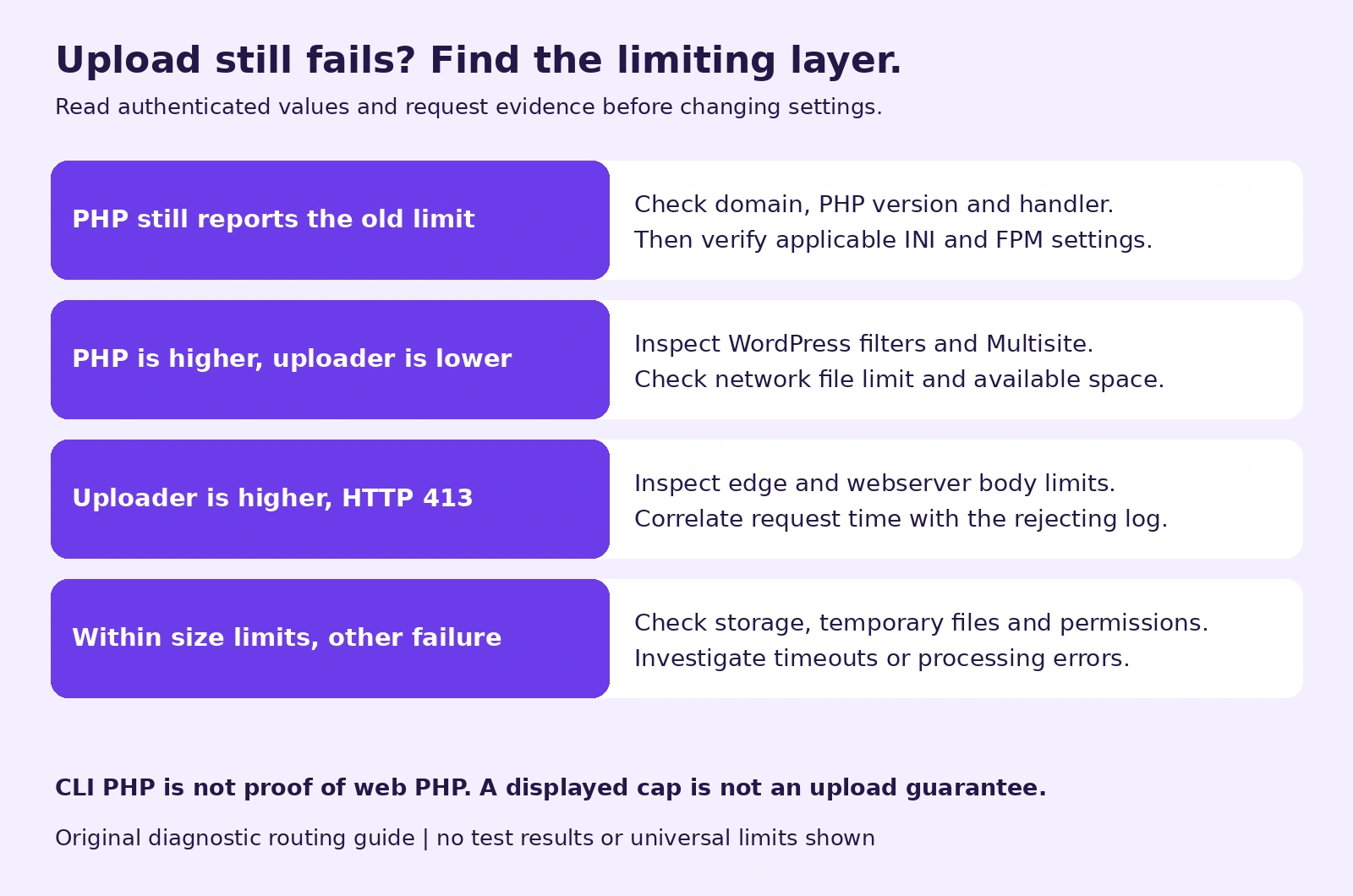
This original routing guide gives investigation directions, not universal limits or results from your server.
Record three values from the website
Log in to WordPress and open Tools → Site Health → Info. In the Server section, look for PHP version, PHP SAPI, Upload max filesize and PHP post max size. The Media Handling section may provide additional upload information. Labels or available fields can vary by version and installed filters.
WordPress's server debug-data source reads the upload and POST settings with ini_get(). That makes this a useful authenticated starting point. Also record the ceiling shown by the Media upload screen.
Your first evidence note should contain:
- The exact website/domain and upload screen.
- PHP version and SAPI shown by WordPress.
- Effective
upload_max_filesizeandpost_max_size. - The uploader's displayed limit.
- File type, actual size, error and time of failure.
Keep screenshots or reports private. Do not publish the whole Site Health export in a forum; it can include environment details unrelated to this issue.
Why the terminal can disagree
A command-line PHP process is not necessarily the same PHP binary or configuration as the website. PHP's configuration-file rules include SAPI-specific configuration.
Therefore, a terminal report of a high upload limit does not establish that WordPress's web request uses it. Ask the host to confirm the effective values for the affected web endpoint when the reports disagree.
Do not create a publicly accessible phpinfo() file as your first diagnostic step. If deeper inspection is necessary, have your host perform a protected, minimal web-context check and remove any temporary diagnostic endpoint afterwards.
Why changing only one PHP value can fail
PHP defines upload_max_filesize as the per-file limit and post_max_size as the POST-data limit. The PHP manual says the POST value must be larger than the file-upload value. It also documents that an oversized POST can leave $_POST and $_FILES empty.
WordPress's `wp_max_upload_size()` implementation starts with the smaller of those two PHP values, then applies the upload_size_limit filter.
Hypothetical example: you save upload_max_filesize = 64M, but the web request still has post_max_size = 8M. WordPress's unfiltered baseline remains 8M, not 64M. If the web upload value itself is still 2M, that baseline remains 2M.
The POST body includes more than the file alone, so do not set both limits to the exact size of the file you want to upload. Also, a larger displayed ceiling does not guarantee enough resources to process a large image or complete a slow upload.
Check the cPanel domain and PHP scope
In cPanel, find MultiPHP Manager and inspect the row for the affected domain. Record its PHP version and PHP-FPM indicator; do not change versions merely to make the limit move. cPanel's MultiPHP Manager documentation explains these domain-level settings.
If your provider uses a different PHP selector, ask which control actually governs this website. Two different PHP controls are not evidence that both should be edited.
Then follow the MultiPHP INI Editor instructions:
- Find MultiPHP INI Editor and select Basic Mode.
- Select the affected domain, rather than Home Directory, when you intend a per-site change.
- Record the old upload and POST values before making an approved adjustment.
- Apply, reload Site Health, and compare the effective web values with your note.
Home Directory applies a broader account scope. The editor can write supported directives to several configuration files; those files need not be identical. Menu placement and feature availability depend on the provider.
An illustrative pair for a site that legitimately needs files below 32M is:
upload_max_filesize = 32M
post_max_size = 40M
These are example values, not recommended defaults for every account. Use the smallest limits that meet the task and stay within the provider's policy. Preserve the existing memory setting unless the workload and provider justify changing it; memory required to process an image is not simply its compressed file size.
If the saved setting still does not appear
Check the requested directory and .user.ini cache
PHP's per-user INI documentation says these files are processed by CGI/FastCGI. PHP scans from the requested script's directory towards the document root. A local file associated with a different directory may not describe the request you are troubleshooting.
The default .user.ini re-read interval is 300 seconds. Waiting for that configured interval may be relevant, but “wait five minutes” is not a fix for an incorrect file, a disabled scan or an enforced host setting.
Our suggested check is to compare the same authenticated screen before and after the relevant interval. If nothing changes, stop repeatedly editing random INI files and ask the host to identify the actual configuration source.
Have the host check PHP-FPM settings
cPanel documents PHP-FPM configuration at domain and system scope in its PHP-FPM directive guide. A host should check the pool serving the domain and any enforced values when a user-level edit is ineffective.
Do not restart a shared server, rebuild global configurations or change other customers' pools for this one-site problem. Ask for a scoped change and a post-change web-context measurement. If the issue started after a PHP switch, use the version/rollback checks in our PHP-version guide.
Avoid runtime and handler-mismatched snippets
PHP lists both size directives as INI_PERDIR. Its configuration-mode documentation distinguishes settings that can be changed in a script from those that require configuration. Adding ini_set() calls to functions.php is not a way to raise these two PHP upload ceilings.
Likewise, do not paste an unqualified php_value block into .htaccess without knowing the handler. cPanel documents handler-specific behaviour, including generated LSAPI sections. PHP-FPM and LSAPI are not interchangeable. Prefer the provider's supported interface, and keep a rollback copy before any manual edit.
If PHP is higher but WordPress remains lower
On WordPress Multisite, ask a network administrator to inspect Network Admin → Settings → Upload Settings, including Max upload file size and site upload-space policy. The network settings guide describes these separate controls.
The network upload-size filter can further constrain the PHP-derived size using the network file limit and, when space checks are enabled, available upload space.
For a single site, have a developer inspect plugins, must-use plugins or custom code using upload_size_limit. Do not simply force the displayed value higher: a filter cannot make PHP or a proxy accept a request they reject.
Our suggested isolation procedure is to reproduce with a harmless permitted file in staging, then test suspected components one at a time. Avoid disabling production security or every plugin at once, particularly on a store.
If the limit is higher but you get HTTP 413
Record the failed upload request in the browser's Network panel: URL path, status, time and any request identifier. Keep cookies, authorization headers and private payloads out of public reports.
cPanel's Nginx upload article documents a separate client_max_body_size setting, with an Nginx log reporting an oversized request body. This can reject a request even after PHP limits have been raised.
For a proxied site, inspect the actual zone and plan's upload/body settings too. Cloudflare's Error 413 documentation notes that its Maximum Upload Size can be configured below the plan maximum.
A 413 response or a Cloudflare header alone does not identify which layer rejected the upload. Correlate the time and request with edge and origin evidence before changing a limit. Do not take the production domain off its proxy or weaken TLS just to try a larger upload.
If size is no longer the problem
A successful size check still leaves other failure modes. Ask for the corresponding application or PHP error before changing another limit.
Storage exhaustion, inode/file-count restrictions, an unavailable temporary directory, denied file types and image-processing errors need different fixes. Start with the exact message. Our cPanel inode troubleshooting guide covers the case where free disk space does not settle the quota question.
For large backups or imports, consider the application's documented server-side transfer/import workflow instead of repeatedly raising browser limits. Uploading a file through another channel does not automatically import it into WordPress or guarantee the import plugin will accept it.
Retest and send a useful support request
Our proposed acceptance check is:
- Recheck the effective PHP values and uploader ceiling on the affected website.
- Try one harmless permitted file above the old limit but safely below the new limits, with POST overhead allowed.
- Confirm the media record exists and the intended processing completed.
- Check the website's normal functions and restore any temporary diagnostic changes.
Configuration examples and this workflow have not been executed against your hosting account. No upload benchmark or successful customer test is claimed.
Here is an illustrative private support note you can fill in:
Site: staging.example.com
Screen: WordPress Media upload
Time: [date, time and timezone]
File: [permitted type and size; no confidential sample]
WordPress PHP version / SAPI: [observed values]
Web upload_max_filesize / post_max_size: [observed values]
Uploader displays: [observed limit]
cPanel domain selected: [domain]
Setting changed and old value: [details]
Failure: [exact message / HTTP status / request identifier]

Please confirm the web PHP configuration and FPM pool for
this endpoint, then correlate any failed request with logs.
Do not make account-wide changes without agreeing the scope.
If you need to edit files, take a recoverable backup first. Keep configuration backups outside publicly served directories.
The best fix is the one supported by the failed request's evidence—not the largest number you can put into an INI file.
Reader questions
Why does WordPress still show 2MB after I edit php.ini?
The web request may use a different domain, PHP version, handler or configuration file. Compare authenticated web values with the uploader ceiling, then check WordPress filters or Multisite policy if PHP is already higher.
Can functions.php ini_set calls increase the PHP upload limit?
Not these two size directives. PHP marks upload_max_filesize and post_max_size as INI_PERDIR, so they must be configured through a supported configuration layer, not runtime ini_set calls.
Should post_max_size equal upload_max_filesize?
Use a POST limit larger than the per-file limit, with room for request overhead. Choose task-appropriate values within your provider's policy rather than copying unlimited or oversized settings.
Does php --ini prove which configuration WordPress uses?
No. It reports the invoked command-line PHP process. The website may use a different PHP binary, SAPI or configuration; check the actual web context.
Why do uploads return 413 even though WordPress shows a higher limit?
A separate request-body ceiling may apply at the proxy or webserver. Match the failed request's time and identifier to edge/origin evidence; the displayed WordPress limit does not prove which layer rejected it.
Does raising the upload cap solve all import failures?
No. Import plugins, storage quotas, permitted file types, timeouts and processing requirements can still apply. Confirm the specific failure and use the application's supported import workflow.
Sources & further reading
- PHP core upload and POST directives
- PHP configuration change modes
- PHP configuration-file selection
- PHP .user.ini scope and cache
- WordPress effective upload-size function
- WordPress Site Health server values
- cPanel MultiPHP Manager, modified 8 July 2026
- cPanel MultiPHP INI Editor, modified 8 July 2026
- cPanel PHP-FPM directive management
- WordPress Multisite upload policy
- WordPress network settings, updated 23 September 2026
- cPanel Nginx body-limit troubleshooting
- Cloudflare Error 413 and configurable upload size
Originally published . About our editorial updates.