cPanel Inode Limit Reached but Disk Space Is Free? Check This
Free GB do not prove that your account can create more files. Separate inode limits, mailbox quotas and server capacity before deleting data or upgrading.

On this page
- Free storage and free file slots are different
- Check four scopes before choosing a fix
- Start in cPanel, with no SSH required
- Optional: find high-count directories with GNU du
- Optional: check the filesystem containing your home
- Clean up the identified source, preserving what matters
- Why File Manager deletion may not lower usage
- Prove recovery with the operation that failed
- A support request that separates the scopes
- Reader questions
- Sources & further reading
The short answer
Free disk space does not rule out an enforced inode/file-count limit, a full mailbox or a full server filesystem. Check cPanel Disk Usage and File Usage, confirm the provider's actual quotas, identify high-count directories and preserve needed data before cleanup. Retest the upload or email operation that failed.
Before you start
Access to your own cPanel account and its usage statistics; a record of the error and time; a recovery/retention plan before deleting data. Optional read-only commands require authorized Terminal/SSH access and GNU-compatible du/df. Host support is needed for enforced quotas and server filesystem checks.
Your hosting dashboard shows free disk space, but WordPress cannot upload an image. A plugin update fails to create files. New email is rejected.
An inode or file-count limit is one possible explanation. It is not the only one. Check which limit failed before deleting data or buying more storage.
This guide is for cPanel account owners and developers investigating that exact mismatch. It includes a route without SSH, optional read-only Linux checks and a recovery checklist.
Free storage and free file slots are different
Disk usage measures storage consumed. Inode usage concerns filesystem objects such as files and directories. Many small files can create pressure even when their combined size is modest.
cPanel calls the account statistic File Usage. Its current interface documentation says the statistic includes files and directories and appears only when the provider enables it.
A displayed count does not by itself identify an enforced limit. cPanel says inode limits are not a native cPanel & WHM feature; a provider can enforce them through CloudLinux LVE Manager. Ask your host which limit actually applies.
CloudLinux documents soft and hard inode limits, including grace-period behavior. Record the enforced values and any expired grace period, rather than assuming every plan uses the same threshold.
Check four scopes before choosing a fix
The word “full” can refer to different places:
- Account storage quota: the allowed storage for your hosting account.
- Account file/inode quota: an enforced file-count allowance, where configured.
- Mailbox quota: the storage allowance for one email address.
- Server filesystem: the mount containing the failing file, temporary directory or mailbox.
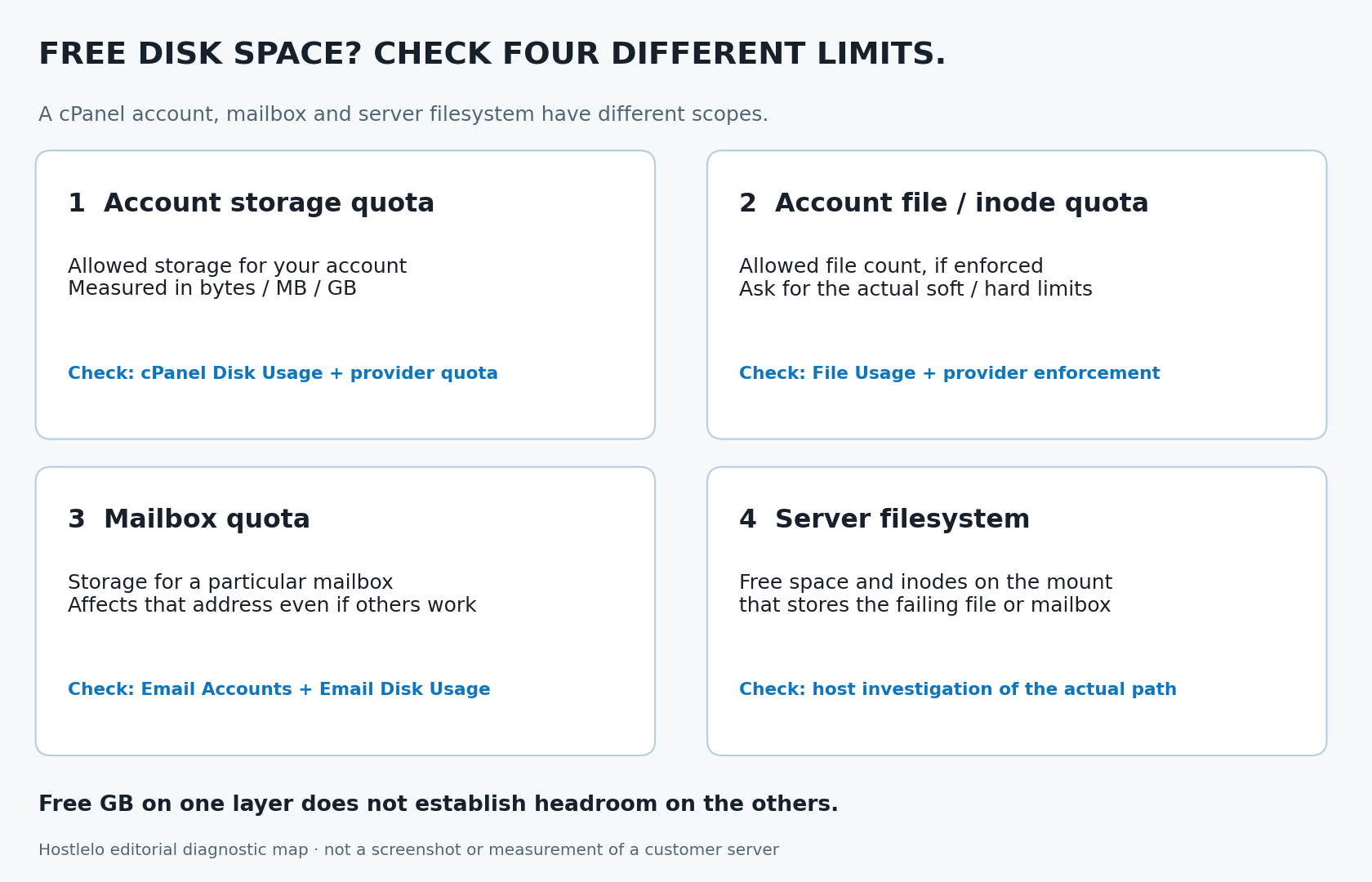
A plan upgrade helps only if it changes the constrained resource. More account GB does not automatically provide a higher inode allowance, and a higher account quota does not repair a full server partition.
cPanel's quota-error article distinguishes account space/file quotas from server disk and inode utilization. Keep that distinction in your support request.
Start in cPanel, with no SSH required
Sign in to your own hosting account. Capture the error text, affected operation and time with timezone. Note whether only one mailbox or site fails, or several sites in the account are affected.
On the Tools/home page, inspect Statistics for Disk Usage and File Usage. Record the displayed usage and allowance, if an allowance is shown.
Then open Files > Disk Usage. It helps identify directories consuming storage and links into File Manager. It is a byte-usage view, not a reliable ranking of directories by inode count.
cPanel's Disk Usage documentation notes that displayed figures may lag recent changes. It also warns that backups can fail near or over quota because necessary files cannot be written.
If File Usage is absent, or you cannot get a per-directory count, ask the host for a current breakdown. Do not infer that a missing widget means unlimited file creation. Terminal availability also depends on provider settings; absence alone does not establish that every form of SSH access is unavailable.
If the failure is email
Check the affected address in Email > Email Accounts, including its mailbox quota. Next, open Email > Email Disk Usage, where available.
Email Disk Usage can sort folders by message count or storage use. A folder with many small messages may matter for file count even when another folder has larger attachments.
The bounce 550 Mailbox is full / Blocks limit exceeded / Inode limit exceeded does not isolate a single cause. cPanel's support article directs you to check the mailbox, the cPanel account and the filesystem storing the mailbox.
Keep the bounce privately. Do not reset passwords or change MX records merely because it mentions storage.
Optional: find high-count directories with GNU du
Use these checks only in an authorized account with Terminal or SSH. They inspect usage; they do not remove files.
On GNU Coreutils, start with your account home:
du --inodes --one-file-system --max-depth=1 -- "$HOME"The first column is an inode-usage count for that directory tree. The line for the home directory is the overall total for the traversed tree, not another child directory to add to the others.
A high-count child gives you somewhere to inspect. For a standard document root, you can drill down:
du --inodes --one-file-system --max-depth=1 -- "$HOME/public_html"Use your actual document root if it differs. Start with the identified directory instead of repeatedly scanning the whole account. Large trees take work to traverse; coordinate with the host if the account is already struggling.
cPanel documents du --inodes for investigation. We checked the options against installed GNU help and executed them in an isolated local fixture using GNU Coreutils 9.4.
Read the limitations with the result
The command stays on one filesystem and does not follow symbolic links by default. GNU du also avoids counting the same hard-linked file repeatedly in a traversal. Files on other mounts or outside the traversed home tree need separate investigation.
Keep permission errors visible. A partial count is not a complete inventory. Do not treat the scan as the provider's authoritative quota reading.
A simple find ... -type f tally misses directories and can count hard-linked paths differently. That makes it an imperfect substitute for inode accounting.
If your du implementation does not support these options, stop and request a host-generated breakdown. These commands are not instructions to install software or obtain broader access.
Optional: check the filesystem containing your home
These commands show the filesystem that holds the supplied path:
df -h -- "$HOME"
df -i -- "$HOME"
The first reports storage; the second reports filesystem inode information where supported. They do not show your individual hosting-account allowance.
A filesystem can have headroom while your account quota is exhausted. Conversely, your account can be below its limit while a shared partition has no capacity left.
The home-directory result does not clear a separate temporary or mail filesystem. Give the host the failing path or operation and ask for checks on the actual mount. Some filesystems report inode availability differently; ask the operator to interpret unavailable or unusual values.
Clean up the identified source, preserving what matters
Before cleanup, identify the owner of the files and what must be retained. If quota pressure prevents creating a fresh backup, ask the host about temporary headroom or recovery assistance.
Our cPanel backup and test-restore guide explains how to retain a separate recovery copy. Do not create a large archive on an already exhausted filesystem as your first action.
Regenerable caches
Use the application's supported cache-purge control. Inspect which cache is actually growing, then review its retention or generation settings.
A cache can immediately refill. Purging alone does not explain or fix the rate of growth. Our LiteSpeed Cache setup guide covers cache behavior and verification.
Do not delete an entire unfamiliar wp-content directory just because it has many files.
Mail that can be removed
Review message counts with the mailbox owner and archive required records to a verified independent location.
An IMAP-synchronized folder is not automatically an independent archive: deletions can synchronize between devices. Check that retained messages are accessible in the intended archive before removing the server copies.
Email Disk Usage provides bulk-removal options and a Delete Permanently action. Review the selected mailbox, folder and criteria carefully. Message age, “previously viewed” status or attachment size is not a business-retention policy.
Avoid deleting mail storage files directly while the mail service is managing them.
Old site copies and backups
Confirm that an old directory is unused: check its domain mapping, application configuration, scheduled jobs and any recovery dependency.
Moving a directory elsewhere in the same account usually changes its location without reducing the account's file count. Keeping both an archive and the original tree also leaves the original files present.
An ordinary single archive file usually uses far fewer inodes than an extracted tree. However, deleting one large ZIP can free substantial GB while barely changing file count. Choose cleanup based on the constrained resource.
Verify a recovery copy before removing an old site or backup. Do not delete the only known restore point to make a warning disappear.
Logs, sessions and deployment dependencies
Ask the application owner to identify retention and rotation settings. A directory named tmp is not evidence that all its contents are disposable.
Preserve logs needed for an active incident. Use the application's session cleanup mechanism or a reviewed host plan; indiscriminate deletion can interrupt customer sessions.
Similarly, vendor, node_modules or repository files may be required by the running deployment. Confirm the build/runtime design before removing them.
Why File Manager deletion may not lower usage
cPanel's File Manager documentation says normal deletion moves items into Trash. View Trash lets you review or restore them; Empty Trash permanently removes its contents.
Files still held in Trash remain stored. Review what you need to preserve before permanently emptying it. Show hidden files in File Manager if needed; an ordinary visible-folder inspection can miss hidden material.
After an authorized cleanup, record what changed. If the widget appears unchanged, do not keep deleting to chase a stale number.
cPanel documents cached inode statistics. Ask the provider to refresh and confirm actual enforcement. Account owners should not run server-wide quota-reset commands based on a sidebar display.
Prove recovery with the operation that failed
Record the updated account and mailbox readings, plus the host's confirmation when a server filesystem was involved.
Then repeat a small, harmless version of the original failure:
- Upload a test image through the application that previously failed.
- Send a timestamped test email from an external account and confirm arrival.
- Check that the affected application can create the files it needs.
- Monitor whether the identified high-count directory grows back.
A successful file upload does not prove incoming email works. A working page served from cache does not prove new files can be written.
Use the cPanel email send/receive checks for the separate delivery path. Test a production plugin update only with its normal backup and change controls.
If all capacity checks are normal but errors remain, investigate the actual message. Permissions, read-only mounts, upload-body limits and application failures need different fixes.
A support request that separates the scopes
Account / affected domain:
Time and timezone:
Exact error and failed operation:
Disk Usage reading:
File Usage reading and displayed limit:
Affected mailbox and mailbox quota:
High-count directory, if known:
Any scan errors or missing access:
Cleanup performed and retained recovery copy:
Result of a fresh upload / external email test:

Please confirm the enforced account byte and inode quotas,
including soft limits and grace state, and check free space
and inodes on the actual filesystem used by the failing path.
Please identify whether displayed statistics are current.
Send this through your private support channel. Include relevant error excerpts, not passwords, tokens or whole customer mailboxes.
Review note: documentation was checked on 12 October 2026. This is an evergreen troubleshooting guide, not a new outage announcement. Read-only command behavior was tested in a synthetic local fixture; we did not inspect or modify a customer's hosting account.
Reader questions
Why does cPanel show free disk space when uploads fail?
The problem may be an enforced file/inode quota, a mailbox limit or capacity on another server filesystem. Free account storage does not clear those scopes. Capture the exact error and confirm the enforced quota with your host.
Is an inode limit built into every cPanel account?
cPanel says inode limits are not a native cPanel & WHM feature. Providers can enforce them through CloudLinux or their own hosting setup. A File Usage count alone does not establish your actual allowance.
Does df -i show my hosting-account inode quota?
No. It reports inode information for the filesystem containing the supplied path, where supported. An account may be over its own quota while that filesystem has free capacity.
Will deleting a large ZIP solve an inode limit?
It can free many bytes but typically removes very few filesystem objects. A high-count extracted directory may be more relevant to an inode problem. Preserve a verified recovery copy before deleting either.
Why did File Usage stay high after I deleted files?
The files may still be in File Manager Trash, or the displayed statistics may be cached. Review retained data and ask the host to confirm current enforcement before deleting more.
What can I do if cPanel Terminal is unavailable?
Record Disk Usage, File Usage and the affected mailbox quota, then ask the provider for a per-directory inode breakdown and checks on the actual failing filesystem. No SSH is needed to gather that initial evidence.
Sources & further reading
- cPanel: File Usage statistic and feature availability
- cPanel: inode-limit enforcement
- CloudLinux: inode limits, soft/hard quotas and grace periods
- cPanel: account quota errors and filesystem checks
- cPanel: Disk Usage interface and reporting limits
- cPanel: Email Disk Usage and permanent removal
- cPanel: mailbox/account/filesystem delivery failure
- cPanel: read-only df and du investigation
- cPanel: File Manager, hidden files and Trash
- cPanel: cached inode statistics
What changed
New guide reviewed on 12 October 2026. Separates account byte/inode quotas, mailbox quota and server filesystem scope; includes no-SSH checks, locally tested read-only GNU commands, retention-aware cleanup and recovery verification. Adds an original cover and four-scope diagnostic map.
Originally published . About our editorial updates.