Audit Your WordPress Plugins for Ownership and Closure Risk
Audit WordPress plugin ownership, closure status, checksums, update sources, wp-config.php and admin users with WP-CLI, using private off-server backups.
The short answer
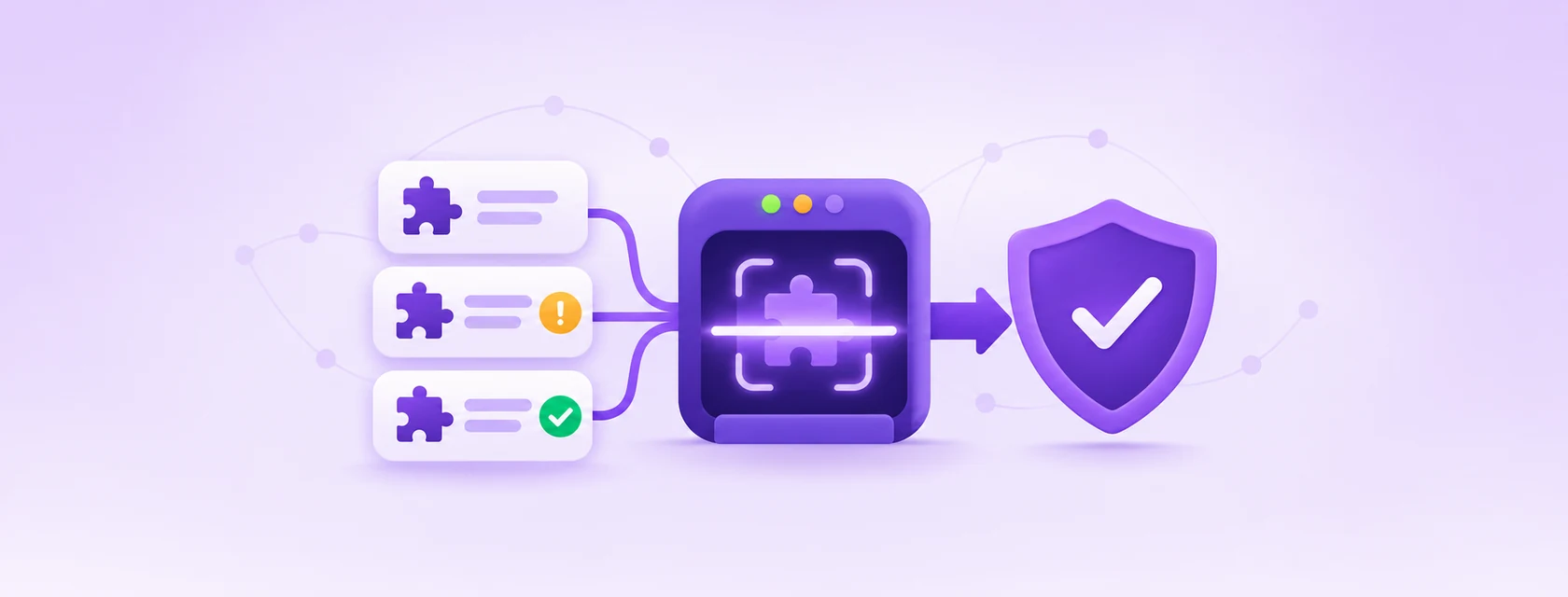
A plugin supply-chain audit checks who maintains each plugin, whether WordPress.org still lists it, where updates come from and whether unknown code remains. Checksums prove that files match a published package, not that the package itself is trustworthy. Use WP-CLI to inventory plugins, verify directory packages, inspect wp-config.php safely, review auto-update policy and check administrator accounts. Store configuration and database backups outside the public web root.
Reading options
On this page
Before you start
SSH and WP-CLI access, a WordPress administrator login, a staging copy for removals, and a tested off-server backup. Create a private backup directory outside the document root before copying wp-config.php or exporting the database. Read-only inventory time varies with plugin count; remediation requires additional testing.
A plugin supply-chain audit means checking every plugin on your site for who maintains it, whether WordPress.org still lists it, where its updates come from, and whether it left any unknown code behind. With WP-CLI you can do most of the inventory and verification with a handful of read-only commands before you change anything; the time needed depends on the number of plugins and what you find. File checksums are part of the job, but they cannot do it alone.
Here is the fact that made me write this. According to The Next Web, a portfolio of more than 30 WordPress plugins was bought on Flippa in early 2025, and on 8 August 2025 one of them shipped version 2.6.7 with the changelog line "Check compatibility with WordPress version 6.8.2." That release added 191 lines of PHP containing a backdoor, and the code sat quietly for about eight months before it was switched on.
By the end of this guide you will have a written inventory of your plugins, a short list of the ones that need attention, a clean wp-config.php, and an auto-update policy you chose on purpose.
What a plugin supply-chain audit actually is
Your site runs code from many people you have never met. The "supply chain" is the path that code takes to reach your server: the developer writes it, WordPress.org (or a vendor) distributes it, and your site downloads it, often automatically.
Think of it like a corner shop. You trust the brand on the milk carton. But if the dairy is sold to a new owner, the carton looks exactly the same while the milk inside is now made by someone else. A supply-chain audit is reading the label again: who makes this now, is it still sold in the main store, and is it fresh?
Why this matters: according to The Next Web, the April 2026 attack showed spam links, redirects and fake pages only to Googlebot, Google's search crawler. Site owners loading their own pages saw nothing unusual. You cannot rely on "my site looks fine" as a check.
Why checksums alone would not have caught it
A checksum is a fingerprint of a file. wp plugin verify-checksums compares your plugin files to the fingerprints WordPress.org publishes for that release. If someone edits a file on your server, the fingerprints stop matching.
This is my reasoning, so weigh it as such: in the Essential Plugin case, as The Next Web describes it, the bad code arrived inside a release the author published as a normal update. Your files would have matched the published fingerprints exactly, because the published release was the problem. That is why this guide also checks ownership, closure status, update source and leftover code in wp-config.php.
If you want the core-files version of this check, I wrote a separate guide on verifying WordPress core files with WP-CLI checksums. This guide is about plugins only.
What happened in 2025 and 2026, in short
All of these come from The Next Web unless I say otherwise.
- Early 2025: the Essential Plugin portfolio was bought on Flippa.
- 8 August 2025: version 2.6.7 shipped with 191 added lines of PHP, a deserialization backdoor that allowed remote code execution (an attacker running their own code on your server).
- 5 and 6 April 2026: the backdoor was activated. The command server was live from 04:22 to 11:06 UTC on 6 April, six hours and 44 minutes.
- The payload downloaded a file named
wp-comments-posts.php, which injected PHP intowp-config.php. - 7 April 2026: the WordPress.org plugins team permanently closed the author's plugins.
- Version 2.6.9.1 stopped the phone-home, but did not remove the code already written into
wp-config.php. Sites that were hit kept serving hidden spam until someone cleaned that file.
The same week, The Next Web also reported that Smart Slider 3 Pro, a separate product with its own update channel, pushed a malicious version 3.5.1.35 for roughly six hours.
Then on 5 June 2026, Matt Mullenweg published "Protect The Shire" on the WordPress.org news blog, with the goal to "secure all 78K plugins and themes on WordPress.org." The post says: "For now, each new plugin release will wait up to 24 hours before being distributed through auto-updates." It also says that 24 hours "could be reduced to minutes as the process evolves." The post gives no specific advice to site owners, so the steps below are this blog's recommendations.
Before you start
Tick each line before Step 1.
- SSH access to your hosting account. If you have not set it up yet, follow SSH key login for cPanel hosting.
- WP-CLI installed. Many hosts include it. If yours does not, the official handbook says it needs PHP 7.2.24 or newer.
- A WordPress administrator login, as a fallback and for checking the dashboard.
- A fresh backup of files and database, stored somewhere other than the server. My guide on backing up off-site and testing a restore covers this.
- Time: the read-only inventory can be a focused maintenance task, but the total depends on the number of plugins and what you find. Removing or replacing plugins takes longer and should be tested on staging.
- Risk level: Steps 1 to 3 only read data. Steps 4 to 6 change things, and each one starts with a backup.
First, confirm WP-CLI works. This command prints your WP-CLI version, PHP version and config paths.
wp --infoYou should see lines starting with OS:, PHP version: and WP-CLI version:. If you get command not found, ask your host whether WP-CLI is available on your plan.
Next, move into your WordPress folder. This command prints the location of your wp-config.php file, so you know you are in the right place.
wp config pathYou should see a full path such as /home/person/htdocs/project/wp-config.php. Run every command below from that folder.
Heads up: if you suspect the site is already compromised, add --skip-plugins --skip-themes to your WP-CLI commands. These are official global parameters that stop plugin and theme code from loading while WP-CLI runs.
The audit, step by step
Step 1: Build a plugin inventory
This command lists every installed plugin with its status, version, update state, auto-update setting, and two fields that come from WordPress.org: its directory status and the date it was last updated there.
wp plugin list --fields=name,status,version,update,auto_update,wporg_status,wporg_last_updated --format=tableYou will see a table with one row per plugin. In the official example, directory plugins such as akismet show active under wporg_status and a date like 2023-12-11 under wporg_last_updated, while a plugin named local that is not in the directory shows both fields blank.
Save a copy you can compare against later. This command writes the same data to a CSV file in your home folder.
wp plugin list --fields=name,status,version,update,auto_update,wporg_status,wporg_last_updated --format=csv > ~/plugin-inventory-$(date +%F).csvQuick tip: no SSH? You can read names, versions and auto-update settings from the Plugins screen in wp-admin, and look each plugin up on WordPress.org by hand.
Step 2: Flag plugins that need a closer look
Go through the table row by row. You are looking for three kinds of warning signs, and a plugin can show more than one.
The first is wporg_status. The official docs show active for plugins that are live in the directory. They do not publish the full list of other values, so treat anything other than active as a reason to open that plugin's page on WordPress.org and read what it says.
The second is a blank wporg_status. In the docs example, a plugin called local shows blank fields because it is not in the WordPress.org directory. That is normal for premium plugins and custom code. It just means WordPress.org cannot vouch for it, so you need to know who your vendor is and how their updates reach you.
The third is an old wporg_last_updated date. There is no official cut-off. My own rule of thumb: if a plugin has not been updated in over a year, check whether the developer still answers support questions.
For any plugin you flagged, open its WordPress.org page and look at who it is listed under. A sudden change of author name, a new support URL or a changelog that does not match the code changes are all worth a second look. A change of owner is not a crime, and many sales are honest. It is simply the moment to pay attention.
Made-up example: Priya runs a small bakery site with 14 plugins. Her inventory shows 12 plugins as active on WordPress.org, one premium form plugin with blank fields, and one slider whose wporg_status is not active. She opens the slider's page, sees a notice that it was closed, and adds it to her removal list.
Step 3: Verify plugin files against WordPress.org
This command compares every installed plugin's files with the checksums WordPress.org publishes for that version.
wp plugin verify-checksums --allOn a clean site with only directory plugins, the official example output is:
Success: Verified 8 of 8 plugins.If some plugins cannot be checked, the count will be lower than your total. That usually means they are premium or custom plugins that WordPress.org has no checksums for. They are not broken, but this check cannot tell you anything about them, so they stay on your "know your vendor" list from Step 2.
If a plugin fails because files were changed, stop and look closer. You can re-check just that one plugin by name.
wp plugin verify-checksums akismetFor a stricter check, --strict also flags "soft changes" such as readme.txt edits.
Heads up: the docs list an --insecure flag that retries downloads without certificate validation, and they warn it "makes the request vulnerable to a MITM attack" (someone in the middle swapping the data). Do not use it during a security audit. If you get TLS errors, fix the server's certificates or ask your host.
Step 4: Inspect wp-config.php for unfamiliar code
Why this matters: in the April 2026 case, code was written into wp-config.php, and the plugin's later fix did not remove it. Checksums do not cover this file, because every site's wp-config.php is different.
Back up the file first, outside the public web root. wp-config.php contains database credentials and security keys, so do not leave a readable copy beside the live file. These commands create a private backup directory in your home folder and write a uniquely named copy there.
install -d -m 700 "$HOME/wp-audit-backups"
backup_file="$HOME/wp-audit-backups/wp-config.php.$(date -u +%Y%m%dT%H%M%SZ).bak"
cp -p wp-config.php "$backup_file"
chmod 600 "$backup_file"
Now read the file. This command shows it page by page, with line numbers.
less -N wp-config.phpA normal file follows the shape of wp-config-sample.php that ships with WordPress. You should see define() lines for DB_NAME, DB_USER, DB_PASSWORD, DB_HOST, DB_CHARSET and DB_COLLATE, then eight keys and salts from AUTH_KEY to NONCE_SALT, then $table_prefix and WP_DEBUG. Your host or you may have added more define() lines in the custom section.
The end of a normal file looks like this in the current sample. Older sites may say "Happy blogging" instead of "Happy publishing", which is fine.
/* That's all, stop editing! Happy publishing. */

/** Absolute path to the WordPress directory. */
if ( ! defined( 'ABSPATH' ) ) {
	define( 'ABSPATH', __DIR__ . '/' );
}

/** Sets up WordPress vars and included files. */
require_once ABSPATH . 'wp-settings.php';
Things that do not belong: long unreadable strings, code after the require_once line, include lines pointing at files you do not recognise, or anything at the very top before the opening comments. This quick search highlights PHP functions that are common in hidden code. A match is a reason to look, not proof of infection.
grep -nE "eval\(|base64_decode|gzinflate|str_rot13|assert\(" wp-config.phpA clean wp-config.php may print nothing, but a match is only a prompt for review because legitimate custom code can use some of these functions. Compare every match with a known-clean backup and the official sample, and also check whether a file called wp-comments-posts.php exists in your WordPress folder.
ls -la wp-comments-posts.phpThe expected result is No such file or directory. Note the spelling: WordPress core has its own wp-comments-post.php (no "s" after "post"), which handles comment submissions and must stay.
If you find injected code, deleting a few lines is rarely the end of it. Restore from a clean backup or bring in your host or a developer, because one injected file often means others exist.
Step 5: Choose an auto-update policy per plugin
Auto-updates are a trade-off. They patch known holes fast, and they also deliver a bad release fast. The 24-hour hold from Protect The Shire applies to plugins distributed through WordPress.org auto-updates, and it gives reviewers time, but WordPress.org itself calls the hold temporary.
First, see which plugins currently update themselves. This command lists only the ones with auto-updates switched on.
wp plugin auto-updates status --all --enabled-only --field=nameYou will see one plugin name per line, for example akismet. My suggestion, as this blog's opinion: keep auto-updates on for well-known, actively maintained directory plugins. If a plugin is closed, abandoned or has a concerning ownership change, quarantine and test it on staging, then replace it promptly. Temporarily disabling its auto-updates can stop an unreviewed release from arriving, but it also stops security fixes and is not a long-term remedy.
This command turns off auto-updates for one plugin. Replace hello with the plugin's name from your inventory.
wp plugin auto-updates disable helloYou should see:
Plugin auto-updates for 'hello' disabled.
Success: Disabled 1 of 1 plugin auto-updates.
Quick tip: premium plugins with their own updater, like Smart Slider 3 Pro, get updates from the vendor. The WordPress.org post describes the hold for releases distributed through WordPress.org auto-updates, so do not assume it covers vendor updates (my reading, not stated in the post). Ask those vendors how they sign and ship updates.
For the backup side of auto-updates, read my safe auto-update and backup plan.
Step 6: Remove or replace abandoned plugins
Back up the database before removing anything, and store the export outside the public web root. The commands below reuse the private directory from Step 4, create a unique file name and restrict the file to your account.
install -d -m 700 "$HOME/wp-audit-backups"
backup_file="$HOME/wp-audit-backups/before-plugin-removal-$(date -u +%Y%m%dT%H%M%SZ).sql"
wp db export "$backup_file"
chmod 600 "$backup_file"
wp db export should print a success message with that path. Copy the SQL export and the required site files to your separate backup location, then test that you can restore them. A database export alone does not include uploads, themes or plugins.
Then, on a staging copy first, deactivate the plugin. Replace hello with your plugin's name.
wp plugin deactivate helloYou should see Success: Deactivated 1 of 1 plugins. Click through the pages that used the plugin. If nothing breaks, or you have installed a replacement, delete it.
wp plugin delete helloWP-CLI should print a success message. Inactive plugins still sit on disk, so do not keep old ones "just in case". Your backup is the "just in case".
Step 7: Check for administrator accounts you do not recognise
Attackers who get code running often create a new admin user. This command lists every administrator with their login, email and registration date.
wp user list --role=administrator --fields=ID,user_login,user_email,user_registered --format=tableYou should see one row per admin. Compare each one with the people who should have access. Pay special attention to any user_registered date close to an update or an incident.
If you find an account nobody knows, do not delete it in a panic. Write down its ID and email, then take it to your host or developer along with your backups, because it is evidence of a bigger problem.
How to check it worked
Run the inventory again and compare it with the CSV from Step 1. Every plugin left should either be active on WordPress.org or be a premium or custom plugin whose vendor you can name.
wp plugin list --fields=name,status,version,update,auto_update,wporg_status,wporg_last_updated --format=tableRun the checksum check again. The verified count should cover every directory plugin you kept.
wp plugin verify-checksums --allConfirm your auto-update choices stuck. This command lists the plugins with auto-updates switched off, and it should match your decision from Step 5.
wp plugin auto-updates status --all --disabled-only --field=nameFinally, re-run the search on wp-config.php from Step 4 and expect no output, and re-run the admin list from Step 7 and expect only names you know. To make sure updates really run on schedule after all this, see how to check WordPress auto-updates actually run.
Troubleshooting
Symptom: WP-CLI prints an error about the --fields list, or the wporg_status column does not appear. Likely cause: an older WP-CLI version that does not know these fields. Fix: check wp --info and ask your host to update WP-CLI, or run the update yourself if you installed it.
Symptom: the wporg_status and wporg_last_updated columns are empty for every plugin, even well-known ones like akismet. Likely cause, in my experience: the server cannot reach WordPress.org. Fix: ask your host whether outbound HTTPS to WordPress.org is blocked.
Symptom: wp plugin verify-checksums --all verifies fewer plugins than you have. Likely cause: premium or custom plugins with no WordPress.org checksums. Fix: nothing is broken. Note those plugins and follow up with their vendors.
Symptom: a checksum warning on one plugin. Likely cause: a file was edited, added or removed on your server, or your copy is a different version from the one listed. Fix: re-check with wp plugin verify-checksums <name>, confirm the version in your inventory, and if it still fails, replace the plugin from a clean download after a backup.
Symptom: TLS or certificate errors while verifying checksums. Likely cause: an outdated CA bundle on the server. Fix: ask your host to update it. Do not use --insecure.
Symptom: the site shows a white screen after you deactivate a plugin. Likely cause: the theme or another plugin depends on it. Fix: reactivate it with wp plugin activate <name> (or restore your backup), then find a replacement on staging before trying again.
Symptom: wp commands crash or print strange output on a site you suspect is infected. Likely cause: malicious plugin code runs when WordPress loads. Fix: add --skip-plugins --skip-themes to each command, and involve your host.
When to ask your host or a developer
Ask for help if you find unknown code in wp-config.php, an admin account nobody recognises, or a checksum failure you cannot explain. Those are signs of a compromise, and cleaning one properly means checking far more than one file.
Also ask if your site depends on a plugin that has been closed and has no clear replacement. A developer can often swap it for a maintained one or move the feature into the theme.
Security note: once you have finished, consider adding define( 'DISALLOW_FILE_EDIT', true ); to wp-config.php. The WordPress docs describe it as a way to turn off the built-in plugin and theme file editor, which removes one easy path for anyone who steals an admin login.
The one message worth forwarding
Copy this to the person who looks after your site:
"Hi, could you run a plugin supply-chain check on our WordPress site this week? Please: 1) list all plugins with wp plugin list including wporg_status and wporg_last_updated, 2) run wp plugin verify-checksums --all, 3) check wp-config.php for unfamiliar code, 4) list admin users with wp user list --role=administrator, and 5) quarantine and review any closed, abandoned or recently transferred plugin on staging, then replace it promptly if trust cannot be established. Please do not leave a flagged plugin frozen on an old version as a permanent fix. Take a full off-server backup first and send me the plugin list as a CSV. Thanks."
The takeaway: a matching checksum tells you a file is the real release, and the audit above tells you whether the real release still deserves your trust.
Reader questions
Does the 24-hour hold from Protect The Shire make auto-updates safe?
Only partly. It is a short wait before new WordPress.org releases reach auto-updates, and WordPress.org calls it temporary. It does not replace your own inventory, backups and checks.
Can I run this audit without SSH or WP-CLI?
Partly. The wp-admin Plugins screen shows names, versions and auto-update settings, but checksums and the `wp-config.php` search need SSH and WP-CLI. Ask your host or a developer to run those two steps.
What does a blank `wporg_status` mean?
It means WordPress.org has no listing for that plugin, which is common for premium and custom code. Find out who the vendor is and how their updates reach you.
Is a plugin that changed owners automatically dangerous?
No. A sale is only a reason to look closer. Read the changelog, check the support forum, and keep your backups current.
How often should I repeat the audit?
This blog suggests a quick inventory every month and a full audit every quarter, plus any time you hear about a plugin incident. Keep each CSV export so you can compare lists over time.
Is deleting an infected plugin enough to clean my site?
Not always. According to The Next Web, a fixed version stopped the phone-home but left injected code in `wp-config.php`, so check that file too. If you find injected code, restore a clean backup or ask your host or a developer to check the whole site.
Was this guide helpful?
Help us make the next update better.
Sources & further reading
- The Next Web: Essential Plugin backdoor supply-chain attack
- WordPress.org News: Protect The Shire (5 June 2026)
- WP-CLI: wp plugin list
- WP-CLI: wp plugin verify-checksums
- WP-CLI: wp plugin auto-updates status
- WP-CLI: wp plugin auto-updates disable
- WP-CLI: wp user list
- WP-CLI: wp db export
- WP-CLI Handbook: Installing WP-CLI
- WordPress Developer Resources: Editing wp-config.php
- WordPress Developer Resources: Hardening WordPress
- WordPress Developer Resources: Backing Up Your Database
What changed
Reviewed 3 November 2026 against current WP-CLI and WordPress hardening documentation. Moved wp-config.php and database backup examples outside the public web root, clarified checksum and grep limits, replaced indefinite update freezing with staged quarantine and replacement guidance, and added original article media.
Originally published . About our editorial updates.