Cloudflare SSL/TLS Mode: Pick Full (Strict) Without Redirect Loops
Flexible mode plus an origin HTTPS redirect causes many Cloudflare loops. Learn to switch to Full (strict), inspect every redirect layer and choose one clear HTTPS policy.
The short answer
Most Cloudflare redirect loops come from Flexible mode, which sends HTTP to an origin that redirects back to HTTPS. Install a valid origin certificate, switch to Full (strict), then inspect the redirect chain. If you move HTTPS enforcement to Cloudflare's edge, remove only the duplicate or conflicting origin redirect after testing.
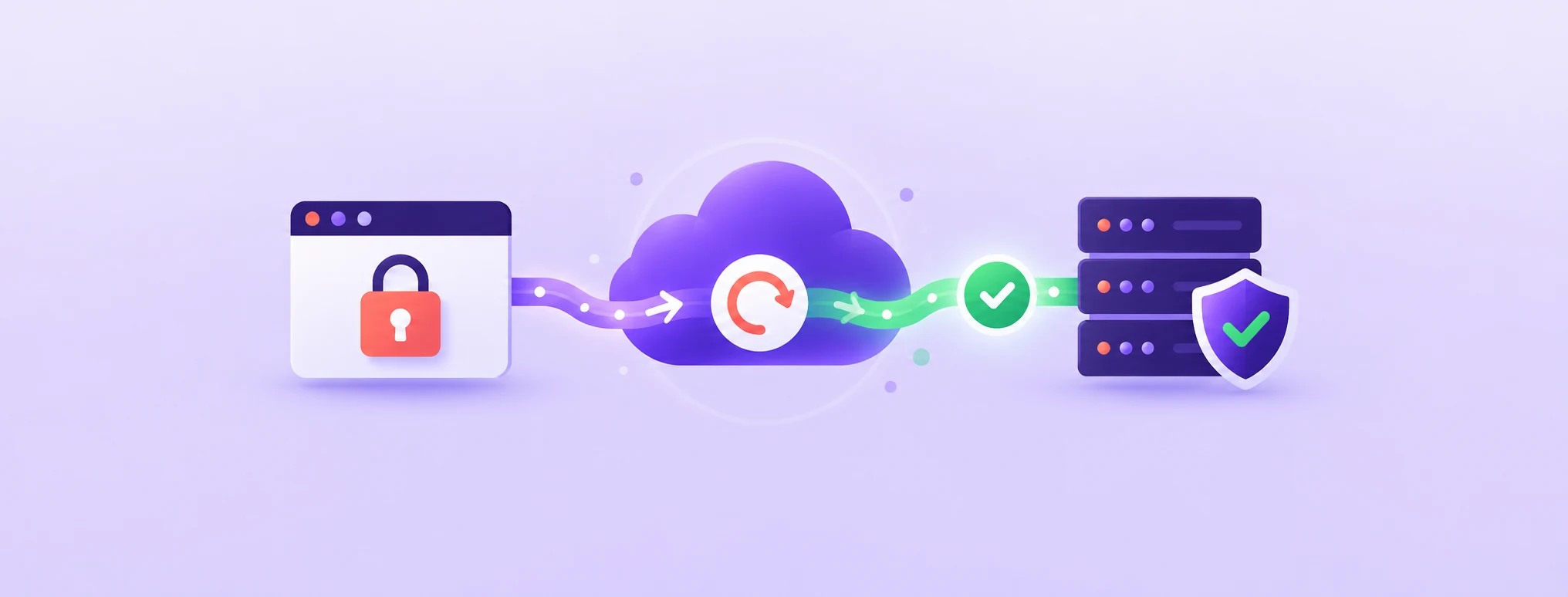
Reading options
On this page
If your Cloudflare site shows "too many redirects", a common reason is Flexible encryption combined with an HTTP-to-HTTPS redirect at the origin. Give the origin a valid certificate, switch to Full (strict), and inspect the full redirect chain. You can enforce HTTPS at Cloudflare's edge or at the origin; use one clear source of truth and remove only rules that are duplicate or conflict.
Flexible looks harmless because the padlock still appears in the browser. Underneath, it sends plain HTTP to your server, and that is exactly what makes a server-side HTTPS redirect spin forever.
By the end of this guide you will know which mode your zone uses, how to move it to Full (strict) safely, and how to clear a redirect loop in a few minutes.
What does the SSL/TLS mode actually control?
Every visit to a site behind Cloudflare travels in two parts: from the visitor to Cloudflare, then from Cloudflare to your origin. The origin is simply your real web server, the machine at your host where the site files live.
Think of it as a trip with two legs, each with its own security guard. The SSL/TLS mode decides what the second guard does. In some modes there is no guard at all, in some the guard waves everyone through, and in Full (strict) the guard checks the ID of your server before letting traffic in.
Here is what Cloudflare lists on its encryption modes page:
- Off: no encryption on either leg, so all traffic is plain HTTP.
- Flexible: the visitor to Cloudflare leg is encrypted, but Cloudflare to your origin is not. Your server does not need a certificate.
- Full: Cloudflare connects to your origin using the same protocol the visitor used, but it does not check the origin certificate. A self-signed certificate is accepted.
- Full (strict): like Full, but Cloudflare validates the origin certificate. It must come from a public certificate authority (CA), such as Let's Encrypt, or from the Cloudflare Origin CA.
- Strict (SSL-Only Origin Pull): Cloudflare always connects to your origin over HTTPS with validation, whatever protocol the visitor used.
Cloudflare recommends Full or Full (strict) where possible, to help prevent malicious connections to your origin.
Why this matters: with Flexible, anything between Cloudflare and your host travels unencrypted, including login forms and checkout pages. Visitors see a padlock, but only half the trip is protected.
The overview page can also show Automatic SSL/TLS, where the SSL/TLS Recommender probes your site and picks the most secure mode your origin supports, or Custom SSL/TLS, where you choose the mode yourself. Cloudflare says Automatic mode never moves you to a less secure mode, and that upgrades start at 1% of traffic and increase in 10% steps. Scans run about monthly, and only Super Admins receive the weekly digest email listing upgraded zones.
Before you start
Give yourself 20 to 30 minutes and pick a quiet hour for your site. Have this ready:
- Access to the Cloudflare dashboard for the zone, the domain as it appears in your Cloudflare account.
- Access to your hosting panel (cPanel, Plesk, DirectAdmin) or SSH access to the server.
- A note or screenshot of your current SSL/TLS mode and edge settings, so you can roll back.
- A backup of
.htaccessor your Nginx config file before you edit it. - A terminal with
curlfor testing, or a free online header checker.
Heads up: switching to Full (strict) before the origin has a valid certificate can produce a Cloudflare error until you switch back or fix the certificate. Redirect and certificate changes can also interrupt traffic, so use a quiet maintenance window and keep the previous mode and configuration ready for rollback.
Moving to Full (strict) step by step
Work through these in order. Each step tells you what you should see before you move on.
Step 1: Check your current mode
Log in to Cloudflare, open your domain, and go to the SSL/TLS Overview page. The page shows whether you are on Automatic SSL/TLS or Custom SSL/TLS, and which encryption mode is active.
Write the current mode down. If it says Flexible, you have found the most likely source of your redirect loop.
Step 2: Confirm your origin has a valid certificate
Full (strict) only works when your server presents a certificate Cloudflare can validate. You have two good options.
Option A: a public certificate from your host. Most hosting panels can issue a free Let's Encrypt or similar certificate in a few clicks. This is the easiest choice and it keeps working even if you later pause Cloudflare. The panel steps are in the variants section below.
Option B: a Cloudflare Origin CA certificate. Cloudflare can issue a free certificate that is meant only for the Cloudflare to origin leg. In the Cloudflare dashboard, open the Origin Server page, go to the Origin Certificates tab, and select Create Certificate.
On that screen you pick a private key type (RSA or ECC), list the hostnames to cover, and choose a validity period. Your zone apex and a first-level wildcard are included by default. Then select Create.
Heads up: copy the certificate and the private key into two separate files right away. Cloudflare states that you cannot see the private key after you leave this screen.
For Apache and Nginx, the PEM format is the usual choice. Install both files on your server through your panel or your web server config, and make sure SSL and port 443 are turned on at the origin.
Quick tip: Cloudflare does not send expiry notifications for Origin CA certificates. Put the expiry date in your calendar or monitoring tool the day you install it.
If you only need help installing an Origin CA certificate in cPanel, the step-by-step version is in our guide on fixing Cloudflare error 526 with a cPanel origin certificate.
Step 3: Switch to Full (strict) and test
Go back to the SSL/TLS Overview page. If the zone uses Automatic SSL/TLS, choose Custom SSL/TLS so you can set the mode yourself, then select Full (strict) and save.
Now test right away. Open your site in a private browser window and load a few pages, including the login page and any checkout or form page.
What you should see: the site loads normally with a padlock. If you see a Cloudflare error page with 526 or 525 instead, jump to the troubleshooting section, or switch back to your previous mode while you fix the certificate.
Step 4: Choose one HTTPS redirect layer
Cloudflare can redirect visitors before a request reaches your origin, which is usually faster and easier to manage. An origin HTTP-to-HTTPS redirect can also work under Full (strict). The important check is that no rule sends HTTPS back to HTTP or creates a circular chain.
Go to the Edge Certificates page and turn on Always Use HTTPS. Cloudflare says this setting redirects all visitor requests from http to https for all subdomains and hosts in your zone. The option is hidden when your mode is Off, so set the mode first.
Cloudflare recommends avoiding origin redirects when the edge can handle them. If you choose Always Use HTTPS as the source of truth, first back up the server configuration, then remove only the duplicate HTTP-to-HTTPS rule and test. A correct origin HTTP-to-HTTPS rule under Full (strict) is normally redundant, not automatically a loop. Keep origin enforcement when the site must stay HTTPS if Cloudflare is paused or bypassed, unless another server rule provides it.
Heads up: if only part of your site supports HTTPS, do not turn on Always Use HTTPS. Cloudflare suggests a single redirect rule for the parts that do support it instead.
If you want the background on how HTTPS redirects are written in Apache, see our guide to redirecting HTTP to HTTPS in Apache. Just remember that behind Cloudflare, the edge setting is the better home for it.
Step 5: Clear any remaining loop
If the browser still reports a loop after Steps 3 and 4, work through Cloudflare's list of causes:
- Mode is Flexible and the origin redirects HTTP to HTTPS: remove the origin redirect or move to Full or Full (strict).
- Mode is Full or Full (strict) and the origin redirects HTTPS back to HTTP: remove that redirect from the origin.
- Always Use HTTPS is on and the origin redirects HTTPS to HTTP: remove the origin redirect, or turn off Always Use HTTPS.
- HSTS is on and the origin redirects HTTPS to HTTP, or the mode is Off: remove the origin redirect and use Flexible or higher, or disable HSTS.
- Redirect Rules or Page Rules send traffic back and forth: review them so no two rules point at each other.
HSTS (HTTP Strict Transport Security) is a header that tells browsers to always use HTTPS for your domain. You can find it on the Edge Certificates page as well.
Invented example: Amira runs a small bakery site on shared hosting. Her host's panel added a "force HTTPS" rule to .htaccess, and her Cloudflare zone was on Flexible. Cloudflare asked her server for the HTTP page, the server answered "go to HTTPS", Cloudflare served that redirect to the visitor, and the visitor came back through Cloudflare as HTTP again. She issued a Let's Encrypt certificate in her panel, switched to Full (strict), turned on Always Use HTTPS, and deleted the .htaccess rule. The loop was gone on the next page load.
Control panel and server variants
These are the places the certificate and the origin redirect usually live. Only use the parts that match your setup.
cPanel
cPanel issues free certificates through AutoSSL. Open SSL/TLS Status in cPanel. The page lists your domains with their certificate status, such as Active, Expired, Expiring Soon, Unsecured, or Has AutoSSL Problems.
If your domains show as unsecured, select Run AutoSSL to force an immediate run. While it runs you will see "AutoSSL is in progress", and the page reloads when it finishes. Any errors appear in the Certificate Status column.
Heads up: AutoSSL reports problems such as a domain that does not resolve to an IPv4 address on the internet. If AutoSSL keeps failing while the site is behind Cloudflare, ask your host to check, or use a Cloudflare Origin CA certificate instead.
Cloudflare also notes that its ECC root certificate in PEM format should not be used with Apache cPanel.
Plesk
In Plesk, go to Websites & Domains, pick your domain, then open SSL/TLS Certificates. This is the SSL It! extension, which Plesk installs by default. Follow the on-screen steps to issue a certificate.
SSL It! also offers a Redirect from HTTP to HTTPS option. If you use Always Use HTTPS at Cloudflare, leave that Plesk option off so only one layer handles the redirect.
DirectAdmin
In DirectAdmin, go to User Level > SSL Certificates > ACME settings and enable ACME for your domain. ACME is the protocol Let's Encrypt uses. DirectAdmin controls this through the letsencrypt option in directadmin.conf, which is on by default, so ask your host if you do not see it. Once it is on, DirectAdmin issues and renews the certificate automatically.
Nginx
On Nginx, the origin HTTPS redirect usually sits in a server block that listens on port 80. It often looks like this:
server {
    listen 80;
    server_name example.com www.example.com;
    return 301 https://$host$request_uri;
}
The return directive sends the redirect, and $request_uri keeps the full original path and query string. With Always Use HTTPS and Full (strict), this block is redundant for proxied visitors, but it may still protect direct or temporarily unproxied traffic.
If you intentionally move enforcement to Cloudflare, back up the config, comment out the duplicate rule, test with nginx -t, reload using your normal procedure and verify both HTTP and HTTPS. Do not remove the origin rule when the server is expected to enforce HTTPS without Cloudflare.
Apache
On Apache, the origin redirect usually lives in .htaccess in your site's root folder, or in the port 80 VirtualHost. A common .htaccess version looks like this:
RewriteEngine On
RewriteCond %{HTTPS} !=on
RewriteRule ^/?(.*) https://%{SERVER_NAME}/$1 [R,L]
Hosting panels and plugins sometimes add their own variant of these lines. Comment them out with a # at the start of each line rather than deleting them, so you can bring them back if needed.
Quick tip: some WordPress security and SSL plugins also force HTTPS. If the loop survives after you clean .htaccess, check those plugin settings too.
Cloudflare API
If you manage many zones, you can set the mode with the API. Cloudflare's zone settings endpoint takes a PATCH request to /zones/{zone_id}/settings/{setting_id}, with ssl as the setting name. The valid values are off, flexible, full, strict, and origin_pull, and strict means Full (strict).
This command sets Full (strict) on one zone, using an API token that has Zone Settings Write permission:
curl -X PATCH "https://api.cloudflare.com/client/v4/zones/$ZONE_ID/settings/ssl" \
  --header "Authorization: Bearer $CLOUDFLARE_API_TOKEN" \
  --header "Content-Type: application/json" \
  --data '{"value":"strict"}'
The same endpoint pattern turns on Always Use HTTPS when you use always_use_https as the setting name. This is the JSON body for that request:
{"value":"on"}If the zone uses Automatic SSL/TLS and you want to keep your own choice, Cloudflare documents a PATCH to the ssl_automatic_mode setting with the value custom. Configuration rules can also set a different mode for specific hostnames, which helps when one subdomain is not ready yet.
How to check it worked
Start with the HTTPS address. This command fetches only the response headers:
curl -I https://example.com/What you should see: a normal response for the page, with no redirect pointing back to the same address and no long wait.
Next, check the plain HTTP address:
curl -I http://example.com/What you should see: a redirect to the HTTPS address. Inspect the response headers and redirect chain to confirm which layer serves it and that no hop points back to HTTP. Repeat both checks for www.example.com if you use it.
Then confirm in the dashboard. The SSL/TLS Overview page should show Full (strict) as the active mode, and the Edge Certificates page should show Always Use HTTPS turned on.
Finally, open the site in a private browser window, click the padlock, and browse a few pages. If you want to see every hop a URL takes, our guide on checking an HTTP redirect chain before Chrome warns walks through it.
Troubleshooting
ERR_TOO_MANY_REDIRECTS or "The page isn't redirecting properly"
Cause: a loop between Cloudflare and your origin, usually Flexible mode plus an origin HTTPS redirect. It can also be an origin redirect from HTTPS back to HTTP, or two redirect rules pointing at each other.
Fix: install a valid origin certificate, move to Full (strict), inspect every redirect hop and remove only the rule that conflicts or duplicates your chosen HTTPS layer. Then test again in a private browser window.
Error 526: Invalid SSL certificate
Cause: you are on Full (strict) and Cloudflare cannot validate the certificate on your origin. It may be self-signed or expired, or its certificate chain may be incomplete.
Fix: install a valid public or Origin CA certificate. The detailed cPanel walkthrough is in our Cloudflare error 526 guide. While you work on it, you can switch back to your previous mode to keep the site up.
Error 525: SSL handshake failed
Cause: the mode is Full or Full (strict), and the TLS handshake between Cloudflare and your origin fails. Common reasons are a missing certificate, port 443 not accepting connections, no SNI support on the origin, or no shared cipher suites.
Fix: ask your host to confirm a valid certificate is installed and that port 443 is open. Check the origin error logs from the time of the errors. If no certificate exists at all, a free Origin CA certificate is a quick way to get one.
Untrusted certificate warning after pausing Cloudflare
Symptom: you pause Cloudflare or turn off proxying on a DNS record, and visitors suddenly see a browser warning that the certificate is not trusted.
Cause: Origin CA certificates only encrypt traffic between Cloudflare and your origin, so browsers do not trust them directly. Cloudflare warns about exactly this case.
Fix: turn proxying back on, or install a public certificate such as Let's Encrypt on the origin if you need the site to work without Cloudflare.
Padlock missing or "Not secure" after switching
Cause: mixed content. The page loads over HTTPS but still pulls some images, scripts, or styles over http://. Always Use HTTPS does not fix this, because browsers check the protocol of included files before requesting them.
Fix: change links to HTTPS or relative paths. Cloudflare's Automatic HTTPS Rewrites can fix some of these links. For WordPress, follow our mixed content fix for WordPress HTTPS.
The mode keeps changing by itself
Cause: the zone is on Automatic SSL/TLS, and the Recommender has upgraded it. Cloudflare says it will not move you to a less secure mode, and it rolls traffic back if origin connectivity fails.
Fix: if you want to control the mode yourself, choose Custom SSL/TLS on the overview page, or set ssl_automatic_mode to custom through the API.
Pro tips and security notes
- Prefer a public certificate on the origin when you can. It keeps the site working if you ever pause Cloudflare.
- Prefer one documented HTTPS enforcement layer. If you keep an origin fallback, verify that it only sends HTTP to HTTPS and never sends HTTPS back to HTTP.
- Track every Origin CA certificate expiry date yourself, since Cloudflare does not email you.
- Turn on HSTS only after Full (strict) and Always Use HTTPS have run cleanly for a while, because browsers remember it.
- Keep a note of each change with the time, so you can match it to any error in your logs.
Why this matters: Full (strict) is the only common mode where Cloudflare actually checks who it is talking to on the second leg. Without that check, someone who can intercept traffic between Cloudflare and your host could pretend to be your server.
When to ask your host or a developer: if you cannot edit .htaccess or the Nginx config, if AutoSSL keeps failing, if your panel adds its own redirects that you cannot see, or if a 525 error remains after the certificate looks correct. These need server-side access or logs that only your host has.
The one message worth forwarding
If someone else manages your server, you can send them this as it is:
Hi, our site example.com is behind Cloudflare and we are moving the SSL/TLS mode from Flexible to Full (strict). Could you please:
1. Make sure the origin server has a valid certificate for example.com and www.example.com (Let's Encrypt, AutoSSL, or a Cloudflare Origin CA certificate we can send you), with port 443 open.
2. Review every server, panel and plugin redirect. If Cloudflare Always Use HTTPS will be the source of truth, back up the configuration and remove only duplicate or conflicting HTTP-to-HTTPS rules. Keep an origin fallback if the site must enforce HTTPS when Cloudflare is paused or bypassed.
3. Tell us when this is done so we can switch the mode and test with curl -I.
Thank you!
The takeaway: give your origin a valid certificate, choose Full (strict), and keep one clearly documented HTTPS policy. Edge enforcement is simpler for proxied traffic; an origin fallback can remain when it is tested and does not conflict.
Reader questions
Which Cloudflare SSL/TLS mode should I use?
Use Full (strict) whenever your origin server has a valid certificate from a public CA or the Cloudflare Origin CA. Cloudflare itself recommends Full or Full (strict) where possible.
Why does Flexible mode cause too many redirects?
In Flexible mode Cloudflare talks to your server over plain HTTP. If your server answers every HTTP request with a redirect to HTTPS, the visitor is sent around the same circle again and again.
What is the difference between Full and Full (strict)?
Both connect to your server over HTTPS. Full accepts any certificate, even a self-signed one, while Full (strict) checks that the certificate is valid and issued by a public CA or the Cloudflare Origin CA.
Is a Cloudflare Origin CA certificate free?
Yes, you can create one at no cost on the Origin Server page in the Cloudflare dashboard. It only secures the connection between Cloudflare and your server, so browsers will not trust it if you stop proxying through Cloudflare.
Should I keep my .htaccess HTTPS redirect after turning on Always Use HTTPS?
Use one documented HTTPS policy. Cloudflare's edge redirect is usually simpler for proxied traffic, but a correct origin HTTP-to-HTTPS redirect can remain as a fallback when Cloudflare is paused or bypassed. Remove only duplicate or conflicting rules after backing up and testing.
Can I change the SSL/TLS mode with the API?
Yes. Send a PATCH request to the ssl zone setting with a value such as strict, using an API token that has Zone Settings Write permission.
Will switching modes take my site offline?
Only if the origin certificate is missing or invalid, in which case visitors see a 525 or 526 error until you fix the certificate or switch back. Make the change at a quiet time and test straight away.
Was this guide helpful?
Help us make the next update better.
Sources & further reading
- Cloudflare: SSL/TLS encryption modes
- Cloudflare: ERR_TOO_MANY_REDIRECTS
- Cloudflare: Always Use HTTPS
- Cloudflare: Origin CA certificates
- Cloudflare: Error 525 SSL handshake failed
- Cloudflare API: Edit zone setting
- cPanel: SSL/TLS Status
- DirectAdmin: ACME for domains
- nginx: ngx_http_rewrite_module
- Apache HTTPD wiki: Rewrite HTTP to HTTPS
What changed
Clarified that Full (strict) and redirect-layer choices must be tested; removed overbroad origin-redirect claims from the article and FAQ. Added an original cover and aligned social image.
Originally published . About our editorial updates.