Get an Alert When Anyone Issues an SSL Certificate for Your Domain
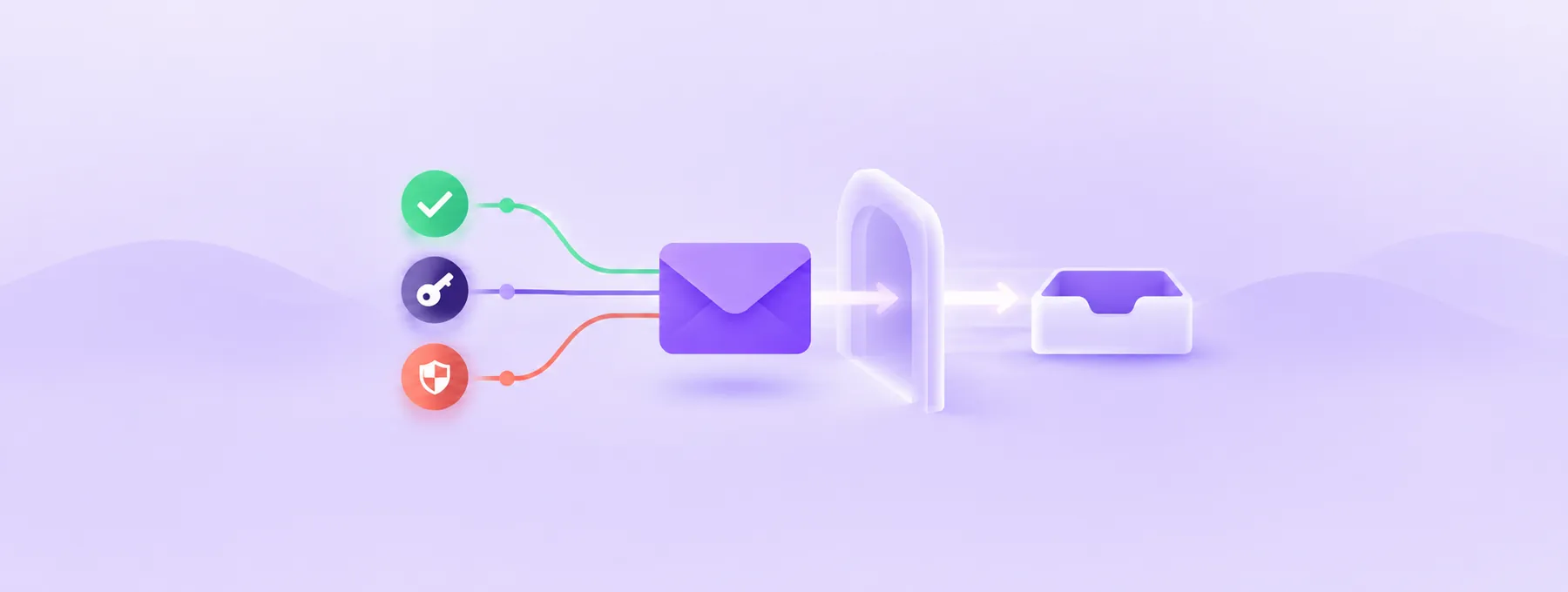
Every SSL certificate lands in public Certificate Transparency logs. Turn on alerts, read each one in a minute, and know what to do if it is not yours.
The short answer
Certificate authorities record every certificate they issue in public Certificate Transparency logs, and a monitor can email you whenever a new one covers your domain. On Cloudflare, turn on Certificate Transparency Monitoring under SSL/TLS > Edge Certificates and add an email; Cloudflare says it is available on all plans. For other domains, use a monitoring service such as SSLMate Cert Spotter, and check each alert's issuer, names and dates against your own renewals.

Reading options
On this page
- What Certificate Transparency is
- Before you start
- Turn on alerts for a Cloudflare-managed domain
- Watch a domain that is not on Cloudflare
- Variants for cPanel and self-managed servers
- How to check it worked
- Troubleshooting
- Pro tips and security notes
- The one message worth forwarding
- Reader questions
- Sources & further reading
Before you start
You need control of the domain and access to its DNS/hosting dashboards. Enable alerts only to an address your team monitors. The Certbot revocation steps require trusted administrator access, a verified backup of /etc/letsencrypt copied off the server, and confirmation that the certificate really was unauthorized.
You can get an email every time any certificate authority issues an SSL certificate that covers your domain. Certificate authorities publish every certificate they issue in public Certificate Transparency logs, and a monitor reads those logs for you. If your domain is on Cloudflare, the alert is a switch on your Edge Certificates page, and Cloudflare's changelog says it is available on all plans.
Here is something worth knowing: Let's Encrypt says it submits every certificate it issues to these public logs. That means a certificate someone requested for your domain last night is already sitting in a record anyone can read. The only question is whether you are the one reading it.
There is also a calendar reason to set this up now. At the time of writing (16 November 2026), Let's Encrypt has announced that from 10 February 2027 its default certificate lifetime drops from 90 days to 64 days. Shorter certificates mean more renewals, and more renewals mean more new certificates for your domain in the logs. Nothing about that is an emergency. It just makes a quiet, automatic alert more useful than checking by hand.
By the end of this guide you will be able to turn on certificate alerts, read an alert in under a minute, decide whether it is yours, and know exactly who to contact if it is not.
What Certificate Transparency is
Certificate Transparency, or CT, is a system of public logs where certificate authorities record the certificates they issue. A certificate authority (CA) is a company trusted by browsers to vouch that a certificate belongs to a domain, such as Let's Encrypt, Sectigo or Google Trust Services.
Think of a public notary ledger in a town hall. Every time the notary stamps a document, a line goes into the ledger, and the ledger can never be torn or rewritten. Anyone can walk in and read it. CT logs work the same way: the project site at certificate.transparency.dev describes them as "publicly verifiable, append-only, and tamper-proof". Append-only means entries can be added but never removed.
The protocol behind this is written down in RFC 9162, "Certificate Transparency Version 2.0", published in December 2021. It is an Experimental RFC and it obsoletes the older RFC 6962. Its introduction says the point plainly: people concerned about misissuance can monitor the logs, regularly asking them for all new entries, to see if unexpected certificates were issued for domains they are responsible for.
A monitor is the tool that does that reading for you. The CT project says monitors "periodically contact all log servers and watch for suspicious certificates". You do not need to read raw logs yourself. You pick a monitor, give it your domain, and it emails you.
Why this matters: a certificate that you did not ask for can mean someone briefly controlled your DNS, an old server is still renewing certificates you forgot about, or a third-party service was set up on a subdomain without telling you. All three are easier to fix when you hear about them within hours instead of months.
Before you start
Gather these before you change anything.
- Login access to the DNS host and SSL settings for your domain. For Cloudflare that is your Cloudflare dashboard account. For cPanel hosting it is your cPanel login.
- A written list of your real domains and subdomains, and which service issues the certificate for each one. Include your shop, your mail host, your status page and any landing page tool.
- An email address that a human actually reads. A shared inbox like a team security address is better than one person's mailbox.
- If you run your own server, shell access so you can run
certbotandopenssl. - About 20 minutes for setup and a few minutes for each alert later.
Quick tip: the list of "which service issues which certificate" is the most valuable thing on this checklist. When an alert arrives, that list is how you decide in seconds whether it is yours.
Turn on alerts for a Cloudflare-managed domain
This is the simplest path. Cloudflare's CT Monitoring emails you when a CA issues a certificate covering your domain and that certificate appears in a public CT log.
Step 1: Open the Edge Certificates page
Log in to the Cloudflare dashboard and pick the domain you want to watch. Then go to SSL/TLS > Edge Certificates.
Because the setting lives on each domain's Edge Certificates page, repeat these steps for every domain you have added to Cloudflare.
Step 2: Switch on monitoring and add an email
Scroll to Certificate Transparency Monitoring and turn it on. Then select Add Email and enter the address from your checklist.
Heads up: Cloudflare's documentation says these alerts are off by default. If you never touched this card, you are not getting alerts today.
What you should see afterwards: the card shows the toggle as on, with your email address listed on it. To stop alerts later, you either turn the toggle off or remove your email from the same card.
Step 3: Know what the alert email contains
Each alert lists your domain, the issuer (the CA), the DNS names in the certificate and its validity dates. That is enough to triage it, as you will see below.
Cloudflare filters out certificates it issues for you. Its changelog from 13 August 2026 names Universal SSL renewals, backup certificates, Advanced Certificate Manager and Total TLS as filtered. So the alerts you get are about certificates Cloudflare did not issue.
Why this matters: if you use Cloudflare in front of a server that also gets its own Let's Encrypt certificate, that origin certificate is not issued by Cloudflare. You will get alerts for it, including every renewal. That is normal and expected.
Step 4: Understand what it will not catch
Cloudflare is clear that this feature does not detect phishing or lookalike domains. Its own example: a certificate for cloudf1are.com or cloud-flare.com would not trigger an alert for cloudflare.com. CT Monitoring watches your exact domain, not names that look like it.
Watch a domain that is not on Cloudflare
If your DNS is with your registrar, your host or another provider, the Cloudflare switch does not apply until you add the domain to Cloudflare. You have two honest options.
Option A: Use a dedicated monitoring service
The CT project keeps a list of monitors at certificate.transparency.dev/monitors. It includes Cloudflare, SSLMate Cert Spotter, Report URI, Hardenize and others. Each one sets its own prices and limits, so read the provider's own page before you sign up.
As one example, SSLMate says Cert Spotter "monitors public Certificate Transparency logs to discover and alert you about unauthorized and expiring certificates for your domains". At the time of writing (16 November 2026), its pricing page lists paid plans starting with Hobbyist at 15 US dollars a month, a 30 day free trial, and email and Slack alerts. Webhooks are only on the higher plans.
I could not find a free, non-Cloudflare monitor that an authoritative source documents as free, so I will not name one. If you want a free alert, the practical route is to add the domain to Cloudflare. Otherwise, a paid monitor does the job.
Option B: Check what your own servers are serving
Even without a monitor, you can confirm which certificate a site is actually using right now. This does not show you certificates that exist but are not installed, so treat it as a check, not a monitor.
Run this from any machine with OpenSSL. It connects to the site, prints the certificate's issuer, its start and end dates, and the names it covers.
openssl s_client -connect example.com:443 -servername example.com </dev/null 2>/dev/null | openssl x509 -noout -issuer -dates -ext subjectAltNameWhat you should see: an issuer= line naming the CA, notBefore= and notAfter= dates, and a Subject Alternative Name section listing names such as DNS:example.com, DNS:www.example.com. The -servername flag sets SNI, the part of the connection that tells a shared server which site you want. Since OpenSSL 1.1.1 it is filled in from the -connect name when that is a DNS name, so the flag matters mainly with an IP address or an older OpenSSL.
Variants for cPanel and self-managed servers
Most alerts you get will be your own renewals. The faster you can match an alert to a renewal, the less time you spend worrying.
cPanel with AutoSSL
cPanel's documentation says Let's Encrypt is the default AutoSSL provider for all new installations. AutoSSL is the cPanel feature that requests and renews certificates for your domains automatically.
To see what AutoSSL has done for your account, go to Home > Security > SSL/TLS Status. The Certificate Status column shows each domain's certificate information and the last time AutoSSL ran for it. There is also an "Expiring Soon" filter.
To see or manage installed certificates, cPanel documents Security > SSL/TLS > Manage SSL Sites, where you can install or delete one.
Quick tip: if your domain is on Cloudflare but the site is hosted on cPanel, expect an alert each time AutoSSL renews your origin certificate. With 64-day Let's Encrypt certificates from February 2027, those alerts will come a little more often. Let's Encrypt suggests renewing at about two thirds of the lifetime, which works out to roughly every 43 days.
If you want to stop other CAs from issuing for your domain at all, add a CAA record. We cover that for cPanel in adding CAA records in cPanel without breaking AutoSSL.
Your own server with Certbot
Certbot is the free client many servers use to get Let's Encrypt certificates. This command lists the certificates Certbot manages on the server.
sudo certbot certificatesWhat you should see: a "Found the following certificates:" line, then for each one a Certificate Name, the Domains it covers, an Expiry Date with how many days are left, and the Certificate Path.
Compare the Domains and Expiry Date with the DNS names and validity dates in your alert. If they line up, the alert is your own renewal.
If you are not sure your renewals will cope with shorter lifetimes, we walk through that in auditing renewals before 64-day certificates.
How to check it worked
The real test is the first alert you receive. Here is a short routine for every alert. It takes a minute or two once you have your list from the checklist.
- Read the domain line. Confirm it is a domain you own, not one that only shares a certificate with yours.
- Read the issuer. Is it a CA you use? Your list says which services use which CA.
- Read the DNS names. Are they names you use today, such as
www.example.comorshop.example.com? A subdomain you shut down months ago is a warning sign. - Read the validity dates. A start date that matches a renewal you expect is a good sign.
- Match it to a source. Check
certbot certificates, cPanel SSL/TLS Status, or the dashboard of the service that owns that subdomain. - Decide. If it matches, archive the email. If it does not, move to the next section.
Cloudflare's own guidance agrees with this: if you recognise the issuer, domain and DNS names, and your organisation or a service you use requested the certificate, no action is needed. Most certificates in these alerts are not malicious.
Here is a made-up example to show the routine in action. Sara runs example.com on Cloudflare with a cPanel host behind it. One morning she gets an alert: issuer Let's Encrypt, DNS names example.com and www.example.com, validity starting yesterday. She opens SSL/TLS Status in cPanel, sees AutoSSL ran yesterday, and archives the email. A week later a second alert lists help.example.com with an issuer she does not use. Her list says help was an old support desk she cancelled last year, and the CNAME is still in DNS. Someone else has claimed the service and got a certificate. She removes the record and contacts the CA.
That second case is a dangling DNS record, and it is a common reason for a surprise certificate. Our guide on finding and deleting dangling DNS records walks through the cleanup.
When the certificate is not yours
Cloudflare's documentation says only a Certificate Authority can revoke a certificate, so the issuer named in the alert is who you contact. Cloudflare's page links to support contacts for CAs including GlobalSign, GoDaddy, Google Trust Services, IdenTrust, Let's Encrypt, Sectigo and SSL.com. It also says your domain registrar may be able to help with a malicious domain.
If the issuer is Let's Encrypt and the certificate came from your own Certbot account, you can revoke it yourself. Before you do, back up your Certbot folder, because Certbot will ask whether to delete the certificate after revoking it. Use a private, unique filename, verify the archive, and copy it to protected off-server storage before making changes. This example does not upload the backup for you.
umask 077
backup="/root/letsencrypt-backup-$(date -u +%Y%m%dT%H%M%SZ).tar.gz"
sudo tar -czf "$backup" /etc/letsencrypt
sudo tar -tzf "$backup" >/dev/null && echo "Backup verified: $backup"
Then revoke by certificate name. The name comes from certbot certificates.
sudo certbot revoke --cert-name example.com --reason supersededWhat you should see: Certbot revokes the certificate and asks whether you want to delete it. Its docs warn that if you keep it, Certbot will try to renew the revoked certificate the next time certbot renew runs.
If the certificate was issued to a different Let's Encrypt account, contact the issuer first and preserve the alert details. Let's Encrypt also documents a manual revocation route after you prove control of every real name on the certificate. The following command is an advanced recovery step for a domain you control: it adds a deliberately nonexistent name so issuance fails after the real names are validated. Run it only from a trusted administrator workstation, never on a copied command you do not understand.
certbot certonly --manual --preferred-challenges=dns -d example.com -d nonexistent.example.comAfter that, its page says to download the certificate (it points to crt.sh, a CT search site run by Sectigo) and revoke it with the downloaded file.
certbot revoke --cert-path /PATH/TO/downloaded-cert.pemTroubleshooting
Problem: You never receive any alerts
Symptom: weeks go by and no email arrives, even after renewals.
Likely cause: the toggle is off, no email was added, the messages are going to spam, or Cloudflare issues all your certificates and filters them out.
Fix: open SSL/TLS > Edge Certificates and check that Certificate Transparency Monitoring is on and your email is listed. Search your spam folder for Cloudflare mail. If every certificate for the domain comes from Cloudflare, a quiet inbox is the correct result.
Problem: Alerts mention domains that are not yours
Symptom: the alert lists DNS names belonging to some other company.
Likely cause: Cloudflare's documentation says that if your domain shares a certificate, you may get alerts about other domains listed as subject alternative names (SANs). A SAN is an extra name inside one certificate.
Fix: confirm your own domain in the alert and check that the issuer and dates make sense for a shared certificate. If your domain is in it as expected, archive the email.
Problem: A phishing site with a similar name was not reported
Symptom: you find examp1e.com or example-login.com serving a fake login page, and no alert came.
Likely cause: this is by design. Cloudflare says CT Monitoring does not detect phishing or lookalike domains.
Fix: report the lookalike to its registrar and its CA. Do not rely on CT alerts for brand protection.
Problem: Your revocation request is rejected
Symptom: your revocation request fails when you pass a reason.
Likely cause: Certbot's docs list affiliationchanged as a --reason choice, but Let's Encrypt accepts only unspecified, keyCompromise, superseded and cessationOfOperation, and says requests with any other reason code will be rejected.
Fix: use one of those four. Leave the reason out to send the default, unspecified.
Problem: The certificate in the alert does not match what your site serves
Symptom: openssl s_client shows a different issuer or different dates from the alert.
Likely cause: the alert may be for a certificate that was issued but never installed, or it may be installed on another server, such as your origin behind Cloudflare, or a third-party service on a subdomain.
Fix: run the openssl command against each subdomain named in the alert, and check certbot certificates and cPanel SSL/TLS Status on each server you run.
Pro tips and security notes
Quick tip: use CAA records alongside alerts. CT tells you after a certificate exists; CAA tries to stop it being issued. Let's Encrypt's CAA identifier is letsencrypt.org, and it supports the validationmethods and accounturi parameters. The accounturi parameter limits issuance to one ACME account, which Let's Encrypt says helps against someone who hijacks your DNS but does not have your account key. Our guide to adding a CAA record covers the setup.
Here is what a Let's Encrypt-only CAA record looks like, using the example from its documentation with our example domain.
example.com. CAA 0 issue "letsencrypt.org"Heads up: if you add CAA, list every CA you really use. A missing entry for your mail host or website builder will break its next renewal.
- Keep your list of services and CAs next to the alert inbox, and update it when you add or cancel a service.
- Send alerts to a shared address so a holiday does not mean missed alerts.
- When you get an alert for a subdomain you forgot about, treat it as a chance to clean up DNS, not only to revoke a certificate.
- Revocation is an action on someone's live certificate. Before you revoke your own, make sure no site still depends on it.
Ask your host or a developer for help when the alert names an issuer you do not use and you cannot explain it, when you see a certificate for a subdomain you never created, when you suspect a private key leaked, or when the domain is not in Cloudflare and you cannot reach the server to check.
The one message worth forwarding
If someone else manages your DNS or hosting, copy this and send it to them.
Hi, could you please turn on Certificate Transparency alerts for example.com?

If the domain is on Cloudflare: SSL/TLS > Edge Certificates > Certificate Transparency Monitoring, switch it on, then Add Email and use security@example.com.

If it is not on Cloudflare, please tell me which certificate authority issues our certificates and whether we should use a paid CT monitor.

Also please send me a short list of every service that issues a certificate for any of our subdomains, so I can recognise our own renewals.

Let's Encrypt moves to 64-day certificates from 10 February 2027, so we expect alerts a bit more often after that. Thanks.
Turn on the alert once, keep a list of who issues your certificates, and every new certificate for your domain becomes a one-minute check instead of a surprise.
Reader questions
Does a CT alert mean my site has been hacked?
Usually not. Cloudflare's documentation says most certificates in these alerts are not malicious, and many are your own renewals from AutoSSL, Certbot or a service you use.
Is Cloudflare Certificate Transparency Monitoring free?
Cloudflare's changelog from 13 August 2026 says CT Monitoring is available across all Cloudflare plans, which includes the Free plan.
Can Certificate Transparency stop a certificate from being issued?
No. CT shows you a certificate after it is logged. To restrict which CAs may issue for your domain beforehand, use a CAA record.
Will I get alerts for lookalike domains used in phishing?
Not from Cloudflare's CT Monitoring. Cloudflare says it does not detect phishing or lookalike domains, only certificates covering your own domain.
Who can revoke a certificate I did not request?
Only the certificate authority that issued it. Contact the CA named as the issuer in the alert; for Let's Encrypt you can also revoke it yourself after proving control of all the names in it.
Should I use HTTP Public Key Pinning instead?
No. Cloudflare says CT Monitoring addresses similar problems to HPKP with fewer technical issues, and Cloudflare does not offer or support HPKP and advises against using it with Universal SSL.
Does Let's Encrypt run its own Certificate Transparency logs?
Yes. Let's Encrypt says Sycamore and Willow are its production CT logs, accepting certificates from trusted CAs, and Twig is its test log.
Was this guide helpful?
Help us make the next update better.
Sources & further reading
- Cloudflare Docs: Certificate Transparency Monitoring
- Cloudflare changelog: CT Monitoring generally available
- Certificate Transparency project
- Certificate Transparency monitors list
- Certificate Transparency: how it works
- SSLMate Cert Spotter: how it works
- RFC 9162: Certificate Transparency Version 2.0
- Let's Encrypt: 64 day certificates
- Let's Encrypt: Revoking certificates
- Certbot user guide
- cPanel Docs: SSL/TLS Status
- Let's Encrypt: CT logs
What changed
Verified Cloudflare CT Monitoring and Let’s Encrypt revocation guidance against current primary documentation. Hardened the Certbot backup example, added off-server verification, and marked cross-account revocation as an advanced recovery step. Added original accessible media.
Originally published . About our editorial updates.