
Enable DNSSEC for a Domain in cPanel and Add the DS Record
Sign your zone in the cPanel Zone Editor, then publish the matching DS record at your registrar. Step by step, with dig checks and safe ways to back out.
The short answer
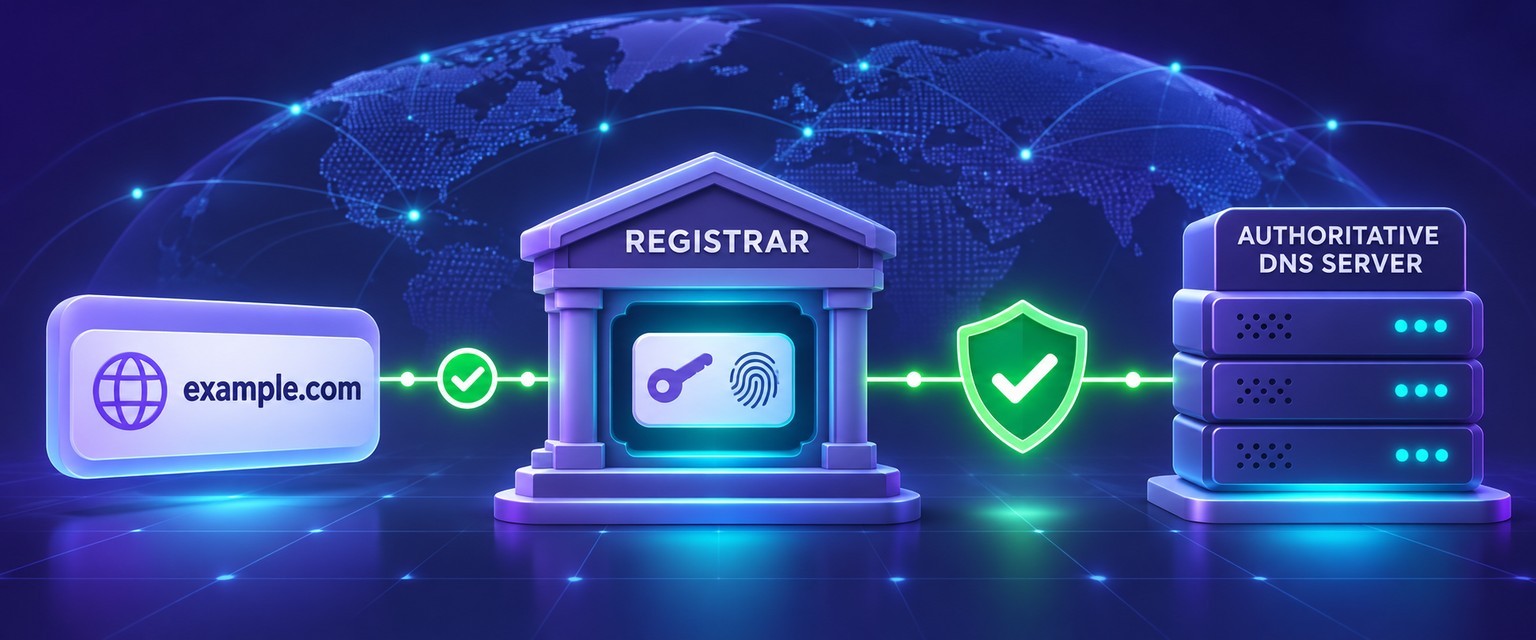
Open cPanel > Zone Editor, click DNSSEC on the domain's row, create a key and copy the DS record cPanel shows. Paste that DS record into your registrar's DNSSEC settings in the same session, because the zone is only validated once the DS record is published. Your server must use PowerDNS, and to turn DNSSEC off you remove the DS record at the registrar before deleting the key.
Reading options
On this page
Before you start
Authoritative DNS must be served by the cPanel PowerDNS server; keep registrar and cPanel access open in separate tabs; save the current nameservers and any existing DS values; schedule a low-risk window; and have the registrar's documented DS-removal path ready for rollback.
To enable DNSSEC for a domain in cPanel, open cPanel > Zone Editor, click DNSSEC on the domain's row, create a key, and copy the DS record it shows you. Then paste that DS record into the DNSSEC settings at your domain registrar. Until the registrar publishes the matching DS record, the public DNSSEC chain of trust is not established.
Here is the part people miss: signing the zone on your server and publishing the DS record at the registrar are two halves of one job, and the order matters. Do the server side first, the registrar side second, and finish both in the same sitting.
By the end of this guide you will be able to switch DNSSEC on, publish the DS record, prove it works with dig, and back out safely if something goes wrong.
What DNSSEC actually is
DNSSEC stands for Domain Name System Security Extensions. ICANN describes it as a way to strengthen DNS authentication using digital signatures based on public key cryptography. In plain terms, it lets a resolver check that the DNS answer it received really came from your zone and was not changed on the way.
A resolver is the DNS server your computer or phone asks for answers, usually run by your ISP or network.
Think of an old-fashioned letter sealed with wax. Anyone can write a letter and claim it came from a duke, but the duke's seal is hard to fake. If the post office keeps a reference copy of the duke's seal, it can compare the wax on every letter against that reference and throw out forgeries.
With DNSSEC, your server signs your DNS records with a private key. That is the wax seal. The matching public key sits in your zone as a DNSKEY record. The reference copy that everyone trusts is the DS record, which lives one level up, in the parent zone (the .com zone for example.com). ICANN's explainer says the parent is responsible for vouching for the child zone's public key, and that this hand-off usually happens through the zone owner's registrar.
cPanel's documentation puts the check in one sentence: a DNS resolver compares the DNS server's DNSKEY record to the DS record at the registrar. If they match, the answer is trusted.
Heads up: DNSSEC proves authenticity and integrity. It does not hide your DNS data, and it does not encrypt your website traffic. That is what TLS certificates are for.
Before you start
DNS changes can break a domain if done wrong. A broken DNSSEC setup is worse than no DNSSEC at all, because validating resolvers will refuse to answer for your domain. So back up first and go slowly.
- Confirm your host runs PowerDNS. cPanel states that to use DNSSEC on your server, you must use PowerDNS as the nameserver. If the server uses a DNS cluster, every server in the cluster must run PowerDNS when DNSSEC domains exist.
- Confirm the feature is switched on for your account. If you do not see a DNSSEC button in the Zone Editor, ask your host. You cannot turn it on from inside cPanel yourself.
- Have your registrar login ready, and check that you can reach its DNSSEC or DS record page before you begin.
- Make a copy of your current DNS records. cPanel's Zone Editor documentation does not describe a zone file export button, so open Manage for the domain and copy every record into a text file, or ask your host for a copy of the zone file.
- Block out unhurried time to finish the registrar step in one sitting, on a day when you can watch the domain afterwards.
Why this matters: the DS record is a promise to the world that your zone is signed with a specific key. If that promise and your actual key ever disagree, people using validating resolvers stop reaching your site and email.
Enable DNSSEC in cPanel and publish the DS record
These steps follow cPanel's own support article for enabling DNSSEC on a single domain. If you are a server admin, start with the WHM step. If you are a customer, skip straight to the cPanel steps.
Step 1 (admins): turn on the feature in WHM
The cPanel feature is called Manage DNSSEC. In WHM, go to WHM > Home > Packages > Feature Manager, edit the feature list used by the account's package, and make sure Manage DNSSEC is selected. Save the list.
Afterwards, users on that package will see a DNSSEC button in their Zone Editor. If the server is not running PowerDNS, fix that first, because cPanel's support article says PowerDNS must be the active or enabled nameserver.
Step 2: open the Zone Editor
Log in to cPanel for the domain and go to cPanel > Zone Editor. You will see a list of your domains, each with buttons on its row.
Find the domain you want to protect and click DNSSEC on that row. A DNSSEC page for the domain opens. If no keys exist yet, the keys table is empty.
Step 3: create the key
Click Create Key. A pop-up appears asking you to confirm. Click Create in the pop-up.
That is the quick path, and it is fine for most people. The pop-up also has a Customize option, where cPanel's Zone Editor documentation says you can choose between a Classic setup (a separate ZSK and KSK) and a Simple setup (one CSK that does both jobs), and pick an algorithm.
Quick tip: a ZSK is a zone signing key, which signs your records. A KSK is a key signing key, which signs the ZSK. A CSK is a combined signing key that does both. If you have no reason to customise, take the default.
When the pop-up closes, cPanel shows the DS records for the new key. The DS Records view lists the domain, the Key Tag, the Algorithm, the created date, and one or more digests, each with a Digest Type and Digest value.
Step 4: read the DS record
A DS record has four parts, defined in RFC 4034: a Key Tag, an Algorithm number, a Digest Type number, and the Digest itself, which is a long hex string. Here is a made-up example of how one looks in standard DNS format, so you know what you are copying.
example.com. 3600 IN DS 12345 13 2 3F5A9C0D1E2B4A6C8E0F1A2B3C4D5E6F7A8B9C0D1E2F3A4B5C6D7E8F9A0B1C2DIn that made-up line, 12345 is the key tag, 13 is the algorithm, 2 is the digest type, and the long string is the digest. Your values will be different. Never copy numbers from a blog post into a registrar.
Heads up: cPanel may show more than one digest for the same key. Its documentation says to work out which Digest Type your registrar uses, then click Copy for the matching digest.
Step 5: add the DS record at your registrar
Open a second browser tab, log in to your registrar, and find the domain's DNSSEC section. cPanel's support article is honest here: every registrar is a little different, so it cannot give step-by-step instructions.
Most registrar forms ask for the same four values you saw in cPanel. Fill them in one at a time.
- Key Tag: copy the number exactly.
- Algorithm: pick the number that matches cPanel's Algorithm value. Some forms show a name next to the number.
- Digest Type: pick the number that matches the digest you copied.
- Digest: paste the hex string with no spaces or line breaks.
Save the record. Afterwards, the registrar usually lists the DS record on the domain's page. It can take a while for the registrar to send it to the registry and for it to appear in public DNS, so do not panic if dig shows nothing for a bit.
Why this matters: until this step is done, your zone is signed but nobody is checking. After this step, validating resolvers start enforcing the signature, so any mistake shows up as a failure rather than a silent pass.
Registrar differences and a self-managed PowerDNS note
Registrars name things differently
Each registrar has its own DNSSEC page and its own labels. You might see "DS record", "DNSSEC records", "DS data", or a section tucked under advanced DNS settings. Some show a dropdown for algorithm and digest type, others want raw numbers.
I am not going to invent menu paths for specific registrars, because they change and getting one wrong could send you to the wrong screen. cPanel's Zone Editor documentation links to a few registrars' own DNSSEC guides, and your registrar's help centre is the right place for exact clicks.
Quick tip: if the form asks for something you cannot find in cPanel's DS Records view, stop and ask the registrar's support before saving. A guessed value is the fastest way to a broken domain.
Also check one thing: if your domain uses third-party nameservers (not your cPanel server), the DS record must come from whoever hosts those nameservers. A DS record from cPanel only helps when cPanel's PowerDNS is actually answering for the domain. If you are unsure where your domain points, our guide on mapping a host to a domain is a good place to start.
If you run PowerDNS yourself
On a self-managed PowerDNS server without cPanel, you sign zones with pdnsutil directly. The PowerDNS manual describes pdnsutil zone secure as configuring a zone with reasonable DNSSEC settings and rectifying it. Run this as root to sign the zone.
pdnsutil zone secure example.comThen export the DS records to paste at your registrar. The manual says this exports all KSK DS records for the zone to standard output.
pdnsutil zone export-ds example.comOlder PowerDNS releases spell these as pdnsutil secure-zone example.com and pdnsutil export-zone-ds example.com. At the time of writing (16 November 2026), the PowerDNS upgrade notes say the old syntax is still recognized, though they recommend the new form.
Heads up: on a cPanel server, cPanel documents the Zone Editor as the place to create, manage and delete DNSSEC keys. Stick with it rather than mixing in manual pdnsutil key changes, so cPanel and PowerDNS stay in agreement.
How to check it worked
Give it some time after saving at the registrar, then run these checks from any machine with dig installed.
Check the zone is signed
The +dnssec option sets the DNSSEC OK bit, which the BIND manual says requests that DNSSEC records be sent. Run this to fetch your A record with its signature.
dig +dnssec example.com AIn the answer section you should see your A record and, right below it, an RRSIG record for type A. RRSIG is the signature. If there is no RRSIG, the zone is not signed or you are not asking the right server.
Check the DS record is published
This asks the public DNS for the DS record that your registrar sent up to the parent zone.
dig DS example.com +shortYou should get one or more lines with a key tag, algorithm, digest type and digest. Compare them with cPanel's DS Records view. The key tag and digest must match exactly. An empty result means the DS record is not published yet.
Check the key tag in your DNSKEY
The +multiline option prints records in a verbose format with human-readable comments, which usually include each key's ID. Run this to see your published keys.
dig DNSKEY example.com +multilineLook for the key whose ID matches the key tag in the DS record. If none match, the DS record points at a key your zone does not publish.
Check a validating resolver trusts it
From a machine whose resolver validates DNSSEC, run the +dnssec query again and look at the flags line in the header.
dig +dnssec example.com AIf the flags include ad, the resolver validated the answer as secure. The BIND manual describes AD as meaning all records in the answer and authority sections were validated.
Run the Verisign DNSSEC Analyzer
cPanel's documentation points to Verisign's DNSSEC Analyzer. Enter your domain and it walks the chain from the root down to your zone, marking each step. Green all the way down is what you want. The detail output shows each step, so you can see where the chain stops.
Server-side check for admins
As root on a cPanel server, cPanel's documentation gives this command to list every domain with DNSSEC enabled.
pdnsutil list-secure-zonesThe output ends with a count line, and your domain should appear in the list. For details on one zone, including its DNSSEC settings, use the PowerDNS show command.
pdnsutil show-zone example.comNewer PowerDNS releases also accept pdnsutil zone show example.com, which does the same job.
Troubleshooting
Most DNSSEC trouble comes down to the DS record and the key disagreeing. Here are the cases I see most.
SERVFAIL from validating resolvers after enabling
Symptom: dig example.com A through a validating resolver returns status: SERVFAIL, but the site still loads for some people. Likely cause: the DS record at the registrar does not match any key in your zone, often a typo or the wrong digest type. ICANN's explainer says that when a signature does not validate, the resolver assumes an attack, discards the data and returns an error.
Fix: confirm it is a validation problem by asking the resolver to skip checks. The +cd option, according to the BIND manual, requests that the server not perform DNSSEC validation.
dig +cd example.com AIf that returns your IP while the normal query fails, correct the DS record at the registrar so it matches cPanel's DS Records view exactly. If the site is unavailable and you cannot verify the correct replacement immediately, use the registrar's documented process to remove the stale DS record first; this disables DNSSEC validation after the parent-zone change propagates. Re-enable it only after the authoritative key and new DS values have been checked.
DS record missing in public DNS
Symptom: dig DS example.com +short returns nothing, and the Verisign analyzer reports no DS records. Likely cause: the registrar has not sent it to the registry yet, or the save did not go through. Fix: check the registrar's DNSSEC page shows the record, wait, then test again. If it still does not appear after a day, open a ticket with the registrar.
Everything broke after changing nameservers or moving hosts
Symptom: right after a migration, validating resolvers return SERVFAIL while non-validating ones still answer. Likely cause: the old DS record is still at the registrar and points to keys the new server does not have. Fix: remove or replace the DS record so it matches the new server's key. cPanel's Zone Editor documentation says to remove DS records before transferring an account, wait for the change to propagate (it says up to 72 hours), transfer, and then add the new DS records.
DNSSEC suddenly failing after a server problem
Symptom: domains that worked for months start failing validation, often for several domains at once. Likely cause: cPanel warns the system may corrupt the DNSSEC database if it hits an out of memory or disk full condition. Fix (for the host): cPanel documents rebuilding the database with pdnsutil create-bind-db /var/cpanel/pdns/dnssec.db, regenerating keys for each domain that lost them, and then telling users to register the new keys at their registrar.
No DNSSEC button in the Zone Editor
Symptom: the domain's row has no DNSSEC button. Likely cause: the Manage DNSSEC feature is not enabled for your package, or the server is not running PowerDNS. Fix: ask your host. Both are server-side settings.
Pro tips and security notes
Rotate your keys. cPanel recommends rotating a domain's DNSSEC keys yearly, and the keys table may show a rotation note next to the created date. Every rotation means a new DS record at the registrar, so plan it like the first setup.
Turn it off in the right order. cPanel says that to disable DNSSEC you remove the DS record from the registrar. Its Zone Editor documentation adds that you should remove the DS record before deleting the key in cPanel and wait at least 24 hours. Delete the key first and you get the SERVFAIL problem above.
Here is a made-up scenario to make that stick. Made-up example: Aisha deletes her old key in cPanel on a Friday evening, meaning to update the registrar on Monday. All weekend, anyone on a validating resolver sees her shop as offline. Two minutes at the registrar first would have avoided it.
Quick tip: keep a short text note with the domain, the key tag, the date you created the key, and the date you published the DS record. When rotation day comes, you will be glad you did.
DNSSEC sits nicely next to other DNS safety records. A CAA record limits which certificate authorities can issue SSL for your domain, and a 2048-bit DKIM key makes your email signatures harder to forge.
When to ask the host: if you do not see the DNSSEC button, if your domain is in a DNS cluster, if several domains fail at once, or if you are planning a server move. Those are all server-side jobs, and your host can see logs you cannot.
The one message worth forwarding
If you want your host to check things before you start, copy this and fill in your domain.
Hi, I would like to enable DNSSEC for example.com in cPanel. Could you please confirm that the server uses PowerDNS as the nameserver, that the Manage DNSSEC feature is enabled for my package, and whether my domain is in a DNS cluster? I plan to create the key in the Zone Editor and add the DS record at my registrar in the same session. Thanks.The takeaway: sign the zone in cPanel first, then publish the matching DS record at your registrar, and when you undo it, remove the DS record first.
Reader questions
Will a broken DNSSEC setup affect my email too?
It can. Mail servers look up your MX, SPF and DKIM records through DNS, so if validation fails for your domain, servers using validating resolvers may not be able to find those records.
How long does it take for the DS record to appear after I save it at the registrar?
There is no fixed time, because it depends on how quickly your registrar sends the record to the registry. Check with dig DS and the Verisign DNSSEC Analyzer, and contact the registrar if it still has not appeared after a day.
Does DNSSEC replace my SSL certificate?
No. SSL/TLS protects the connection between a visitor and your site, while DNSSEC lets resolvers confirm that your DNS answers are authentic and unchanged, so you want both.
Can I import an existing DNSSEC key into cPanel?
Yes. cPanel's Zone Editor documentation describes an Import Key option where you choose ZSK or KSK and paste the key, and you still need a matching DS record at your registrar.
Does deactivating a DNSSEC key in cPanel delete it?
No, cPanel says deactivating a key does not delete it. Either way, remove that key's DS record at the registrar first, or validating resolvers will start failing.
My domain is on a DNS cluster. Is there anything extra to do?
Every server in the cluster must run PowerDNS when DNSSEC domains exist. cPanel also provides a root script, /usr/local/cpanel/scripts/dnssec-cluster-keys, to sync or remove DNSSEC keys across the cluster, so this is a job for your host.
Was this guide helpful?
Help us make the next update better.
Sources & further reading
- cPanel Docs: DNSSEC
- cPanel Support: How to enable DNSSEC for a domain
- cPanel Docs: Zone Editor
- cPanel Docs: How to list domains with DNSSEC
- ICANN: DNSSEC, what is it and why is it important
- Verisign Labs DNSSEC Analyzer
- PowerDNS: pdnsutil manual page
- PowerDNS: Upgrade notes (pdnsutil syntax change)
- BIND 9 manual pages: dig
- RFC 4034: Resource Records for the DNS Security Extensions
What changed
Editorial and safety review on 16 November 2026: clarified when the public chain of trust begins, added an emergency stale-DS rollback for validation outages, refreshed dated references, and added an original accessible cover.
Originally published . About our editorial updates.