
Back Up WordPress with WP-CLI Before the 7.1.5 Update
WordPress 7.1.5 is a security release. Before it auto-updates your site, take a database export and file archive with WP-CLI, then learn to check and roll back.
The short answer
Before WordPress 7.1.5 installs, run wp db export to save your database to a named file outside the web root, and pack your site folder with tar. Run wp db check and look for "Success: Database checked." before you update. If the update breaks something, wp db import puts the old database back and tar restores the files, but the import may lose anything written after the backup.
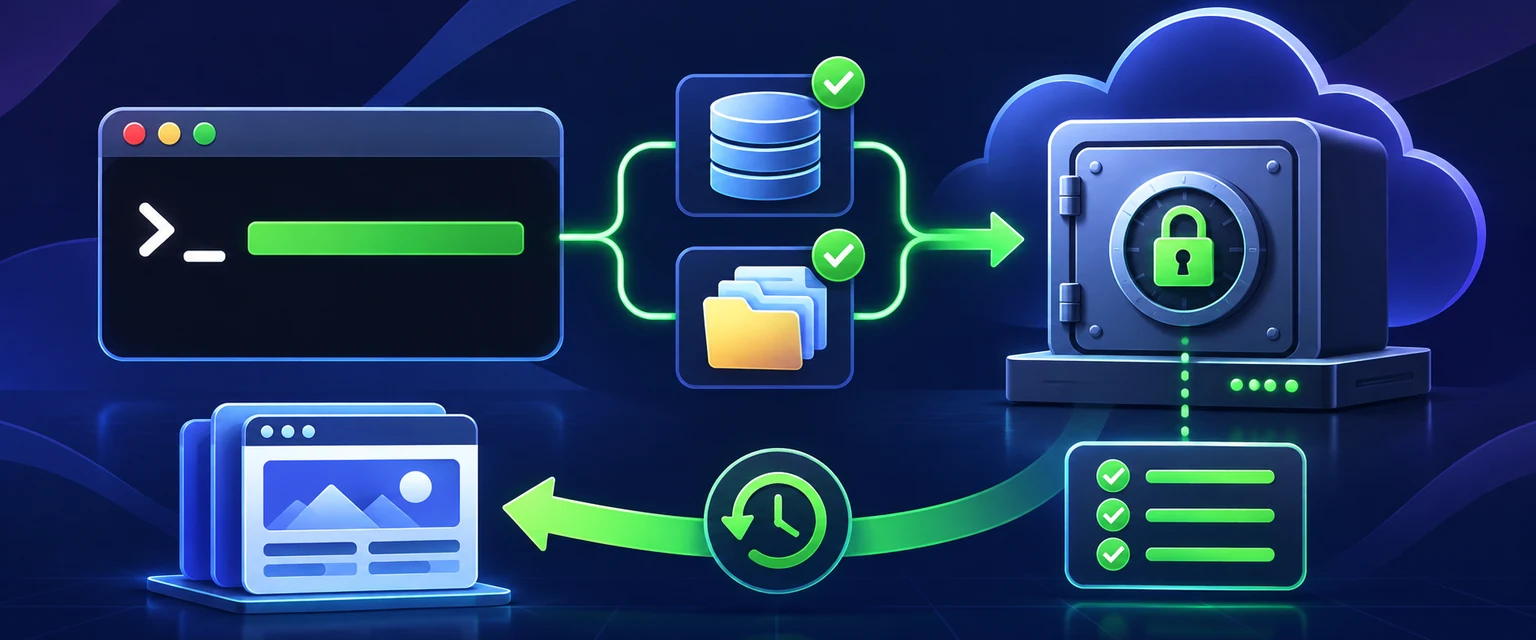
Reading options
On this page
- What a WordPress backup actually is
- Before you start
- Install and verify WP-CLI
- Check that WP-CLI can see your site
- Export the database
- Archive the files
- Check the database before you update
- Run the update
- Roll back if something breaks
- How to check it worked
- Troubleshooting
- Pro tips and security notes
- The one message worth forwarding
- Reader questions
- Sources & further reading
Before you start
SSH access as the regular account that owns the WordPress files; the confirmed WordPress path; GPG or a host-managed WP-CLI installation; owner-only storage outside the web root; enough disk space; an off-server copy destination; a maintenance window and recent tested backup.
Before WordPress 7.1.5 reaches your site, take two copies from the command line: a database export with wp db export and an archive of your site files. Check the database with wp db check, then update. Keep both copies until you are sure the site works, because they are your only real undo button.
At the time of writing (20 November 2026), WordPress 7.1.5 is two days old. The official release post, dated November 18, 2026, says: "This security release features fixes for multiple issues." It also says that sites with automatic background updates will start the update process on their own, so on many sites the clock is already running.
By the end of this guide you will have WP-CLI installed, a named database dump and a file archive sitting safely outside your web root, and a clear plan for rolling back if the update breaks something.
What a WordPress backup actually is
A WordPress site lives in two places. The database holds your posts, pages, users, comments and settings. The files hold WordPress itself, your themes, your plugins and your uploaded images, mostly inside the wp-content folder.
Think of it like moving house. The database is the notebook where you wrote down where everything goes, and the files are the furniture. If you only save the notebook, you have a list and no furniture. If you only save the furniture, you have a pile of boxes and no idea which room they belong to. A real backup keeps both, taken at the same moment.
Why this matters: a core update changes files and can also change the database. If you only have one half, a clean rollback is much harder.
Before you start
Run through this list before you type anything. It takes two minutes and saves a lot of pain.
- Shell access to the server, usually over SSH. SSH is a secure way to log in to a server and type commands on it.
- The full path to your WordPress install. This is the folder that holds your WordPress config file, and Step 4 shows an example.
- A folder on the server that is outside the web root, so the backup cannot be downloaded through a browser.
- A place off the server where you will copy the finished backup, such as your own computer.
- Enough free disk space for a copy of the whole site.
- A quiet time window, ideally when traffic is low.
- An honest read of your risk. A small brochure site with few plugins is low risk. A shop with orders coming in every minute is high risk, and you should talk to your developer first.
If you are not sure what SSH or a web root is, read what web hosting is first. It explains how your server, files and domain fit together.
Heads up: everything below assumes a Linux server with a normal shell. Commands are shown exactly as you would type them.
Install and verify WP-CLI
First try wp --info. If your host already supplies WP-CLI, use that managed copy and skip this download section.
If you must install it yourself, verify the downloaded executable before running it. WP-CLI's official verification guide recommends a GPG signature because it checks both integrity and authenticity. These are unexecuted examples; run them as the regular account that owns the site, not as root.
Step 1: Download the phar and its signature
curl -O https://raw.githubusercontent.com/wp-cli/builds/gh-pages/phar/wp-cli.phar
curl -O https://raw.githubusercontent.com/wp-cli/builds/gh-pages/phar/wp-cli.phar.asc
curl -L https://raw.githubusercontent.com/wp-cli/builds/gh-pages/wp-cli.pgp -o wp-cli.pgp
Step 2: Import the key and verify its fingerprint
gpg --import wp-cli.pgp
gpg --list-keys --with-fingerprint releases@wp-cli.org
The fingerprint shown by the official WP-CLI guide on 21 November 2026 is:
63AF 7AA1 5067 C056 16FD DD88 A3A2 E8F2 26F0 BC06Compare all 40 hexadecimal characters with the official verification page over HTTPS. Stop if they differ.
Step 3: Verify before the first execution
gpg --verify wp-cli.phar.asc wp-cli.pharContinue only when GPG reports a good signature from the expected key. Then test and install it:
php wp-cli.phar --info
chmod +x wp-cli.phar
sudo mv wp-cli.phar /usr/local/bin/wp
wp --info
On shared hosting without sudo, keep the verified phar in your home directory and use php ~/wp-cli.phar in place of wp. Do not skip verification when you download a new copy.
Check that WP-CLI can see your site
WP-CLI needs to run from inside your WordPress folder, or be told where it is. Move into the install folder first.
Step 4: Go to the WordPress folder
This command changes your current folder to the WordPress install. Replace the path with your own.
cd /home/example/public_htmlThere is no output. You can type ls and you should see wp-config.php, wp-content and wp-admin in the list.
Step 5: Confirm the version and the site
This command prints the WordPress version that is installed right now.
wp core versionYou will see a single version number. Write it down. You will need it if you ever roll back.
This command shows extra version details, including the database revision.
wp core version --extraYou should see lines starting with WordPress version:, Database revision: and Package language:.
This command prints the site's home address, so you know you are working on the right site.
wp option get homeYou should see your site address, for example https://example.com. If it shows a different site, stop and check your folder.
Why this matters: people who manage several sites on one server often back up the wrong one. Ten seconds here can save you a very bad afternoon.
Export the database
This is the most important file you will make today. Give it a clear name so you can find it later.
Step 6: Create a private, unique backup directory
Use a directory outside the web root with owner-only permissions. A timestamp plus the shell process ID prevents this run from silently overwriting an earlier backup. Keep the same shell open for the following steps.
umask 077
BACKUP_ROOT="$HOME/private-backups"
STAMP="$(date -u +%Y%m%dT%H%M%SZ)-$$"
BACKUP_DIR="$BACKUP_ROOT/wp-7-1-5-$STAMP"
mkdir -p -- "$BACKUP_DIR"
chmod 700 -- "$BACKUP_ROOT" "$BACKUP_DIR"
printf 'Backup directory: %s\n' "$BACKUP_DIR"
Confirm that the printed path is outside public_html, htdocs, www or any other web-served directory.
Step 7: Export the database without overwriting an older copy
wp db export "$BACKUP_DIR/database-before-7-1-5.sql" --porcelain
test -s "$BACKUP_DIR/database-before-7-1-5.sql"
wp db export reads the credentials from wp-config.php. test -s exits successfully only when the file exists and is not empty. Record the exact backup directory in your change log and copy it off the server after verification.
Archive the files
Here is where people expect a WP-CLI command and do not find one. WP-CLI has no official command that archives your wp-content folder or your whole site. So we use tar, a standard Linux tool that packs many files into one.
Step 8: Pack the site folder with tar
Replace /home/example and public_html only after confirming the real site path. The archive path uses the unique private directory created above.
tar -czf "$BACKUP_DIR/files-before-7-1-5.tar.gz" -C /home/example public_html
test -s "$BACKUP_DIR/files-before-7-1-5.tar.gz"
Step 9: Test the archive index
tar -tzf "$BACKUP_DIR/files-before-7-1-5.tar.gz" >/dev/nullA zero exit status confirms that tar can read the archive structure. It does not prove a full restore will work; the best verification is a restore to staging. Do not unpack an untrusted archive into a live account.
Check the database before you update
A backup of a damaged database is a damaged backup. A quick check tells you whether the tables are healthy right now.
Step 10: Run the database check
This command runs the standard mysqlcheck tool against your WordPress database.
wp db checkYou may see a line for each table, and the closing line should read Success: Database checked. If any table reports an error, sort that out with your host before you update anything.
Run the update
You now have both halves of your site saved. You can update by hand, or simply let the automatic update do its job now that you are covered.
Step 11: Update WordPress core from the command line
This command updates WordPress, but only to minor releases. A minor release is a small point update like 7.1.5, as opposed to a big jump like 7.2.
wp core update --minorYou should see lines like Downloading update from ..., Unpacking the update... and finally Success: WordPress updated successfully.
If you prefer to name the exact version, this command asks for 7.1.5 specifically.
wp core update --version=7.1.5The output looks the same as above.
Step 12: Confirm the new version
This command prints the installed version again so you can see the change.
wp core versionYou should now see 7.1.5. Open your site in a browser, log in to the dashboard and click through a few pages, a form and the checkout if you have one.
If you would rather not update from the shell, the release post also describes the dashboard route: go to Dashboard, click Updates, then click Update Now.
Made-up example: Sara runs a small bakery site. She takes the two backups at 06:10, runs wp db check, and leaves the site alone. At 07:30 the automatic update installs 7.1.5. Her contact form stops sending, but because the backups exist, she can calmly test a plugin update first instead of panicking. The backup did not fix the problem. It gave her room to think.
Roll back if something breaks
Treat rollback as a maintenance operation. Put the site in maintenance mode, stop writes such as orders and form submissions, and involve the site owner before replacing the database. A restore can discard everything created after the backup.
First, re-identify the exact backup directory; do not guess it. The example below deliberately requires you to replace the placeholder.
BACKUP_DIR='/home/example/private-backups/wp-7-1-5-REPLACE_WITH_TIMESTAMP'
test -s "$BACKUP_DIR/database-before-7-1-5.sql"
tar -tzf "$BACKUP_DIR/files-before-7-1-5.tar.gz" >/dev/null
wp maintenance-mode activate
Save the current broken state into a new unique directory before importing anything:
umask 077
RESCUE_DIR="$HOME/private-backups/rescue-$(date -u +%Y%m%dT%H%M%SZ)-$$"
mkdir -p -- "$RESCUE_DIR"
wp db export "$RESCUE_DIR/database-current.sql" --porcelain
tar -czf "$RESCUE_DIR/files-current.tar.gz" -C /home/example public_html
Only after checking both the target backup and the rescue copy should an authorised administrator restore the database and files:
wp db import "$BACKUP_DIR/database-before-7-1-5.sql"
tar -xzf "$BACKUP_DIR/files-before-7-1-5.tar.gz" -C /home/example
wp maintenance-mode deactivate
Overlaying an archive does not remove files added after the backup. Do not delete plugin or upload directories by guesswork. Compare the restored tree with the backup, preferably on staging, and use a reviewed file-level rollback plan if removal is required. If the restore fails, keep maintenance mode on and restore the rescue copy or contact your host.
Optional: put only core back
If you only need WordPress core itself to go back, WP-CLI can install an older version over the newer one. This command downgrades core to the version you wrote down in Step 5. Replace 7.1.4 with your own number.
wp core update --version=7.1.4 --forceYou should see Success: WordPress updated successfully. Be careful here. Going back from a security release reopens the problems it fixed, so treat this as a short stop while you find the real cause, not a place to stay.
How to check it worked
A backup you have never looked at is only a hope. Do these checks right after you make it.
First, run the database check again and look for the closing line. You want to see Success: Database checked. with no table reporting an error.
wp db checkNext, look at the size of your backup files. This command lists them with sizes in human friendly units like K, M and G.
ls -lh "$BACKUP_DIR"/You should see both files with a real size. A small blog might have a dump of a few megabytes, and a shop can be much larger. A size of 0 means the export failed, even if you did not notice an error.
Finally, the real test is a restore. If your host offers a staging site, which is a private copy of your site for testing, copy both files there. Import the dump with wp db import, unpack the archive with tar -xzf, and load the staging site in a browser. If pages, images and logins all work, your backup is good. Do not test a restore on your live site.
Quick tip: open the dump in a pager with less "$BACKUP_DIR/database-before-7-1-5.sql" and scroll a little. You should see readable SQL with your table names in it. Press q to quit.
Troubleshooting
WP-CLI says it cannot find a WordPress installation
The likely cause is that you are not in the WordPress folder. Go back to Step 4 and cd into the folder that holds wp-config.php, or add the path to the command, like wp db export "$BACKUP_DIR/example.sql" --path=/home/example/public_html. Do not run wp core download on a live site to "fix" this.
"bash: wp: command not found"
The likely cause is that the move in Step 3 did not happen, or /usr/local/bin is not on your path. Check with ls -l /usr/local/bin/wp. If the file is not there, either repeat Step 3 or use the no sudo variant and run php ~/wp-cli.phar instead.
"mv: cannot move 'wp-cli.phar' to '/usr/local/bin/wp': Permission denied"
The likely cause is that you do not have administrator rights on the server, which is normal on shared hosting. Do not fight it. Keep the file in your home folder and use php ~/wp-cli.phar for every command, as shown in the variant section.
"Error: Can't connect to the database"
The official handbook lists this as a common issue. Likely causes are wrong database details in wp-config.php, or WP-CLI using a different PHP than your website. Run wp --info to see which PHP binary it uses, and compare the database name and user in your config with what your host shows.
"Error: YIKES! It looks like you're running this as root."
WP-CLI is warning you that you logged in as the root user. The handbook calls running WP-CLI as root extremely dangerous and strongly discourages it. Its advice is to run WP-CLI as a regular user, so log in as the account that owns the site files.
The dump file is 0 bytes
You run ls -lh "$BACKUP_DIR"/ and the SQL file shows a size of 0. Likely causes are a full disk, a missing mysqldump tool, or a database connection problem. Check free space with df -h ~, check that which mysqldump prints a path, and run wp db check to confirm WP-CLI can reach the database. Leave the failed file for diagnosis, create a new unique backup directory, and export again so no valid copy is overwritten.
Pro tips and security notes
Give every backup a name that says what it is and when you made it. "before-7-1-5" tells future you exactly why the file exists.
Never paste a database dump, or even part of one, into a chat, a support ticket, a forum post or an AI tool. A dump holds user emails, password hashes and often customer details. Share the error message instead.
Never leave a dump or archive inside your web root, such as public_html. Anything in that folder can be downloaded by anyone who guesses the file name. If you created one there by mistake, delete it now with rm, and check the folder with ls afterwards.
Copy both files off the server once you have checked them. A backup that lives only on the same server dies with that server. Use scp or your SFTP app to pull them down to your own machine.
Stay far away from wp db reset, wp db clean and wp db drop unless you truly mean it. The official docs describe them plainly: reset removes all tables, clean removes all tables with your table prefix, and drop deletes the whole database. They sit right next to the safe commands, and a typo can cost you everything.
Why this matters: most backup disasters are not caused by the update. They come from a backup that was stored in the wrong place, never checked, or shared with the wrong person.
The one message worth forwarding
If someone else looks after your site, send them this:
Hi, WordPress 7.1.5 is a security release (published 18 November 2026) and auto-updates may already be running. Before it updates, could you please: 1) run wp db export to a named file outside the web root, 2) tar the site folder to the same place, 3) run wp db check and confirm "Success: Database checked.", 4) copy both files off the server. Then update to 7.1.5 and send me the output of wp core version. Please do not post the dump anywhere public. Thanks!Take two copies, check them, keep them off the web root, and the 7.1.5 update becomes a routine job instead of a crisis.
Reader questions
Is wp db dump the same as wp db export?
Yes. The official docs list dump as an alias of export, so both commands do the same job.
What file name does wp db export use if I do not give one?
It uses the pattern {dbname}-{Y-m-d}-{random-hash}.sql in the current folder. Naming the file yourself makes it much easier to find later.
Can I back up only some database tables?
Yes. Add --tables with a comma separated list of table names to export only those, or --exclude_tables to skip the ones you name. For a pre-update safety copy, a full export is the better choice.
I run a multisite network. Does wp core version --extra show each subsite's database version?
No. The docs say --extra reports the database revision expected by the installed version. To see what a subsite has stored, run wp option get db_version against that subsite.
Do I still need a backup if automatic updates are switched on?
Yes. Automatic updates install the new version for you, but they do not give you a copy of your site from before the change. The backup is what lets you go back.
Can I verify the WP-CLI file before I run it?
Yes. The official install guide offers an optional check: download the matching .asc signature file, import the WP-CLI public key with gpg, and run gpg --verify against wp-cli.phar.
How long should I keep the pre-update backup?
Keep it until the updated site has run normally for a while and you have a newer backup you trust. Store it off the server, and delete copies you no longer need.
Was this guide helpful?
Help us make the next update better.
Sources & further reading
What changed
Added signature verification before first WP-CLI execution, private collision-resistant backup paths, explicit archive checks, maintenance-mode rollback gates and a rescue copy; added original article/social media.
Originally published . About our editorial updates.