Search Console TXT Verification: Find the Right DNS Zone and Fix Failures
Verify Google Search Console with TXT in Cloudflare, cPanel, GoDaddy, Namecheap or Hostinger. Fix naming, TTL, CNAME, account and DNS errors.
The short answer
Verify a Search Console Domain property by publishing its exact TXT token at the active authoritative DNS provider, then completing verification in Search Console. Use the provider’s correct record name and default TTL, check public answers, and keep the verification record afterwards. Workspace/Cloud Identity steps and record-retention rules are separate.

Reading options
On this page
- Quick steps: verify a Domain property with TXT
- Choose the property you actually need
- Start by finding the active DNS zone
- Search Console is different from Workspace and Cloud Identity
- Copy the value from Search Console
- Add one record without disturbing existing services
- Check TXT records from a phone or browser
- Check authoritative DNS before clicking Verify
- TTL and propagation: what the waiting time means
- Diagnose the result instead of guessing
- Keep verified ownership through DNS moves
- Verification is a starting point for SEO
- Keep a small verification record
- Video walkthroughs and older dashboard instructions
- Reader questions
- Sources & further reading
Before you start
Access to the intended Google account and the authoritative DNS zone; a copy of existing DNS records; the exact token generated for your Search Console property. You can use a browser-based DNS lookup or dig/nslookup. Add one verification record without changing nameservers or existing website/email records.
A TXT record can look perfect in a hosting dashboard and still be invisible to Google. The usual explanation is surprisingly ordinary: the record was added to a DNS zone that the internet is not using.
To verify a domain in Google Search Console, add Google's exact verification value at the active DNS provider and complete verification in Search Console. This guide gives you a way to prove each step, rather than repeatedly clicking Verify and hoping.
The written instructions were checked against current Google and DNS-provider documentation on 22 October 2026. Examples use reserved example domains and dummy tokens; replace them with your own values.
Quick steps: verify a Domain property with TXT
- Sign in to Google Search Console using the Google account that should hold access.
- Open the property selector, choose Add property, select Domain, and enter
example.comwithouthttps://,wwwor a path. - Copy the complete
google-site-verification=...value from that property's DNS verification screen. - At the active authoritative DNS provider, add a separate TXT record at the required name. Use the provider's root-name syntax and default TTL.
- Save, check that the exact value is publicly served, then return to the same property and click Verify.
- Open the verified property and keep its DNS verification record in place.
The detailed checks below help when a record is saved but verification still fails. You do not need to wait for a fixed 24- or 48-hour timer before making the first verification attempt.
Choose the property you actually need
A Domain property, such as example.com, covers that domain across protocols and its subdomains. A property for shop.example.com covers that subdomain and its descendants, not the parent domain.
A URL-prefix property, such as https://www.example.com/, covers that exact protocol, hostname and prefix. It does not also cover http://www.example.com/ or https://example.com/. It can be useful when your responsibilities cover a particular site or directory.
For a Domain property, omit www: Google groups www and non-www under the domain. A separate blog.example.com Domain property covers that subdomain and its descendants, not example.com. Google's property guide explains the scope.
If you cannot edit DNS, ask an existing property owner for appropriate access, or use an available URL-prefix verification method when that narrower scope meets your needs. Adding an HTML tag cannot verify a Domain property.
Google's ownership verification guide documents DNS verification for Domain properties. TXT is the common manual route, but Google can also offer CNAME or an integrated DNS-provider flow. Follow the method shown for your property.
Do not change working DNS arrangements merely to use this tutorial. If an agency or IT team controls the zone, give them the exact record request.
Start by finding the active DNS zone
Your registrar, web host and DNS provider can be three different companies. Buying the domain at one company does not mean that company's DNS editor serves it.
On macOS or Linux, inspect the nameservers:
dig NS example.com +shortOn Windows:
nslookup -type=NS example.comUse these names as a clue to the active provider. Cloudflare names often identify Cloudflare; hosting providers can use branded or custom names. A name alone is not proof that a particular dashboard belongs to the active zone.
Confirm the provider and account with whoever manages the domain. For advanced setups, including delegated subdomains and secondary DNS, identify the zone serving the exact name you are verifying.
If the public nameservers belong to Cloudflare while you add TXT in an unused cPanel zone, waiting will not make that cPanel record public. Our domain connection guide explains the difference between changing nameservers and editing records.
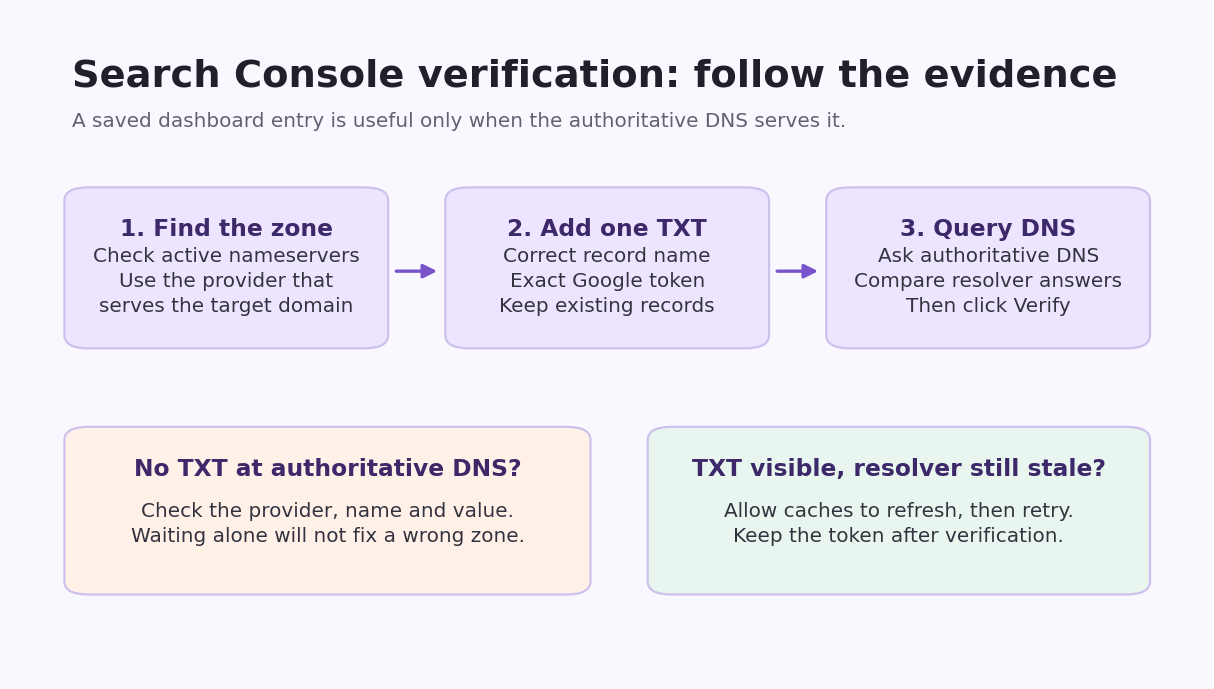
*Original Hostlelo checklist: follow the evidence from the active zone to Google's verification result.*
Search Console is different from Workspace and Cloud Identity
Google's Cloud Identity guide and Workspace TXT guide describe verification in the Google Admin console. For this article, obtain the token from Search Console and finish in Search Console.
You can reuse a provider's instructions for entering a DNS record, but do not copy another product's sample token, final confirmation step or email-setup instructions. Search Console verification does not require a Google Workspace subscription or changes to MX records.
Retention is a product-specific difference: the Workspace guide currently says its TXT record may be removed after successful verification. Search Console's own instructions say to keep its DNS record even after success. For a Search Console property, follow Search Console's rule.
Copy the value from Search Console
In Search Console, add a property, choose Domain, and enter the domain without a scheme or path. For the whole domain, enter example.com, not https://example.com/about/.
When the manual flow offers TXT, copy the complete value. A dummy example is:
google-site-verification=REPLACE_WITH_YOUR_TOKENThe prefix is part of the value. Do not copy this example into your zone; it cannot verify your property.
Keep the verification screen open. Also note which Google account and property generated the token. Finding someone else's Google token in DNS does not mean your account has been verified.
For a property you already added, return to its verification flow; when accessible, Settings > Ownership verification shows the methods. Some providers support an integrated sign-in flow. If the provider shown is not the one serving your DNS, choose the manual/any-provider option rather than changing nameservers.
Add one record without disturbing existing services
The intended record is a TXT value at the domain being verified. Keep existing A, AAAA, MX, SPF, DKIM, DMARC and other verification records.
A record specification you can hand to the DNS administrator is:
Domain to verify: example.com
Type: TXT
Name: the root of example.com, using this provider's name syntax
Value: the exact google-site-verification= value from Search Console
TTL: provider default unless your DNS administrator specifies otherwise
Provider forms differ. A root name might be @, blank, or the fully qualified domain. Do not treat these entries as interchangeable in every panel.
In Cloudflare
Use the zone that actually serves the domain. Open DNS > Records, select Add record, choose TXT, enter @ for the root, paste the value, and save.
TXT records do not use the orange-cloud proxy switch used by certain address records. You do not need to pause Cloudflare or change the website's proxy status to publish this TXT record.
If the domain is managed through a hosting partner, follow that partner's supported record-management route. See Cloudflare's DNS record instructions.
In cPanel
Open Domains > Zone Editor, choose Manage for the domain, add a TXT record, and enter its name and value.
For the root, the fully qualified name example.com. is an explicit zone name; the final dot denotes an absolute DNS name. Follow the form's validation and confirm the saved row names the root domain. Do not assume that @ is accepted by every cPanel form.
Check the result before saving. A provider that automatically appends the domain can turn a poorly entered name into example.com.example.com.
The cPanel Zone Editor documentation explains record management and warns that record text can accept invalid data. Reset DNS Zone is not a verification troubleshooting step.
In GoDaddy
When GoDaddy is the active DNS provider, open Domain Portfolio, select the domain, open DNS, then Add New Record. Choose TXT, enter @ as the root Name and paste the Search Console string into Value. Keep the offered TTL unless your administrator specifies otherwise, then save.
GoDaddy's TXT instructions describe a one-hour default TTL. A protection or identity-confirmation prompt may be part of saving the change; confirm that the record actually appears afterwards.
In Namecheap
For a domain using BasicDNS, PremiumDNS or FreeDNS, open Domain List > Manage > Advanced DNS > Host Records > Add New Record. Choose TXT Record, use @ for the root Host, paste the full value and save. Use the default/Automatic TTL.
Namecheap's record guide says not to include the domain itself in the Host field. For blog.example.com in the example.com zone, enter blog. If the domain uses Namecheap hosting nameservers, use its cPanel zone; if it uses another DNS provider, edit that provider instead.
In Hostinger
In the current dashboard, open Domains > DNS, select the domain and add a TXT record on its DNS records page. The interface may also expose this through DNS / Nameservers. Use @ for the root Name/Host and paste the Search Console value.
Hostinger's TXT guide lists a default TTL of 14400 seconds, or four hours. Four hours is that provider's default, not a universal requirement or an especially short TTL. If the active nameservers are elsewhere, use that provider's DNS editor.
At another provider
Use that provider's documented root-name convention. If you cannot identify the correct field, send the record specification to support rather than changing unrelated entries.
Multiple independent TXT records can coexist at the same name. Keep the Google verification value separate from SPF and from another owner's verification value.
Root and subdomain names depend on the zone
To verify example.com, publish at the root of the example.com zone. To verify blog.example.com in that same zone, the record name is usually blog. If blog.example.com has its own delegated authoritative zone, its root is used instead. Confirm the saved full name rather than blindly entering @ for every property.
Do not use the verification string as the Name field: it belongs in the TXT Value field. Do not create a www TXT record for a root-domain request or a * wildcard record to stand in for the requested name.
If an existing CNAME prevents adding TXT
In standard DNS, a CNAME cannot coexist with ordinary TXT data at the exact same name; see RFC 2181, section 10.1. Do not delete a live website CNAME to force the TXT method.
Follow Search Console's offered CNAME verification procedure instead, or verify an appropriate parent domain you control. Use the generated verification name and target exactly. This is a different record pair from a TXT token; do not paste google-site-verification=... into a CNAME target.
For a Cloudflare verification CNAME, use DNS only, and ensure flattening is not hiding the CNAME answer. Cloudflare's verification troubleshooting guide covers record-level flattening, zone-wide settings and delegated subdomains. Review the effect on existing services before changing a zone-wide setting.
Check TXT records from a phone or browser
You do not need a terminal. Open Google Admin Toolbox Dig, enter the domain being verified without a scheme or slash, and choose TXT. Look for the exact Search Console value among the results. Use NS to inspect the public nameservers.
An online lookup is a useful public-resolver check; it is not Google's final ownership verdict. For conflicting or missing results, use the authoritative-server checks below or send the output to your DNS administrator.
Check authoritative DNS before clicking Verify
A saved record proves that the dashboard accepted your change. A DNS answer proves that a server is serving it. Google's success screen proves that Google accepted the verification.
Start with a normal lookup:
dig TXT example.comThen query an actual authoritative nameserver returned for your domain. Replace the example server below:
dig @ns1.provider.example example.com TXT +norecurseInspect the response status and answer. An authoritative response normally includes the aa flag. Compare the TXT value with Search Console, including the complete token.
If your domain uses several authoritative nameservers, check them all. One correct answer and one stale or missing answer can produce inconsistent results.
Finally compare a public resolver:
dig @1.1.1.1 example.com TXT
dig @8.8.8.8 example.com TXT
On Windows, a similar explicit-server check is:
nslookup -type=TXT example.com 1.1.1.1In Windows PowerShell, Resolve-DnsName is another option:
Resolve-DnsName -Name example.com -Type TXT -Server 1.1.1.1 -DnsOnlyThese command forms are documented by BIND and Microsoft. They only query DNS; they do not add or change a record.
An illustrative answer might include:
;; status: NOERROR
;; flags: qr aa
example.com. 3600 IN TXT "google-site-verification=REPLACE_WITH_YOUR_TOKEN"
This is explanatory output, not a live test or a usable token. The aa flag matters when querying an authoritative server; a recursive resolver need not set it.
Quotes displayed around TXT output are normal presentation. Compare the actual value; avoid adding extra quote characters, spaces or line breaks inside the saved token. A TXT answer can contain multiple character strings; enter the complete token in your provider's Value field and let the provider handle its storage format. Do not concatenate unrelated TXT records or append the token to SPF.
TTL and propagation: what the waiting time means
TTL tells a resolver how long it may cache an answer. It is not a deadline for Google's Verify button. Provider publication, secondary-server synchronization and caching are separate steps.
An earlier answer saying that no TXT record exists can also be cached; RFC 2308 describes this negative caching. Lowering the new TXT record's TTL does not erase an already cached old or negative response. Clearing your browser cache or flushing your laptop's DNS does not flush Google's resolvers.
Try verification once the record is correctly published. Google allows for manual DNS changes taking two or three days in some cases; provider guides may quote shorter typical windows. A claim such as “48 hours maximum” is not a universal DNS guarantee. If authoritative DNS is wrong, fix the record or zone instead of waiting.
Diagnose the result instead of guessing
No token at the authoritative server: revisit the provider, zone, record name and value. The record may not be saved or may have been entered under the wrong name.
NOERROR but no relevant TXT answer: the query succeeded, but it did not return the required TXT record. This can be a NODATA result; inspect the full answer and authority sections. An empty dig +short result by itself does not explain why.
NXDOMAIN: the queried name is reported as nonexistent. Recheck spelling, the full saved hostname and delegation. This differs from a valid name with no TXT data.
Token visible at one nameserver only: ask the provider to check zone publication or secondary synchronization. Do not assume the zone is healthy from one answer.
All authoritative answers are correct, but a resolver is stale: allow cached answers to refresh. Earlier negative answers can also be cached. Reducing the TTL after a resolver cached an older answer does not erase that cache.
SERVFAIL, timeout or another DNS error: look at the full output. These are not the same as a valid answer without your TXT record. Have the DNS administrator inspect delegation, DNSSEC and server reachability; disabling DNSSEC blindly can create a different problem.
Google says the value does not match: re-copy the token for the intended account and property. Check for missing characters, extra whitespace and a different owner's token.
Google advises that manually published records can sometimes take two or three days to become available. That is a possible provider/publication delay, not a reason to ignore a wrong zone. Our DNS propagation guide explains caching in more detail.
Once the answers look correct, return to the same Search Console account and property and click Verify. Confirm the ownership-success message and that you can open the intended property. If someone is already an owner, their verification does not need to be overwritten for you to gain appropriate access.
If verification still fails after the stated waiting window, collect the exact error, record name, token and authoritative/public DNS results for support. Do not repeatedly delete and recreate correct records, reset the zone or disable DNSSEC as a routine fix.
Keep verified ownership through DNS moves
Record the property, authorized owner and purpose in your internal DNS inventory. Copy needed verification records when moving to a new DNS provider.
Keep tokens for owners who should retain verified access. When a staff member or agency leaves, review their Search Console permissions and their verification tokens together. Removing a user in one screen may not be enough if they still control a verification method.
Have another authorized business owner with an appropriate independent verification arrangement where practical. Protect the Google and DNS accounts with strong authentication. The public TXT token is not a password; control of the accounts and zone is what matters.
For handovers, distinguish a verified owner who controls a verification token from a delegated owner or a full/restricted user who was granted access. Use Settings > Users and permissions and review unused ownership tokens when removing former owners. Google's permissions guide explains the difference. Give people appropriate roles instead of sharing a Google or DNS account password.
Verification is a starting point for SEO
A successful verification does not force Google to crawl, index or rank your pages. It also does not repair broken HTTPS, website responses or canonical tags. DNS verification proves domain control; website health is a separate check.
After success:
- Inspect an important public URL and review the reported crawling/indexing state.
- Submit your site's actual sitemap URL if available; do not assume every CMS uses the same filename.
- Check the correct property's reports. A narrow URL-prefix property can omit traffic from another hostname or protocol.
- Allow time for reports to populate. Google's verification guide says data can take a few days to accrue; an initially empty report does not by itself mean TXT verification failed.
Resolve real access, canonical and indexing problems before expecting performance data to tell a useful story. There is no guaranteed first-page result from adding a TXT record.
Keep a small verification record
Write down the property, record name, DNS provider, date, authoritative answers and the Google account that completed verification. That short note makes the next migration or access handover much easier.
If support needs to investigate, provide those details and the observed DNS error. Never send them your Google password or DNS login credentials.
A record request you can send to DNS support
Please add a separate DNS TXT record for Search Console verification.
Domain/property: [domain being verified]
Exact DNS name: [full hostname required by Search Console]
TXT value: [paste the complete google-site-verification= value]
TTL: provider default, unless our DNS policy requires another value
Please preserve existing website, email and verification records,
and confirm the final published hostname and authoritative answer.
Video walkthroughs and older dashboard instructions
The following linked videos are supplementary navigation aids. Use the current written instructions above and the provider's own documentation when screen layouts differ:
- RankYa: Domain DNS verification with TXT and CNAME.
- Blog With Ben: updated DNS/TXT walkthrough. Its description identifies Bluehost as the example provider.
- Blog With Ben: 2019 walkthrough. Its description explicitly points to the updated video and warns that the Bluehost interface changed.
- Clicks to Clients: DNS verification walkthrough. The published chapter list includes GoDaddy, Namecheap and cPanel.
- Key2Blogging: Domain property verification.
The connective3 illustrated guide uses a Microsoft administration example. Treat provider screens and timing estimates as examples, not instructions to change email settings or a universal propagation deadline.
Reader questions
Do I enter example.com or https://www.example.com in a Domain property?
Enter example.com without a protocol, www prefix or path. A URL-prefix property instead uses the exact URL prefix, including its protocol and hostname.
Can I verify a Domain property without DNS access?
DNS verification is the normal requirement for a custom-domain Domain property. Ask an existing owner to grant access, request the DNS change from your administrator, or use a supported URL-prefix verification method if its narrower scope is sufficient.
What goes in the TXT Name and Value fields?
Name identifies the domain or subdomain being verified, using the active provider’s syntax. Value contains the exact google-site-verification= string from Search Console. For a root record many panels use @, while cPanel may use the full domain name.
Should I add the record at my registrar, cPanel or Cloudflare?
Use the authoritative DNS zone serving that name publicly. The registrar and web host may be different from the DNS provider. An unused cPanel or registrar zone will not publish the record to the internet.
Which TTL should I use, and must I wait 48 hours?
Use the provider default unless your DNS administrator specifies otherwise. TTL is a cache lifetime, not a Google verification timer. Try after correct publication; Google notes that manual DNS changes can sometimes take two or three days.
Can I remove the TXT record after verification?
Keep the Search Console DNS verification record while its owner should retain access. Search Console periodically checks ownership. Instructions allowing a Workspace record to be removed after verification should not be applied to Search Console.
Will the Google TXT record break my email or SPF?
A separate verification TXT record can coexist with SPF and other TXT records. Preserve existing records and do not merge the token into SPF, replace MX records or enable email setup merely to verify Search Console.
What if my subdomain already has a CNAME?
Do not delete a live CNAME to force a TXT record at the same name. Use the verification method offered by Search Console, including its generated CNAME name/target pair where appropriate, or an authorized parent-domain verification.
Why can a lookup see the record while Google still fails?
Check the exact token and property, all authoritative nameservers, and public resolver answers. Mixed publication, stale or negative caches, DNSSEC/delegation errors and wrong record names can explain the difference.
Can I check the TXT record on Android or iPhone?
Yes. Open Google Admin Toolbox Dig in a browser, enter the domain and select TXT. Compare the complete value. This checks public DNS; the Search Console verification result remains the final confirmation.
Does verification guarantee indexing, ranking or immediate reports?
No. Verification establishes access and ownership. Crawling, indexing and rankings are separate, and reports can take time to populate. Inspect important URLs and check your actual sitemap and website health afterwards.
Was this guide helpful?
Help us make the next update better.
Sources & further reading
- Google Search Console: site ownership verification and DNS record retention
- Google Search Console: property types and scope
- Google Search Console: owners, users and permissions
- Google Cloud Identity: its separate domain-verification workflow
- Google Workspace: its separate TXT-verification and retention guidance
- Google Admin Toolbox: browser-based DNS lookup
- Cloudflare: manage DNS records
- cPanel: Zone Editor
- GoDaddy: add a TXT record
- Namecheap: TXT records and Host field syntax
- Hostinger: TXT values, names and default TTL
- Hostinger: current DNS dashboard navigation
- BIND 9: dig manual
- Microsoft: nslookup
- Microsoft: Resolve-DnsName
- RFC 2181: CNAME coexistence and DNS clarifications
- RFC 2308: negative caching and NODATA
- RFC 1035: TXT resource-record format
- Cloudflare: CNAME verification, proxy status and flattening
What changed
Added a quick setup path, GoDaddy/Namecheap/Hostinger instructions, property and subdomain scope, CNAME conflicts, browser/PowerShell DNS checks, TTL/negative-cache explanations, ownership handovers and post-verification checks. Distinguished Search Console from Workspace/Cloud Identity retention and email setup. Reviewed linked written guides and available video descriptions; full video captions/transcripts could not be retrieved.
Originally published . About our editorial updates.