Is Your VPS Still Getting Security Patches? Check Debian and Ubuntu
Debian 11 lost security updates on 31 August 2026. Learn how to check your VPS release and upgrade Debian or Ubuntu safely, one checkable step at a time.
The short answer
Debian 11 stopped receiving Debian security updates on 31 August 2026, and Debian 12 is now on Long Term Support until 30 June 2028, so Debian servers should move to Debian 13 one release at a time. Ubuntu 22.04 LTS has standard security maintenance until May 2027 and Ubuntu 24.04 LTS until May 2029. Run cat /etc/os-release to see your release, take a full snapshot, then upgrade with apt on Debian or do-release-upgrade on Ubuntu.
Reading options
On this page
- What does "end of support" actually mean for your server?
- Before you start
- Find out where your server stands
- Upgrade Debian 11 to Debian 12
- Upgrade Debian 12 to Debian 13
- Upgrade Ubuntu to the next LTS release
- How to check it worked
- Troubleshooting
- When to ask your host or a developer
- The one message worth forwarding
- Reader questions
- Sources & further reading
If your VPS runs Debian 11, it stopped getting free security updates from Debian on 31 August 2026. Debian 12 is still covered, but only by the Long Term Support team, and Ubuntu 22.04 reaches the end of its standard security updates in May 2027. Check your version in one command, then plan an upgrade to Debian 13 or a newer Ubuntu LTS if you are on an old release.
Here is the part that catches people out. Debian announced it in one short post: "Starting in September, Debian will not provide further security updates for Debian 11." Your server did not beep and your website did not go down. Nothing looked broken, which is exactly why so many servers stay on an old release for years.
By the end of this guide you will know which release your server runs, whether it still gets patches, and how to move it safely to a supported release.
What does "end of support" actually mean for your server?
Every Linux release has a support window. During that window, its makers fix security holes and ship the fixes as package updates. When the window closes, new holes still get found, but nobody fixes them for your release anymore.
Think of a car model whose maker has stopped making parts. The car drives fine today. The next time something wears out, there is no official part, and you are on your own.
Here is where the common releases stand at the time of writing (12 November 2026), taken from the official Debian and Ubuntu pages:
- Debian 13 "trixie" is the current stable release. Its latest point release, 13.7, came out on 12 September 2026.
- Debian 12 "bookworm" lost regular security support on 12 July 2026. The Debian LTS team now supports it until 30 June 2028 on amd64, i386, arm64, armhf and ppc64el, and Debian encourages users to upgrade to Debian 13.
- Debian 11 "bullseye" reached end of life on 31 August 2026. Debian says a subset of its packages will be supported by external parties, but Debian itself no longer ships fixes for it. The Debian releases page may still label bullseye as under LTS support; this guide follows the 31 August 2026 announcement.
- Ubuntu 20.04 LTS ended standard security maintenance in May 2025 and now gets updates only with Ubuntu Pro.
- Ubuntu 22.04 LTS has standard security maintenance until May 2027.
- Ubuntu 24.04 LTS has it until May 2029.
- Ubuntu 26.04 LTS has it until May 2031.
Why this matters: LTS means Long Term Support. Each Ubuntu LTS gets 5 years of standard security maintenance, and Ubuntu Pro can stretch that to 10 years for the Main repository through ESM (Expanded Security Maintenance). On Debian, LTS is a separate team that takes over a release after its regular security support ends.
Made-up example: Sana runs a small online shop on a Debian 11 VPS that a freelancer set up years ago. The shop works, so nobody has touched the server. In October her developer logs in to add a PHP extension and notices the server has had no Debian security fixes since August. Nothing was hacked, but the server had quietly drifted out of the safe zone.
Before you start
An operating system upgrade is the biggest change you will make to a running server. Most go smoothly. The ones that go badly are almost always the ones done without a way back.
Go through this list before you type anything:
- Access: you can log in over SSH (Secure Shell, the remote login you use from a terminal).
- Root or sudo: you can run commands as root, either as the root user or with
sudo. - A snapshot or backup: take a full snapshot from your hosting control panel if your host offers one. A snapshot is a copy of the whole disk you can roll back to. Also keep your own copy of site files and databases off the server.
- Console or rescue access: find your host's web console or rescue mode now. If SSH stops working after a reboot, this is how you get back in.
- A maintenance window: pick a quiet time and tell anyone who depends on the site.
- Time needed: there is no fixed number, so block out a generous chunk of time for each hop, including checks. Do not start just before a meeting.
- Risk level: medium. The upgrade does not touch your data by design, but services can fail to start if their configuration changed.
Heads up: Debian's release notes say "Before upgrading your system, it is strongly recommended that you make a full backup". Ubuntu's guide calls a safe backup "extremely important".
If your server runs cPanel, WHM, Plesk or DirectAdmin, pause here. Panels support only certain operating systems, and their vendors publish their own rules for OS upgrades. Check your panel vendor's supported operating system list and upgrade guidance before you touch the OS. Our guide on how to check whether your cPanel or Plesk VPS is patched is a good first stop.
Find out where your server stands
These first steps only read information, so they are safe to run right now.
Step 1: Find out which OS you run
Log in over SSH, then run this command to print your operating system details.
cat /etc/os-releaseYou will see several NAME=value lines. PRETTY_NAME is the friendly name, such as a line containing "Debian GNU/Linux" or "Ubuntu". VERSION_ID is the version number only. VERSION_CODENAME is the release nickname, such as bullseye, bookworm or trixie on Debian.
On Debian, run this command too, because it shows the exact point release.
cat /etc/debian_versionYou will see a number. If it starts with 11, you are on bullseye. If it starts with 12, you are on bookworm. If it starts with 13, you are on trixie, the current stable release.
If you are on Debian 13, Ubuntu 24.04 or Ubuntu 26.04, you can skip the upgrade sections and jump to the checks near the end.
Step 2: Check which packages have short or ended support
Even inside a supported release, a few packages get shorter support than the rest. Debian has a small tool for this called check-support-status, in the debian-security-support package.
These commands install the tool on Debian.
sudo apt update
sudo apt install debian-security-support
This command lists installed packages whose support is limited, has ended, or will end early.
check-support-statusIf it lists packages, read the note next to each. The --type option narrows the report to earlyend, ended or limited.
Quick tip: the tool judges packages against the Debian release it runs on. On Debian 11 it cannot change the fact that the whole release has ended.
Step 3: Prepare a Debian server for the upgrade
Most checks here come from Debian's release notes; the archive, editor and tmux commands are standard Linux tools. Ubuntu users have their own short section later.
This command reports packages that are half installed or failed to configure.
sudo dpkg --auditYou want it to print nothing. If it lists packages, fix those first or ask your developer.
This command lists packages that are on hold, which means someone told apt never to upgrade them.
sudo apt-mark showholdHeld packages can block the upgrade, so find out why each one was held before you continue.
This command lists installed packages that did not come from Debian, such as ones from third-party repositories.
apt list '?narrow(?installed, ?not(?origin(Debian)))'Debian notes this list is not perfect, but it shows what may need its own plan.
Next, save the files Debian recommends you back up: /etc, /var/lib/dpkg and /var/lib/apt/extended_states. The first command packs them into one archive with the standard tar tool, and the second saves your current package list (Debian says the quotes around the star are important).
sudo tar czf /root/pre-upgrade-backup.tar.gz /etc /var/lib/dpkg /var/lib/apt/extended_states
dpkg --get-selections '*' > ~/curr-pkgs.txt
This does not replace your snapshot. Copy both files off the server too.
Finally, start a tmux session so the upgrade survives a dropped connection. Debian suggests running upgrades inside screen or tmux for this reason. These commands install tmux and open a session named upgrade.
sudo apt install tmux
tmux new-session -s upgrade
Run every upgrade command below inside this session.
Upgrade Debian 11 to Debian 12
Debian supports upgrades only from the release directly before. A bullseye server cannot jump straight to trixie: it goes to bookworm first, then to trixie. Debian also assumes you are on the latest point release of your current version.
Step 4: Bring Debian 11 fully up to date
These commands refresh the package list and install every pending bullseye update.
sudo apt update
sudo apt full-upgrade
Reboot if a new kernel was installed, log back in, and reopen tmux with tmux new-session -s upgrade.
Step 5: Point apt at bookworm
APT sources are the files that tell apt where to download packages. Debian's notes name them: /etc/apt/sources.list and the files under /etc/apt/sources.list.d/.
This command shows every line in those files that still mentions bullseye.
grep -r bullseye /etc/apt/sources.list /etc/apt/sources.list.d/Open each file it lists and change every bullseye to bookworm. This command opens the main file in the nano editor.
sudo nano /etc/apt/sources.listFor reference, Debian's release notes give this example line for the main archive.
deb https://deb.debian.org/debian bookworm main contribIf you use non-free firmware, Debian recommends adding the non-free-firmware component. Save with Ctrl+O, press Enter, then exit with Ctrl+X. Third-party repositories usually have their own instructions, so put a # at the start of their lines for now to disable them.
Run the grep command again. It should print nothing.
Step 6: Run the upgrade in two stages
Debian splits the upgrade into a minimal stage and a full stage, because going straight to the full upgrade "might remove large numbers of packages that you will want to keep". The minimal stage upgrades only what can move without installing or removing anything else.
These commands refresh the package list, run the minimal upgrade, and then run the full upgrade.
sudo apt update
sudo apt upgrade --without-new-pkgs
sudo apt full-upgrade
You may be asked whether to keep your version of a configuration file or install the new one. If you edited that file yourself, keeping yours is usually safer on a live server, and you can compare it with your backup later. When apt finishes, reboot.
sudo rebootLog back in and run cat /etc/debian_version. It should now start with 12. Do the checks in "How to check it worked" before you go on.
Upgrade Debian 12 to Debian 13
This is the last hop. The flow is the same, but Debian 13 prefers a newer format for APT sources.
Step 7: Bring Debian 12 fully up to date
These commands install every pending bookworm update, so you are on its latest point release.
sudo apt update
sudo apt full-upgrade
Reboot if a new kernel was installed, then reopen tmux.
Step 8: Switch your sources to trixie
Debian 13 uses deb822, a cleaner multi-line format stored in .sources files. Debian's notes say the old /etc/apt/sources.list and .list files are replaced by a single file, and recommend /etc/apt/sources.list.d/debian.sources.
This command opens that file in nano, creating it if it does not exist.
sudo nano /etc/apt/sources.list.d/debian.sourcesPaste in this content, which is the example from the Debian 13 release notes.
Types: deb
URIs: https://deb.debian.org/debian
Suites: trixie trixie-updates
Components: main non-free-firmware
Signed-By: /usr/share/keyrings/debian-archive-keyring.gpg

Types: deb
URIs: https://security.debian.org/debian-security
Suites: trixie-security
Components: main non-free-firmware
Signed-By: /usr/share/keyrings/debian-archive-keyring.gpg
If you need contrib or non-free packages, add them to the Components: lines. Save and exit.
Next, disable the old entries. Debian says to put # in front of them and to remove old sources files. This command opens the old main file so you can comment out each line.
sudo nano /etc/apt/sources.listThen this command checks that nothing still points to bookworm.
grep -r bookworm /etc/apt/sources.list /etc/apt/sources.list.d/Any line it shows should start with #. Debian's notes are clear: "There should not be any sources entries pointing to bookworm."
Step 9: Run the trixie upgrade
These are the same two stages from the Debian 13 release notes.
sudo apt update
sudo apt upgrade --without-new-pkgs
sudo apt full-upgrade
The upgrade to trixie includes a kernel upgrade, and Debian says "a reboot will be necessary." This command reboots the server.
sudo rebootAfter you log back in, this command removes packages that are no longer needed.
Preview removable packages first:
sudo apt autoremove --dry-runRead the complete list and confirm it does not include the running kernel, database packages, control-panel components or anything your applications still use. Only after that review should you run:
sudo apt autoremoveUpgrade Ubuntu to the next LTS release
Ubuntu has its own tool, do-release-upgrade. Two rules from Ubuntu's documentation matter. You cannot skip LTS releases, so 22.04 goes to 24.04, and 24.04 goes to 26.04. And an LTS to LTS upgrade is "only available after the first point release" of the new version, meaning its .1 update.
Step 10: Fully update your current Ubuntu release
These commands, from Ubuntu's upgrade guide, refresh the package list and install all updates, including phased ones that roll out gradually.
sudo apt update
sudo apt dist-upgrade -o APT::Get::Always-Include-Phased-Updates=true
Ubuntu says you need a reboot before upgrading if the file /run/reboot-required exists. This command checks for it.
ls /run/reboot-requiredIf the file is listed, reboot with sudo reboot and log back in. If ls says it does not exist, carry on.
Step 11: Start the release upgrade
This command starts the upgrade to the next LTS release.
sudo do-release-upgradeRead each prompt before you answer, especially questions about configuration files you edited yourself. Reboot when it is done, then log back in.
Heads up: you will see the -d flag online. Ubuntu says it upgrades to a development release and is not recommended for production, so leave it off.
If you use UFW, make sure SSH stays allowed across the reboot. Our walkthrough on setting up UFW on an Ubuntu VPS without locking yourself out covers the safe order of rules.
How to check it worked
Do these checks after every hop, not only at the end.
This command confirms the release name and version.
cat /etc/os-releaseOn Debian 13 you should see VERSION_CODENAME=trixie and a VERSION_ID line showing 13. On Debian 12 the codename is bookworm. On Ubuntu, VERSION_ID shows the new LTS number, such as 24.04 or 26.04.
On Debian, this command shows the point release, which should start with the number of the release you just moved to.
cat /etc/debian_versionThis command confirms apt can fetch from your new sources.
sudo apt updateYou want it to finish without lines starting with E: (errors) or W: (warnings).
On Debian, run the support checker again and read the note for anything it flags.
check-support-statusFinally, check what you actually care about. Open your website, send a test email, and log in to your admin pages. A server that boots is half a success. A server whose sites work is the goal.
Troubleshooting
"E: You don't have enough free space in /var/cache/apt/archives/."
Symptom: apt stops with that exact message. Cause: the upgrade downloads all new packages before installing them, and the disk filled up. Fix: this command clears previously downloaded package files.
sudo apt cleanThen this command, from Debian's notes, estimates how much space the upgrade needs (it may fail until the minimal upgrade is done).
sudo apt -o APT::Get::Trivial-Only=true full-upgradeIf you are still short, remove old backups you have already copied elsewhere, or ask your host to grow the disk. Debian warns against moving the cache to a network (NFS) mount, because a dropped connection can break the upgrade.
"E: Could not perform immediate configuration on 'package'."
Symptom: the full upgrade stops with this message, naming a package. Cause: apt could not finish immediate configuration for the package it names. Fix: Debian's notes give this workaround.
sudo apt full-upgrade -o APT::Immediate-Configure=0"dpkg: error processing" and "trying to overwrite"
Symptom: the output has a line beginning dpkg: error processing and mentions trying to overwrite a file. Cause: a package is trying to overwrite a file that belongs to another package. Fix: Debian's notes suggest removing the old conflicting package, then continuing. Replace package_name with the name dpkg reported.
Start with Debian's dependency checks and normal repair path:
sudo dpkg --audit
sudo apt --fix-broken install
Review the named package and the proposed changes before continuing. Do not use dpkg --force-depends as a routine upgrade fix: it can leave the package database in an inconsistent state. Force-removal belongs in a recovery plan with a current snapshot, console access and guidance from the package maintainer or your host.
Heads up: this forces a removal, so use it only on the package named in the error, and ask a developer first if your site depends on it.
Your SSH connection dropped in the middle
Symptom: your terminal froze or closed during the upgrade. Cause: a network blip or a laptop going to sleep. Fix: do not start the upgrade again. Log back in and reattach to your tmux session with this command.
tmux attach -t upgradeYou will see the upgrade still running or waiting for an answer. If you cannot log in at all, use your host's web console. Apt records its work in /var/log/apt/history.log and /var/log/apt/term.log, and dpkg logs to /var/log/dpkg.log.
Ubuntu does not offer the new LTS yet
Symptom: do-release-upgrade does not offer the next LTS. Cause: LTS to LTS upgrades open only after the new version's first point release. Fix: keep installing updates on your current release and try again after the .1 release. Standard support runs on 22.04 until May 2027 and on 24.04 until May 2029.
When to ask your host or a developer
Get help if the server runs a control panel, if dpkg --audit reports problems you do not understand, if you rely on many third-party repositories, or if you have no snapshot option.
Quick tip: an OS upgrade is a good moment to ask whether your VPS is still the right size. If memory is already tight, our guide on choosing a VPS plan for your workload can help.
The one message worth forwarding
If someone else looks after your server, copy this and send it to them.
"Hi, could you check which operating system our VPS runs? Please run cat /etc/os-release and send me the result. Debian 11 stopped getting Debian security updates on 31 August 2026, Debian 12 is on Long Term Support until 30 June 2028, and Ubuntu 22.04 standard security updates end in May 2027. If we are on one of these, can we plan an upgrade to Debian 13 or the next Ubuntu LTS, with a full snapshot first and an agreed maintenance window? Thanks."
One command tells you whether your server still gets patches, so run cat /etc/os-release today and plan the upgrade while it is still a calm job.
Reader questions
Will my website stop working when my OS reaches end of support?
No. The server keeps running and your sites keep loading. What stops is the flow of security fixes, so new vulnerabilities in that release stay unpatched.
Does check-support-status fix anything on its own?
No. It only reports packages whose security support is limited, has ended, or will end earlier than the release itself. Its --status-db option can record alerts so each affected package is reported only once.
Is Debian 12 still safe to run at the time of writing (12 November 2026)?
Debian 12 still receives security fixes from the Debian LTS team until 30 June 2028 on amd64, i386, arm64, armhf and ppc64el. Debian encourages users to upgrade to Debian 13.
What is the difference between apt upgrade and apt full-upgrade?
During a Debian release upgrade, apt upgrade --without-new-pkgs only upgrades packages that need no new installs or removals. apt full-upgrade then completes the job and may add or remove packages as needed.
Should I read /etc/os-release or /usr/lib/os-release?
Read /etc/os-release first. The os-release manual says it takes precedence, and /usr/lib/os-release is only the fallback when the first file is missing.
What does Ubuntu Pro add after standard support ends?
Ubuntu Pro provides Expanded Security Maintenance, which extends security updates for an LTS release to 10 years for the Main repository. For example, Ubuntu lists 22.04 LTS expanded maintenance until May 2032.
How long does a release upgrade take?
It depends on how much software is installed, disk speed and your connection, so there is no fixed time. Plan a quiet maintenance window with room for checks and a rollback if needed.
Was this guide helpful?
Help us make the next update better.
Sources & further reading
- Debian: Debian 11 Long Term Support reaches end-of-life (31 August 2026)
- Debian: Security support for Bookworm handed over to the LTS team (12 July 2026)
- Debian releases index
- Debian 13 release notes: Upgrades from Debian 12 (bookworm)
- Debian 12 release notes: Upgrades from Debian 11 (bullseye)
- Ubuntu release cycle
- Ubuntu Server docs: Upgrade your release
- Debian manpage: check-support-status(1)
- freedesktop.org: os-release manual
- Debian manpage: tmux(1)
What changed
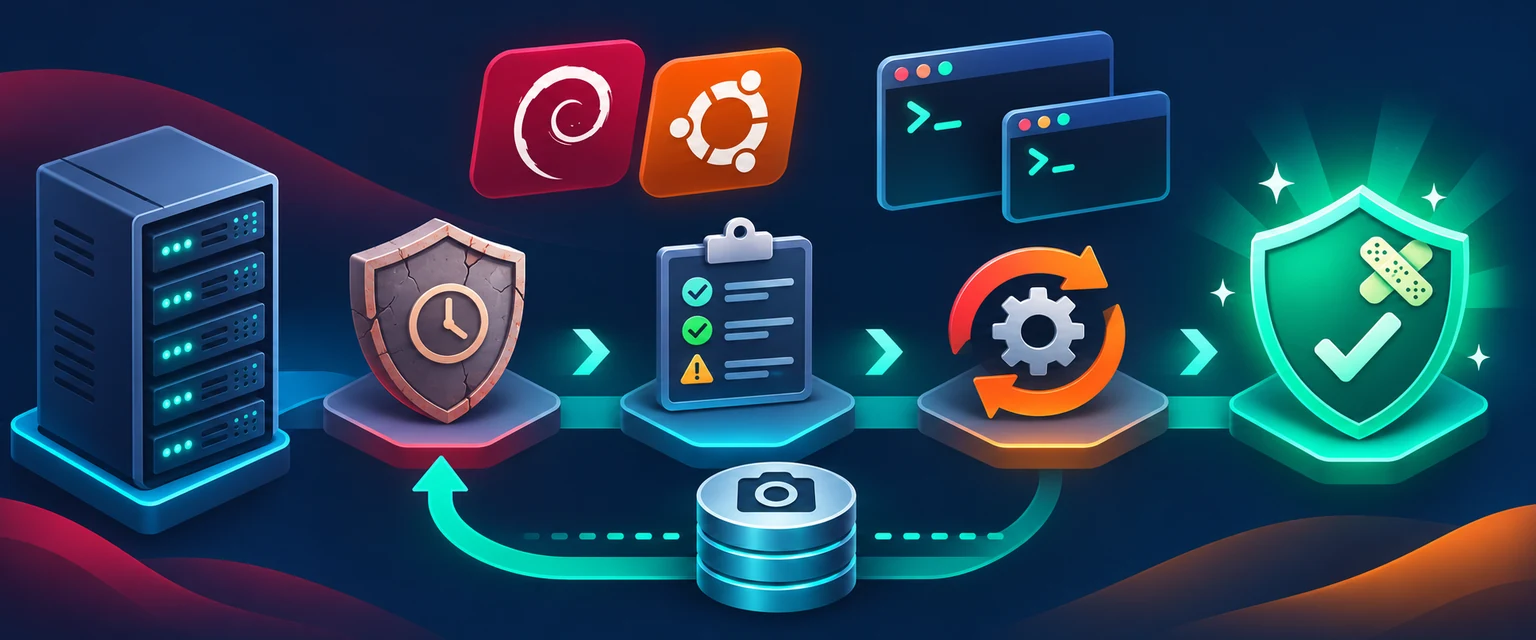
Replaced a force-dependency removal shortcut with Debian’s normal audit/repair path, added a dry-run and manual review before autoremove, and attached an original lifecycle-upgrade cover.
Originally published . About our editorial updates.